Tableau Tips and Tricks ● Story Telling ● Beautiful Data Visualizations
VizPainter: Tableau Tips and Tricks, Storytelling, and Data Visualization
Welcome!
I started blogging here in May 2014 to share Tableau tips and tricks. Things have really taken off since then! I continue to share tips and tricks and I still focus heavily on Tableau – the tool that allows me to have a seamless conversation with data, draw insight, ask questions, and get answers that sometimes initiate action and sometimes deeper questions.
Along the way I’ll also share some broader dataviz lessons and maybe a story or two – possibly some data storytelling and even some stories of my journey in the world of data and data visualization.
I recently came across this post that highlights the importance of seeing what isn’t in the data: http://blogs.hbr.org/2014/05/visualizing-zero-how-to-show-something-with-nothing/ In Tableau,
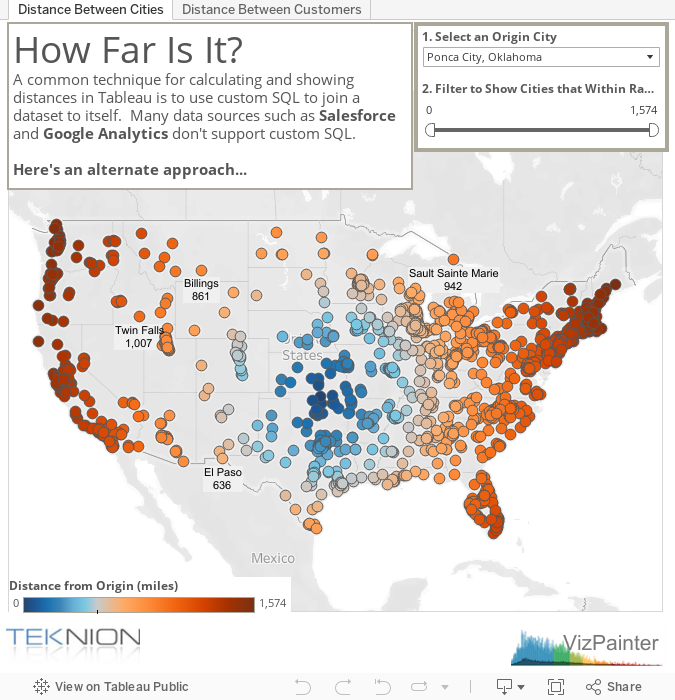
The Issue A common technique for calculating distances in Tableau is to use a custom SQL statement to join a
Tableau Prep Tackles Walmart Receipt Data
You can’t beat the convenience of online grocery shopping. Especially with four young children, I find it wonderful to pull into a spot, have everyone stay in the car, and collect all the groceries that are ready to go. But with four young children, the cost of groceries is not convenient. And so, as I started collecting the emailed receipts, I saw an opportunity – to turn Tableau Prep loose on the Walmart receipt data and get it in shape for Tableau to visualize and analyze and maybe even find some savings.
As a side-note, in the summer of 2003 I worked as an intern at Walmart Information Systems as part of a team that was developing the first generation of online ordering / grocery pickup for Walmart’s British retailer, ASDA . I wonder if any of the code I wrote still lives on…
Gathering the Data
Every time I pick up an order, Walmart emails me a receipt. It includes every item, substitutions, quantities, prices – a wealth of data. But not an easy format to analyze:
There are lots of options for how to capture data from email. I’ve used IFTTT in the past to capture email data in Google Sheets. I could just copy and paste. But since I’m using Outlook, I’ve got another option. Here’s what I did:
Create a rule to move all incoming receipt emails to a separate folder.
Use the Import / Export wizard to export the contents of the folder to a .csv file. Turns out the Body is the only useful field to map. But the body of the email contains all the data I’ll need.
I end up with one large file containing the body of every email receipt. The only problem is that it retains the line breaks from the email:
That’s a problem for now (as of Tableau Prep 2020.1.1) because I don’t have any way to work across rows of data. So as the quantity and price of the Great Value Buttery Whole Wheat Snack Crackers are all on separate lines, means I’ll have no way to associate them in Tableau Prep. (The Tableau Prep developers are working furiously on some solutions, but for now you can lend your voice to the priority of one possible feature here)
In the meantime, I have a work-around. If I can remove all the line breaks, I’ll have all the data on a single row and then I can split it up however I want. Turns out that’s an easy PowerShell script (and I’m sure it’s easy in Python or any other scripting language too!) In PowerShell, it’s one line:
Okay, technically that’s two. The first simply adds a header so Tableau Prep will understand that it’s a single column of data. The second line takes all the text in the .csv file and outputs it to a .txt file, sans line breaks. An optional third line (not shown) could actually run the flow to automate everything as much as possible.
With that, I’m ready to tackle the Walmart receipt data with Tableau Prep!
The Tableau Prep Flow that Tackles the Walmart Receipt Data
Here’s the Tableau Prep flow:
There’s complexity, but the overall approach is simple. Take the single line of text. Find the breaks between orders, split the string and pivot so that there is now a single row per order. Then find the breaks between items in the order, split the string and pivot so we end up with a record per item per order. Here are some highlights:
In the first clean step, I looked for a unique string or character that would separate individual orders. Turns out “We look forward to seeing you again” occurs only once per email and works great for separating the orders. However, Tableau Prep’s split feature only splits on a single character. So I first replace the nice message from Walmart with a single character that doesn’t occur elsewhere (vertical bar | works great in this case) and then the split feature gives me a separate field for each order.
I then Pivot all those orders to rows. I don’t need the Pivot Names field.
Once I have individual Orders, I take a moment to extract some Order Level Detail such as Tax, Total, and Promo Code Savings. Why doesn’t Outlook let me export the date of the email? I’ll never know. But fortunately the day and time is in the email body – along with the year of the copyright message.
Then I split the order string per item. Again, I look for a pattern that divides each order. In this case, I see that every item ends with a $#.## or $#.##/LB. But the amounts can vary. So, when I replace, I use a REGEX_REPLACE() function to insert the vertical bar after the final price:
REGEXP_REPLACE([Data Split], "(\$[0-9.\/LB]+[ \t]+\$[0-9.]+)", "$1|")
//I suspect I didn't get every pattern in the data because I ended up having to do another split in the flow. I probably could have caught them here and avoided a step or two.
I pivot each item to a row, again removing the unnecessary Pivot Names field.
I do the additional split to catch the items I missed splitting the first time and do another pivot.
Finally, I extract the data I want from each item – name, quantity, price whether it was a substitution, out of stock, or rejected by me. And I pickup a few order level items that I missed earlier, such as the order number.
And now, I can start to dive into the data and find the items that have increased in price over time, or that are great buys during certain seasons, or that are draining our bank account. I wonder if three-year-olds can be convinced with data…
The very first blog post I ever wrote demonstrated how to calculate distance between locations using a parameter and table calculations in Tableau. Back then, parameter values could only be changed via drop down or slider controls, they weren’t dynamic, and you could only reasonably set a single value per parameter. But Tableau has grown by leaps and bounds when it comes to geospatial functions. Parameter actions are a game changer in every way. Using them in combination makes for Tableau Awesomeness!
Tableau Parameter Actions are a Game Changer
Two capabilities of parameter actions specifically encourage creativity:
The ability to trigger an action from a view and have that action change the same view
The ability to append values to a parameter in such a way that you can capture a history of interaction (plus other data!)
Lindsey Poulter has been tweeting about many amazing things that can be accomplished with parameter actions (especially in combination with Viz Animations that are currently in beta) and she’s demonstrated the power of these capabilities. I leveraged the capabilities in Tableau Minesweeper (watch the 30 minute mark here to see some details of how it works). And I’ve been daydreaming about how I could have used this for Tic Tac Toe or Battleship and all the Tableau games yet to be made!
But I’ve also been excited to think through some practical use cases and the ability to dynamically draw flight paths and calculate distances based on user clicks has me excited! Armed with a data set from the Global Airport Database, I set out to make a dynamic tool to build flight paths…
Using Tableau Parameter Actions to Store Data
The ability to store and read a sequence of user input turns Tableau into a nearly full-fledged programming language! In this example, the basic idea is to use a parameter action to build an ever growing string of airport codes along with the latitude and longitude. There are 3 basic components to this technique:
The parameter to store the data
A calculated field to append new data to the existing parameter value
A parameter action to update the parameter with the calculated field value.
Here’s how it would work in an example view with 3 marks having separate values:
Prior to any user interaction, the 3 marks have separate values A, B, and C. The Parameter value is blank. The calculation returns separate values for each of the marks – a blank + “|” + the value for the specific mark. That calculated value represents a possible value to be stored based on which mark the user selects.
Let’s say the user selects B:
The calculated value, |B, is now stored in the parameter. The calculated value is updated for each of the marks, representing the next set of possible values to be stored in the parameter. But only the value for the next mark clicked will be stored. Let’s say that is mark C, causing the value |B|C to be stored in the parameter:
Now the calculation is showing the history of clicks (|B|C|) and the concatenated value for the next potential click. We can keep building the parameter string based on clicks until another parameter action clears the string or manipulates the value in some other way. And that gives us a foundation for this example:
Dynamically drawing flight paths with parameter actions and geospatial functions
Parameter – Flight Path Data: this is the parameter that will contain the ever growing string of data
Parameter Write – Flight Path Data: this is the calculated field that appends every marks data to the existing parameter value
The Parameter Action – which takes the value of Parameter Write – Flight Path Data for the mark clicked and stores it in Parameter – Flight Path Data
The code for the calculated field above starts with the existing parameter value and appends the data I want to store for the mark itself. That data is the unique Airport Code separated with a colon from the Latitude and Longitude (which are separated from each other with a comma) separated with another colon from the City and Country.
What that gives me is a pattern that I can leverage to extract the data I want. The pattern, for two iterations of clicks, looks like this:
|Airport Code:Lat,Lon:City, State|Airport Code:Lat,Lon:City, State
With that, I can use a wide range of string functions to extract exactly the data I want:
MID() and FIND() can be used to locate the data associated with an airport mark (along with the subsequent data appended)
SPLIT() can be used to separate each full set of data (with the | delimiter), and various levels within that (using the : and , delimiters)
Alternately, I could leverage the power of Regular Expressions (though I didn’t in this example)
With the data I need, I can use some of the relatively new geospatial functions in Tableau to turn successive points into flight paths:
MAKEPOINT() takes the latitude and longitude and transforms them into a geospatial point
MAKELINE() take a point and the next on the itinerary and draws an arc between the two.
DISTANCE() which is not included in the Tableau Public version as it is only available in the Tableau 2020.1 beta, allows me to easily calculate the distance between two points and to specify the unit of measurement.
And here is the result:
Tableau Minesweeper!
It’s here! The fully playable Tableau Minesweeper Game. Designed in pure Tableau… no JavaScript, no API, no extensions, no R or Python. I love those things and they are awesome. But this was created using the native features of Tableau with data shaped by Tableau Prep and hosted on Tableau Public.
Want to know how I made it? Check out the recording of my TC19 session here (Tableau Minesweeper starts around the 30 minute mark):
And here it is, on Tableau Public (and available for download!): Tableau Minesweeper
Tableau Trek: Exploring and Using New Features of Tableau and Tableau Prep at #DATA19!
When I was young I used to watch reruns of the original Star Trek. But I didn’t know they were reruns. To me it was all new! Every week a new alien to find a new civilization to explore a new technology to discover. Exploring new features of Tableau and Tableau Prep makes me feel the same sense of excitement wonder. And in my session at #Data19 I was able to share that experience with others and explore new features like Viz Animations!
Minesweeper Tableau Workbook (coming to Tableau Public soon!)
YouTube video of the session (see below):
Tableau Prep Tackles Nest Thermostat Data
Last year, I went home from the Teknion Christmas party with a shiny, new Nest Learning Thermostat. Sure, I was excited about the potential energy savings but being the data geek I am, I was more excited about the idea that I could capture tons of Nest thermostat data and then visualize it in Tableau! So for the past year, after figuring out how, I’ve been collecting lots and lots of data.
Collecting Nest Thermostat Data in Google Sheets
Nest makes some of the data available via weekly reports – but it’s nowhere near as detailed as I’d like. I mean, I want minute-by-minute snapshots of inside/oustide temperature, humidity, is my AC or Heater running, etc… Fortunately, Nest has an API that you can use to get at the detail data. It took some digging, but I found a GitHub project where Michael Pesce leveraged some work by Beezly — all focused on automating the pull of Nest data into a Google Sheet document.
As Michael notes, there is a limit to how many rows of data a single Google Sheet document will allow and storing a record every few minutes will quickly hit that limit. His solution was to continually update certain variables, add together others, average others and just keep one record per day. But I really wanted the minute-by-minute Nest thermostat data.
My solution was to modify the script (download my modified version here) to still keep one record per day, but to concatenate values together with time stamps all in one exceedingly long string (per measure) where just two entries might look like:
|34.66@Tue Feb 19 2019 22:42:10 GMT-0600 (CST)|34.66@Tue Feb 19 2019 23:02:10 GMT-0600 (CST)
I set the script to automatically run every minute (see instructions in the script comments). So, by the end of the day, I’ll have a bunch of really, really long strings. By the end of the year I have a bunch of records with a bunch of really, really long strings.
I know – it’s a horrible data structure. But I have a tool takes horrible data structures and turns them into gold.
Tableau Prep for the gold!
All of the Nest thermostat data I capture via the script is in a Google Sheet, which I have to download can be connected to directly with Tableau Prep 2019.4 (currently in beta)! The Tableau Flow itself looks a bit complex, but it’s mostly just the same steps duplicated for each measure:
Each piece, like Inside Temps is primarily splitting the really, really long string:
then pivoting so that all those measurements and times are together in a single column:
And then doing some additional splitting out of the measure from the timestamp, parsing the date and time, and changing data types:
The same pattern is reused for each metric – good thing Tableau Prep has copy and paste of steps! When all measures are done, we can union them together:
The union results in a single table with a column for each measure, but they are split out across different rows, so only one measure has a value on any given row and the rest are NULLs. We can collapse the rows with an Aggregate the groups on the timestamp and takes a MIN (or MAX) of each measure:
The script also captured the overall weather for each day (cloudy, sunny, rainy, thunderstorms, snow, etc…) and so I join that in at the day level. There’s no end to what I can do with the Nest thermostat data in Tableau now that I’ve captured it and cleaned it up with Tableau Prep:
Dynamic Parameters in Tableau
Dynamic Parameters in Tableau is one of the most requested features of all time. Tableau’s developers have tackled individual use cases for dynamic parameters and delivered some incredible features (e.g. cross database filtering, data highlighters) to meet specific goals. However, there has not been a way to have a parameter containing a list of dimension values, that updates dynamically with the data…
…until now.
Before the reveal…
First a definition: when I refer to a dynamic parameter in Tableau, I’m specifically talking about a parameter with a list of possible values that change as the data changes (is updated, refreshed, or is filtered). And second, a bit of a disclaimer: there are quite a few pieces to creating these dynamic parameters in Tableau. It’s part hack, part work-around, and nowhere near as easy or clean as I’d like. And it only works as part of a dashboard. But it will work in cases where there is currently no other good solution. With that, let’s take a look at dynamic parameters in Tableau.
Creating your own dynamic parameters in Tableau
Yes, you’ll have to build your own… But all the pieces are finally available!
“NO! No, this one goes here, THAT one goes there…”
In addition to Tableau 2019.2 or later (which allows for parameter actions – the secret ingredient that makes it all possible), you’ll also need:
1. A parameter of the correct data type with All values allowed. Don’t pre-populate it with a list of values based on the dimension you want to use. The whole point is that you don’t necessarily know what values will or won’t be available as the data changes.
2. Another parameter called Show / Hide which is an integer restricted to either 0 or 1. We’ll use this in a bit.
3. A data source (in addition to the one(s) you already have) that consists of nothing more than rows of values 1 through 10. Technically, it doesn’t have to be 1 through 10, but it makes me happy.
4. A Show view that displays the current value of the parameter and will be used to trigger an action on a dashboard that will cause the currently applicable values to be displayed (more on that in a bit)
Using the Incrementing Data source build the view above. Show is a calculated dimension hard-coded to 1. Next Value is a calculated field with the logic:
IF [Value] == 10 THEN 1 ELSE [Value] + 1 END
Selected City is the parameter value, placed on Text. But the Color has been set to be completely transparent, so the text won’t show unless it’s selected.
We’ll add the action in a bit…
5. A view that shows all the applicable values:
The view is based on one of your data sets, the one that has the dimension you want to define the values of the parameter. Place that dimension on rows.
Hide is a calculated field hard-coded to 0 and is placed in the detail so it is available to trigger an action we’ll soon define.
Show / Hide == 1 is a calculation that shows the view when the Show / Hide parameter contains a 1 value (indicating “show”) and filters the view when the parameter contains a 0 value (indicating “hide”)
You may additionally filter or implement any logic you want to adjust the list of values to change as the data does.
6. A transparent image to simulate a drop-down list. Here’s what I used:
Putting it all together on a dashboard to complete your dynamic parameter in Tableau
Time to put all the ingredients together
We’ll put everything together in a dashboard. Here’s a very rough example that shows how it might work:
Here are the pieces:
And here’s how it works. The transparent Show view sits on top of the transparent image which allows you to see the actual real parameter on the bottom. When you click, you’ll click the Show view which does several things:
Reveals the text of the selection, which is the parameter value. This prevents the selection from hiding the value
Triggers a change in parameter value to Show / Hide which causes the list of values to be seen
Triggers a self-filter action so the selection will be cleared when a city is selected (that concept is a whole other blog post here)
Once the “drop-down” selection list is shown, you can make a selection. That selection does a few things:
Triggers a change of parameter value to the value of the dimension in the row selected. (That updates the views, changes calculations, whatever you wanted to do with the parameter!)
Triggers a change of the Show / Hide parameter causing the “drop-down” list to collapse as soon as the selection is made.
And there you have it: dynamic parameters in Tableau! Is it perfect? No way. But can it work in some circumstances when you really need it. You bet! Bon Appétit
Spatial Joins in Tableau with Excel, Text, Anything
How can you join your non-spatial data to spatial data? Using the latest spatial functions, you can achieve spatial joins in Tableau with almost any data source.
I recently had a text file containing individual addresses along with latitude and longitude and requirements for a project that required matching those addresses to congressional districts. While there might be lots of approaches to solving the problem of joining non-spatial data to spatial data, the fact that it can be solved with a spatial join in Tableau never occurred to me! Until I saw this exchange on Twitter:
Spatial functions and spatial joins in Tableau
Tableau has continued to add spatial capabilities and over the last few versions has enabled connections to spatial files, made it possible to use spatial joins, and then in the most recent version the functions MakePoint() and MakeLine() were added. I mentioned them here and knew they would provide a good alternative to what I described here, but using them for spatial joins in Tableau? Oh! That is a great idea!
And so I decided to prove out my particular use cases (looking up a congressional district based on latitudes/longitudes in a text file). But you might have all kinds of similar cases:
Lookup custom sales territories or trade areas for stores or customers
Lookup any custom geographic or spatial area based on latitude or longitude in your Excel or text file
Finding Congressional District based on Latitude and Longitude
My particular use case was to find out which congressional district contained a given point based on latitude and longitude (well, actually, more specifically it was to find the congressional district based on an address – but there are lots of ways to get latitude and longitude from an address). To illustrate, let’s say you had a text file containing a list of national parks with the latitude and longitude and you wanted to know which congressional district they were in:
There might be a dozen different ways to solve this problem from brute force manually looking up each park to finding some kind of API, but what if you could take your text file and use spatial joins in Tableau to lookup the congressional district?
Cross database spatial join in Tableau
The ability to join disparate data sources has been around in Tableau for quite a while. If I wanted to join my SQL Server database tables to Excel files and then to an Oracle database, I could do it. The ability to spatially join data came more recently and as long as I had two data sources with spatial fields, I could join using INTERSECTS and end up with related data.
But if one of my sources didn’t have any spatial fields, I was stuck with a traditional join on some kind of key field. But Tableau 2019.2 changes that with two new spatial functions: MakePoint() and MakeLine(). Specifically, MakePoint() allows me to take pairs of latitude and longitude and turn them into a spatial point. Now I can use that as a join calculation to join to other spatial data.
Here for example, I’ve created a cross database join that joins my National Parks text file to a Congressional Districts shape file (which is available for download):
You’ll notice that the spatial join includes the join calculation MakePoint([Lat], [Lon]) for the text file where it Intersects with the geometry from the shape file. I’ve used a full outer join to make sure I have all parks and all congressional districts (even if they don’t have parks).
Voilà! I now have all the national parks associated with a congressional district:
Now I can write my representative to encourage them to take care of the park in their district!
Python strikes again! More Python scripts for Tableau Prep
I wrote previously about some very simple, but useful, Python scripts for Tableau Prep (and start with that post to see how the scripts are called). There have been some others, such as Tom Christian, who have explored some other exciting use cases of Python scripts for Tableau Prep, such as using a python script as a data source for stock data. I’m not quite there yet (same disclaimer on being a Python scripting newbie and same request for corrections and advise in comments), but I had a few other useful Python scripts to share such as Title Case, filling down, and counting business days between two dates…
Fill Down Missing Values
If you’ve ever had data like this:
Wouldn’t it be nice to “Fill Down” the date from one row to the next?
or any case where a value appears on one row and then applies to subsequent rows, then you’ve wished for the ability to pull that value down into the following rows (often referred to as Fill Down). In Tableau, assuming you can order the rows and you only care about the final view, you might consider using a table calculation such as PreviousValue() or Lookup(). But table calculations aren’t available in Tableau Prep, yet (though I’m hoping!)
For now, Python scripts for Tableau Prep give us a possibility to fill in the data. In fact, it’s a very simple script because there is a fillna() method built-in to the dataframe object:
The function simply replaces the value of the Date field with the filled in values. You have various options for how to fill. Here I chose ffill (forward fill), but you could even work backwards if your data required.
A Python Script for Tableau Prep that converts a string to Title Case
Now we get a bit more complex in our Python scripting.
Pythons sometimes exhibit Title Case characteristics. But that’s not larger letters in the middle of the snake…
Here’s a script to convert a string to Title Case in Tableau Prep. There are actually two functions. The first is ToTitleCase(), which is the Python function I will call from Tableau Prep:
This function sets the value of the field String to the results of applying the function TitleCase(). This makes use of a lambda function, allowing me to apply the following custom function:
def TitleCase(x):
import re
exceptions = ['a', 'an', 'the', 'at', 'by', 'for', 'in', 'of', 'on',
'to', 'up', 'and', 'as', 'but', 'or', 'nor']
if x.String is None:
return None
word_list = re.split(' ', x.String)
capitalized_title = [word_list[0].capitalize()]
for word in word_list[1:]:
capitalized_title.append(word if word in exceptions else word.capitalize())
return ' '.join(capitalized_title)
This piece of Python script imports the regular expressions module and uses that to step through each word, capitalizing it as long as it isn’t an exception. The results are what we want!
A Python Script for Tableau Prep that gets number of Business Days between two dates
One relatively common request I see on the Tableau forums is a way to emulate Excel’s NETWORKDAYS function to get the number of business days between two dates – excluding weekends and holidays. Tableau / Tableau Prep doesn’t have a built-in function, but you can use Python scripts!
Pythons don’t often celebrate holidays in the wild, but it has been observed
The python script for determining holidays also consists of two functions. The first is GetBusinessDays(), is called from Tableau Prep (with fields named/renamed Date1, Date2, and BusinessDays in the flow prior to the script):
This function sets the value of the field BusinessDays to the results of applying the function BusinessDays(). This also makes use of a lambda function, allowing me to apply the following custom function:
def BusinessDays(x):
import numpy as np
import datetime
date1 = datetime.datetime.strptime(x.Date1, '%Y-%m-%dZ')
date2 = datetime.datetime.strptime(x.Date2, '%Y-%m-%dZ')
start = datetime.date(date1.year, date1.month, date1.day)
end = datetime.date(date2.year, date2.month, date2.day)
days = np.busday_count(start, end)
return days
This function uses the numpy module’s method busday_count to return the number of business days between Date1 and Date2.
Note: there’s a bit of extra fiddling with trying to cast the date and stripping out the time component that may not be necessary in the future. There is a bug in the current beta version where dates from Tableau prep come through as UTC but get converted to local time by the Python script. The code above should be even simpler when release comes!
I’ve barely scratched the surface of the power Python (and R) bring to Tableau. Statistical models, predictive analytics, importing previously untouchable data… the possibilities are staggering!
Thoughts, questions, complaints? Leave a comment! I’d love to hear form you!
Python in Tableau Prep: simple useful scripts
Tableau Prep Builder 2019.3 is currently in beta and I’m loving it! (along with all the other goodies: Tableau Desktop, Tableau Server, Tableau Catalog, Project McKinley). One of the coolest new features is the ability to use Python in Tableau Prep, giving you the ability to transform your data with Python Scripts. (and for those of you who love R, you can use it too!)
My goal in this post, is not to describe how to install Python, or TabPy (the Tableau Python engine) or how to use PIP to install the Pandas module — all of that documentation is available when you join the beta program and I’m sure will be available when the production version lands. Instead, I wanted to share some of the scripts I’ve created to fill in some gaps that Tableau Prep currently has (after all, it’s less than 1.5 years old). I’m sure some of the capabilities I’ve created with Python scripts will be built into Tableau Prep and available via a single click or two. But for now, Python gives me a way to overcome some of the more complex challenges I have faced with my data…
Here we see the Python in its natural environment. It approaches the data, ready to shape it according to its will…
Prolegomena (what needs to be said first)
I’m not a Python expert. In fact, I’m just a beginner and learner. When I started testing the beta, I didn’t know what pandas was or how a dataframe worked and had only written one or two very simple scripts in Python, ever. In fact, most of the scripts I’m about to share are very simple. To me, that’s good news, because if I can accomplish some really useful things with simple scripts, then others (and me, as I grow and learn) will be able to do amazing things with more complex scripts.
Having said that, you may see some things I’ve done wrong or that could be done better. Please share any thoughts you have in the comments!
My first encounter with the Python was a bit rough. I knew it was powerful, but I had no clue how to approach it.
How Python in Tableau Prep Works
Starting with Tableau 2019.3, you’ll be able to add a Script step from any step in the flow:
Selecting the Script step, allows you to configure the step, connect to TabPy or Rserve (if you want to use R scripts instead) and then browse to a script file you have created containing the function you want to call (which you specify under Function Name)
You can also define a getOutputSchema function if the output will contain different columns / data types than the input. None of the scripts in this post use this option.
The function you call takes in a dataframe as an argument, which is an object containing the table of rows and columns that come into the Script step and returns a dataframe containing the rows and columns that are returned.
And with that, let’s turn our attention to some examples of useful scripts:
Adding Row Number / Index to the Data
The ability to assign a unique, sequential value to rows in the data set has innumerable uses and sometimes a row number encodes data about the record that you need.
In fact, being able to number rows or add an index would be so useful, I’ve requested (and you can vote for) the idea of having it be a built-in part of Tableau Prep. But in the meantime, Python gives us a way to approach the problem.
Python Indexing
The script is very simple:
What it does is to apply an index to the column Index. That of course requires such a column in the data – and it must be an integer. I can simply add the field as a calculation in a previous step, using code like 0 or INT(NULL) to give me a numeric field. It doesn’t matter what the value is, I’ll overwrite it with the Python script.
Note: in every case I tested (which wasn’t many), the index matched the order of rows from the file. But I’m very much aware that most databases don’t guarantee an order and I’m not 100% sure files read into Tableau Prep data flows come with any guarantee either. You should be able to control grouping and sorting using the applicable methods for the dataframe object.
Rank
I’ve previously written about Ranking in Tableau Prep with a workaround that is usable in some cases – but is somewhat limited. The previously mentioned idea would allow for it too. But with Python, you have a rank() method built right into the dataframe object.
Here’s the script:
As I’ve defined the function, it requires the data set to have a Rank field and a ToRank field – both integers. So in a previous Tableau Prep step I’ll create a Rank field with a hardcoded value and create a calculation of ToRank duplicates a field of values I want to use for the ranking.
In this case I decided to use the min method which treats all ties as the lowest rank
In the wild, Pythons determine rank by which can swallow which
TopN Filter
You could potentially create a TopN filter with an index or rank of a unique field, but as Python gives you a method – nlargest() – made specifically to return the largest rows, why not use it?
The function I created looks like:
The first argument is the numeric value for N. But I wanted to dynamically adjust how many rows to return in the Tableau Prep flow. So I defined a field where the max value determines the number of rows. If I define the TopN field as a calculation with the value 5, for example, I’ll get the top 5 rows.
The other field is TopN Value which references the values to compare. In this case, I simply duplicated the field I wanted to use and renamed it to TopN Value.
More to come!
This post is just the first. I’ve got a few more scripts to share featuring Python in Tableau Prep. They get a bit more complex, but enable all kinds of useful possibilities – converting text to Title Case, determining the number of business days or holidays between dates, filling in sparse data…. There’s no end to what can be done!
Parameter Actions in Tableau 2019.2 Sneak Peek
Tableau 2019.2 is currently in its second beta* which means it is getting closer and closer to release! And I’m excited – there are so many incredible new features: Vector maps are stunning! Show/Hide dashboard containers open up all kinds of new possibilities for UI in dashboard design. New spatial calculations such as MakeLine() and MakePoint() solve some challenges that required some data manipulation before. And then there are the little things that make a big difference like the ability to single-click replace a sheet in a dashboard and customize reference line tool-tips. But the one I cannot wait for is Parameter Actions!
*As it is beta, please note that anything can change and the final release may not look or work exactly as shown here.
Creating Parameter Actions
Parameter actions are incredibly easy to create! As an example, I’ll take this simple time series of sales over time:
My goal is to allow the user to select any point on the line and then highlight any points that are higher. First, I’ll create a parameter:
This parameter, named Sales Value, will capture a sales value when the user selects a point on the line chart. I’ll use it to compare other Sales on the timeline and highlight any that are greater.
Parameter actions can be created for individual sheets or dashboards. Here, I’m just going to work within this sheet, so I’ll select Worksheet > Actions from the menu. I’ll then add a parameter action in the dialog:
As with other action types, I’ll have options for how the user triggers the action (hovering over a mark, selecting it, or from a context menu). Then I’ll set the target parameter and which field in the view defines the value to store in the parameter (I’ll have to ensure data types match). If the field is a standard aggregation (e.g. SUM, MIN, MAX, AVG), then I can also change the aggregation used:
Now, I can use the parameter in all the ways I could use parameters before: to set the Top N or Bottom N of a filter or set, to change the size of bins, to set the value of reference lines, and in calculations for all kinds of dynamic results! All the dynamic interactivity you could achieve before is possible – but now, you can trigger it from interactivity with the visualization itself!
Here the hover action sets the value of the parameter to the SUM(Sales). An ad-hoc calculation compares each mark’s SUM(Sales) to the parameter value and colors a circle mark yellow if it is higher (the circle is white, blending into the background, otherwise)
What can you do with Parameter Actions?
The sky is the limit! Really!
The above example is fairly simplistic – but parameter actions allow you to do so much that was difficult or impossible previously. The analytical possibilities are endless; the practical challenges that can be overcome are now within reach; the creativity of designers and analyst that will be unleashed will shock even the developers who created the feature!
Here are some thoughts:
Allow the user to select a value in a visualization that will be the baseline for comparisons of all other values (what percent did your investment grow from X date?)
Allow the user to dynamically change a SQL query in a live connection by clicking on a bar in a bar chart! (alarm bells just started ringing, but used responsibly, this could be awesome!)
Leverage the Extensions API’s ability to easily read parameter values combined with new ways of setting those values for an amazing UX experience!
Allow the user to dynamically change a view as they interact with it. Yes, you could do it with set-actions and a few other work-arounds before. But now the possibilities are endless. Have you ever wanted drill-down in the same viz or to allow dynamic filtering. Imagine the level of engagement within a single viz that you can now achieve!
In fact, that final bullet point, combined with a few other features and techniques, gave me an idea… Something I’ve wanted to do for a while, but couldn’t quite achieve…
…but now I can!
I’m just going to leave this here:
Yes, that is fully playable minesweeper in a Tableau viz! Made possible with parameter actions in Tableau 2019.2. No JavaScript, no APIs – it’s pure Tableau!
Using Tableau Prep to track account balance history from Mint
I personally use Mint to track my personal finances (I’m not officially endorsing, but it does help me get the data!) I use Tableau Prep when I have messy data that I need to clean and structure. That gave me an idea: I can use Tableau Prep to track account balance history! (and much more, but that’s another post…)
Now you may not use Mint. But if you’ve ever tried to parse data copied from a website, you know that it can sometimes be challenging. I thought I’d share this example to help spark some ideas about how unstructured data can be tackled using Tableau Prep!
Account Balance History in Mint
After I’ve synced all my accounts in Mint, I can see them in an Overview, like this:
The data are made up, but the problems are real!
The left panel gives me a breakdown of accounts by type (Cash, Credit, Investment, Property) and then individual accounts and current balances for each type. The rest of the page is taken up with various sections such as upcoming bills (yuck), suggested offers, an updated credit score, and even some charts and graphs (but I want to make my own in Tableau so I can make my own discoveries!)
Now Mint does allow me to export every transaction for every account (if it has a record of it) and that’s an exciting data set for another day. (And I’m not the first to notice this rich data set – Mike Nealey wrote about using parsing it with Alteryx here)
But when it comes to account balances, I just get to see the current balance for the day and don’t get to see or export account balance history from Mint (though, that would be a great feature…)
So, I have my own process. It’s a couple of manual steps, but I’ve built a rich data set with it that helps me make sure I’m on track with financial goals.
Exporting Account Balance History from Mint
Here’s my process to export account balance history from Mint:
On the Overview tab of the Mint home screen press Ctrl + a to select all the text on the page. Yes, this gets menus, advertisements, copyright messages, and more. I don’t care!
In Notepad (or whatever text editor you fell like), paste the text.
Save the file with the date as the name. I like to use the format YYYY-MM-DD.txt as it keeps the files in order in the directory listing and is easily parsed in Tableau Prep (which we’ll see in a moment).
Now I said I was exporting the account balance history. Okay, not really – it’s just the current account balances for the day. So I have to do this periodically. If I’m obsessive, I might do it daily. But if I miss a few days or weeks, it won’t really matter because I can still build up a very impressive history of account balances.
The “Account Balance” File
Here’s what the text file looks like:
It’s got my accounts and account balances (highlighted) along with a lot of other junk. But I’m not going to worry about cleaning anything here. I’m just going to leave it as is and start collecting similar files every so often. I’ll pile them up in a directory and then unleash the power of Tableau Prep to get the data I want.
Using Tableau Prep with Unstructured Data
All data has some structure – but this is far from the rows and columns you’d expect from a database or spreadsheet. Working with this data in Tableau Prep really shows off Tableau Prep’s ability to give you a flow of thought as you tackle some unique challenges. By the way, this is a one-time setup. My goal is to design something that I don’t have to change as I collect data.
The Date of the Snapshot
I’ll start with a wild-card union to all the files so I can get the full account history from Mint snapshots.
That also gives me a File Paths field which I can leverage to get the snapshot date:
Just click the ABC to change it from a string to date and then change the name of the field.
Removing Junk Records
Now, start working on the rest of the data in the file. It appears in a single field (as there are no tabs or any other delimiters Tableau Prep detected to break up the fields):
It’s a record for each line of the text file. I see some of the accounts and account balances there, but there’s a lot of the junk too. I can eliminate the junk fairly quickly. One thing I noticed just by looking at the text file above and the highlighted rows I want to keep: they all start with either a dollar sign ($) or a negative sign (-)
Actually, some lines start with spaces. So, the first thing I’ll do is select the Options button on the field and then Clean > Trim Spaces. Then, I can filter to keep only records that start with the character I want:
That gets rid of a lot of the junk right off. There are still some lines that started with one of those characters that are not one of my accounts:
I now have some options to consider:
I could manually select what I want to keep or exclude. But as new data is acquired, the values will change and this manual selection won’t be valid anymore.
I could try to extract the numeric parts of the field with REGEX or some clean options. But as I look closer there are some accounts that have numeric portions too (e.g. 529 and 401K)
The one thing that does stand out as helping me identify records I want to keep is that all of the account fields contain a decimal while most of the others don’t. So, I can create another filter to keep only those records:
CONTAINS(F1, “.”)
Separating the Balance from Account Name
At this point, I’ll split out the values from the remaining text. Most of that will be the account name. And where it’s not, I can filter. I’ll do this with a couple of calculated fields.
Account Balance MID([F1], 0, FIND(F1, “.”) + 2)
Not only did the decimal point tell me which fields were useful, it also helps me split the string. Starting from the left (0) and going to the position of the decimal + 2, I’ll get the amount. (I’ll also get a $ symbol, but I can use the REPLACE() function to get rid of that.)
Account Name MID([F1], FIND(F1, “.”) + 3)
In this case, we’ll start after the decimal places to pick up the account name (hence the + 3 as the starting position with no ending position specified).
Now, it’s easy to locate the Account Names which aren’t really accounts and exclude those from the data set:
Not only are they excluded, they won’t ever show up again. If I’d excluded them from field F1, then the next snapshot would have different values (hopefully Debts is going down and Assets is going up!) and the filter wouldn’t be set for those specific values. But now ASSETS, DEBTS, and NET WORTH will always be gone from the data set no matter what balance they have.
With a bit of cleanup, I can also
Make Account Balance numeric
Remove the F1 field
Finally, I’ll extend the data set a bit more by grouping the account names into account types.
Grouping the Accounts into Account Types
I’ll start by creating a calculated field called Account Type which is just a copy of Account Name:
I’ll do this because I want to group the names into types, but Tableau Prep will do that within a single field and I want to retain the names and build out a hierarchy, like this:
And with that, I have a nice data set containing my account history from Mint and can start exploring in Tableau!
State of the Unions in Tableau Prep: MINUS, EXCEPT and INTERSECT
Recently I gave a “State of the Unions” address for Tableau’s Think Data Thursday (the recording is here) in which I discussed new features for unions in Tableau Prep and Tableau Desktop. One thing I didn’t cover, but has subsequently come up is the question “What about INTERSECT and MINUS or EXCEPT Unions”? Can we achieve these types of unions in Tableau Prep? Can we do anything other than a UNION ALL? Yes! Yes, we can!
Unions in Tableau Prep
In Tableau Prep, both the Union Step itself and also the Input Step using a wildcard union are going to function as a UNION ALL. That is, all records from all tables will be included in the results. However, many databases support logic beyond this kind of union:
UNION keeps only one copy of each unique record. That is, if records in the resulting set are exactly identical, only one copy is kept.
INTERSECT unions return records that exist in both tables
MINUS unions (sometimes also called EXCEPT) keep records that are only present in the first table. That is, if a record exists in both tables or only in the second, it is not retained in the resulting set.
Now, if your data source is a relational database such as Oracle, SQL Server, MySQL, or Snowflake that supports a Custom SQL Input step, then you could write your own SQL to perform UNION, INTERSECT or MINUS / EXCEPT unions in Tableau Prep.
But what if you are using a data source that doesn’t support the logic? Or you need to implement it somewhere in the flow other than the input?
Don’t worry! Tableau Prep has you covered! It has all the foundational tools to allow you to implement all kinds of data shaping logic!
UNION in Tableau Prep
If you want to achieve a UNION (as opposed to UNION ALL) that eliminates duplicate records, then you can simply use a Union Step and then something like what’s described in this post.
But what if you want to achieve and INTERSECT or MINUS/EXCEPT union? We’ll walk through some possibilities using this sample data:
Products in Inventory
Products On Order
The Inventory table contains all products in the inventory while the On Order table contains all the products that have been ordered. It is possible for there to be overlap at times, such as is highlighted above. This may be legitimate or possibly due to a system synchronization issue. It may be necessary to evaluate all products that are inventory but not on order or all products that are both on order and in inventory.
INTERSECT unions in Tableau Prep
If you want to get an INTERSECT (rows that exactly match between the tables), then you’ve got some options. You could simply join the rows together with a join condition that matches all fields (or at least all fields that you consider a unique record). The danger is that if you end up with a many to many match you could duplicate records without meaning to and maybe even without realizing.
So instead, you could use a flow like this:
Tableau Prep generates the Table Names field from the Union and you can do a distinct count on that, grouped by all other fields, to determine how many tables that exact row came from. You can see the desired results in the highlighting of the profile pane.
In the next step, you can eliminate everything that only came from one table:
Intersect unions in Tableau Prep? No problem!
MINUS unions in Tableau Prep (EXCEPT Union)
For a MINUS Union (where rows only from the inventory table that are not contained in the on order table), you could do something similar:
After unioning together the two tables, we’ve added a step to create a copy of the Table Names field. That’s because we’ll want to aggregate it in two different ways (As a side-note, I’d love to see Tableau Prep allow me to use a field more than once in an aggregate step, so duplicating it in a previous step wasn’t necessary. If you agree, consider voting for this idea!)
In the aggregate step, we’ll get the minimum and maximum table names per all values of all fields in the record and then only kept records where the min and max table is Inventory (i.e. those records were not in the On Order table).
I am so excited to head to NOLA for #TC18! Tableau always puts on an amazing conference and I cannot wait to be there, see everyone in person, see #DevsOnStage, #IronViz, and all the amazing keynotes. If you’re there too, let me know! I’d love to see you!
Here are a few of the things I’ll be doing:
I’m honored to be a Zen Master again this year! I’ll be in the Community section of the Data Village where you can meet me and other Zen Masters! I’ll definitely be there Tuesday from 10:30 to 11:30 – but likely other times too!
I’ll be spending a lot of time at the Teknion Data Solutions booth #414. In fact, nearly every hour on the 50 minute mark, I’ll be giving a 10 minute TekTalk with Alteryx ACE Deanna Sanchez about Data Prep.
I’ll be playing doctor again! I get to put on the white coat of a Tableau Doctor and work with wonderful Tableau Customers to help solve their issues and answer their questions! (This is actually my favorite thing to do!)
I’ll be presenting a breakout session! This year it’s all about data dragons! And I’ll blog about it with the content in the near future.
I’ll be on the edge of my seat during #DevsOnStage!
I’ll be soaking in all the amazing things people in the community are doing!
I’ll be meeting old friends and making new ones!
I can’t wait! See you there!
Exploring DataRobot predictions using Tableau and Tableau Prep
I’ve been hearing about DataRobot for a while now (in fact, Teknion Data Solutions, where I’ve been a consultant for nearly 15 years, recently became a DataRobot partner) but I hadn’t had the chance to be involved in actually using DataRobot…
…until now!And in conjunction with my colleague and fellow Tableau Zen Master, Bridget Cogley, I was able to leverage Tableau’s visual analytics and Tableau Prep’s visual data transformation to begin to understand a bit of how DataRobot generates predictions and how the data impacts those predictions. And I’ve started to peel back the layers of automated machine learning and artificial intelligence. It’s not a magic black box! There’s a science and an art that can be, and should be, seen and understood.
(And, if you want to see all of this come together, from building the predictive models in DataRobot to exploring the predictions, reasons, and features, to an actionable – and beautiful – Tableau dashboard, join the webinar on Wednesday at 1pm Eastern)
Training Data, Scored Data, and Features
DataRobot takes two kinds of data sets: a training data set and a data set to score. The training data set is often historical data – where the outcome has occurred and is known. The data to score is usually current data where the outcome has not yet happened and we want to know the probability that it will. Both data sets are nearly identical in structure, except the data set to score does not contain any result. DataRobot allows you to then build and select predictive model(s) based on the training data set that will be used to score the “to-be-scored” data sets. The final output of feeding a “to-be-scored” data set through the model is a data set with a probability score, prediction, and various “Reasons” for why the probability was assigned.
It’s tempting to give the end-user of your Tableau dashboard a list of predictions and ask them to implicitly trust them without context or reason – but that’s neither fair nor realistic. Knowing this, I watched my first demo of Data Robot demo specifically looking for insights that I would be able to communicate to end-users of Tableau dashboards. I wanted to be able to communicate some context, explain why the predictions were made, what were the reasons, indications or even contraindications for a given prediction.
And so, when I saw the Features ranked in DataRobot, I instantly recognized something that might communicate well to end-users looking for explanations and context:
The Features are actually columns in the training data set; the values of which offer weight toward a prediction score. Based on the model you select in DataRobot, you can see the relative importance of the features towards the final prediction and probability score.
This is exactly the kind of context that would be useful to an end-user to understand what potentially drives predictions and to help them gain trust in the predictions. And with the ability of DataRobot to export the features to a .csv, I knew there was a lot of potential for enriching the data in Tableau!
Restructuring the DataRobot data with Tableau Prep
The first step was to bring together various aspects of the data and restructure it in a way where I could more deeply explore it in Tableau. While I could have used any number of tools (one of my colleagues used Alteryx, for example, to automate running the DataRobot model), I chose to use Tableau Prep! Here’s what my flow looks like:
My goals was to take both the training data and the scored data and bring them together into a single data set. I accomplished this with a Union. The resulting data is still a single record per patient. Now I just have a mix of historical (training) and predicted (scored) records.
I cleaned up a few things (for example, the features are just the columns from the data sets – but these didn’t have very user-friendly names – so I fixed that) and then restructured the data a bit and created two resulting outputs:
The Features output contains a record for each feature for each patient. Basically it’s just a pivot of all the columns that make up the feature list. This will allow me to compare the Feature Impact .csv export from DataRobot with the value of the actual data.
The Reasons output contains one record for each Reason for each patient. Reasons in DataRobot are actually multiple fields (Reason 1, Reason 2, etc…) and each reason has various attributes such as a description and a strength – the positive or negative value indicating whether the reason weighed in favor of or against the prediction. Pivoting these will allow me to order them in Tableau based on strength and will allow me to potentially filter to records with a given reason more easily in a dashboard (as prior to the pivot, the reason might have existed in any one of multiple columns).
With my new data structures, I was ready to tackle an exploration of the predictions in Tableau and start working towards an end-result.
Exploring the Predictive Analytics in Tableau
Leveraging the restructured data and some of the feature exports from DataRobot, I was able to create a series of visualizations and dashboards that gave me insight into the data and reasons for the predictions. It also gave me confidence in the predictive model. Being able to see it and slice it in various ways allowed me to understand why certain predictions were made – or not.
But beyond that, it helped me start to understand what elements might be useful to communicate to various audiences of the dashboards. For example, when I considered how many patients had historically been readmitted versus not readmitted for various values of Number of Inpatient Visits, I realized the potentially importance of communicating the historical readmission rate as part of the reason why a certain patient might have a higher probability. A doctor or nurse in charge of discharging patients might need to know more than just a percentage value. They need to have insight into why – and what might be done to prevent a patient from returning to the hospital.
Communicating Actionable Insight to the End User
My data exploration moved towards some insight that would be important to share with end-users and I even created a very rough sketch of an actionable dashboard to aid in seeing which patients are likely to readmit and why.
But moving seamlessly from analysis and insight to beautiful and useful design is something Tableau Zen Master Bridget Cogley does incredibly well. See how she takes the end-result to the next level here:
One thing I’ve submitted an idea for Tableau Prep (and would love if you voted for it!) is the ability to use Table Calculations, especially Index() and PreviousValue(). This would solve a lot of use cases, including adding row numbers, rank, sort, handling cumulative values, and more. But to compute a rank or sort specifically, there is a work-around that will work in certain cases. Here a possibility for sorting and ranking in Tableau Prep:
Ranking in Tableau
Let’s use the familiar Superstore Sample data set which has Sales for Orders made by Customers in various States. Let’s say I want to rank the customers for each state based on the amount of sales. Using Tableau, I have the option to use the Rank() table calculation, and it isn’t too difficult to come up with something like this:
The difficulty with table calculations is 1) you have to set the right addressing and partitioning (not too bad in this case) and 2) you have already gone down several layers of complexity, so deeper analysis is going to be even more complex. What if you could rank the source?
Ranking in Tableau Prep
Let’s take the same data set and see how we might achieve ranking in Tableau Prep. If I want to rank by customer within state, here are the steps I might take:
Create an aggregate of Sales by State and Customer:
Add a Step after the aggregation that contains the aggregate rows:
Join the Aggregate Rows to the previous aggregate step. For all intents and purposes, I’m joining the aggregation to itself: You’ll notice that I kept it as an inner join, matched on State (to ensure the ranking is done within the state) and then also included a condition that the Sales of the State & Customer must be less than or equal to the Sales of the Aggregate Rows step. In other words, I want to match records where the state is the same and where a customer had higher (or the same) sales. That means if Customer A had the highest sales, they would only match on themselves (and if we count the number of records, we’d get “1” – Rank #1 – ranking in Tableau Prep – but now we’re getting ahead of ourselves).
Add an Aggregation to the Join that allows us to count the Number of Records per State and Customer (okay, we weren’t too far ahead of ourselves): The Number of Records is the number of matches from the join which ultimately is the Rank of the customer within the State. So, we’ll…
Add a clean step to rename the Number of Records to Rank Within State:
Finally, we can Join that Clean step to the Original set of records on Customer and State. Our final output contains all the original records with the addition of the sales Rank Within State!
And now, we have something that makes even complex analysis in Tableau so much easier! Do I want to compare summer sales of my top 10 customers per state? Easy! Do I want to look at customers who are top in one state and bottom in another? Easy! There’s no end to the analysis that suddenly became easy because I moved the complexity to the data prep (and Tableau Prep made that easy too! In fact you can download the flow here!)
Great Circles & Curved Flight Paths: Tableau & SQL Server Geospatial
How can you leverage SQL Server geospatial tools in Tableau to draw cool curved flight paths (or any great arcs)? I’m glad you asked!
When I first started learning Tableau, one of the most difficult things I encountered was the Path shelf. I just didn’t get it. Why would lines break when you placed certain fields in the view? Why wasn’t my data in the right structure? What shape of data did I need? I remember looking at things like Andy Kriebel’s flight map and trying to learn the secret.
I’ve since figured out how to shape the data, even leveraging Tableau Prep to get data ready for a flight path map. But I’m also excited to ignore the Path shelf for a change and leverage the new SQL Server geospatial integration in Tableau to do all kinds of cool thingsincluding great arcs andcurved flight paths!
And with this approach to great arcs and curved flight paths:
No Reshaping your data (probably)
No Data Densification
No extra shape files
However, you must be using SQL Server 2008 or later…
Great Circles / Great Arcs in Tableau
I’m by no means the first to implement great circles and great arcs in Tableau (interestingly though, the very first post on this blog was calculating distance with great circles). Chris DeMartini has a great post here. He and several others at DataBlick even used it to implement a remake of War Games! And various people have used different approaches. Alan Eldridge used Data Densification and R. And somewhere I saw someone use a shapefile, though I cannot find that source now. Please let me know of what you have seen in the comments!
So I stand on the shoulders of giants. Even the SQL code below is adapted from a python script that Chris DeMartini re-wrote as Tableau calculations. But I’m excited to have a way that removes some of the complexity around data densification and just have a SQL script that you can use without even worrying about what it’s doing.
Great Arcs in Tableau using SQL Server Geospatial tools
Tableau 2018.1 allows you to leverage the geospatial capabilities of SQL Server. This opens up all kinds of spatial functions and capabilities. Here is an example:
The arcs were calculated using the script below and then stored in a geography field in a SQL Server table. If desired you could use a similar method to the pass through SQL discussed here to dynamically calculate the arcs with a live connection (and in fact, the SQL script is written as a function to make that approach easy). That would give you a lot of options for a dynamic user experience. But if you already know the origin and destination points, materializing the arc as a geography field is an attractive option. Either approach allows for storing the geography in a Tableau extract.
SQL Script for calculating Great Arcs / Curved Flight Paths
You might use the script in a couple of ways:
Pre-calculate and store the curve in a field of the table
Calculate the curve in real-time in Tableau.
In the first approach, you’d simply add a geography field (let’s call it Curve) and then write a statement like this:
UPDATE [tbl_Flights]
SET Curve = dbo.Get_Curve(Orig_Lat, Orig_Lon, Dest_Lat, Dest_Lon, 25)
In the second approach, you’d use a pass-through, Raw_SQL calculation in Tableau, something like this:
And here, finally, is the SQL script. Feel free to take it and modify it for your needs!
-- =============================================
-- Author: Joshua N. Milligan
-- Create date: 04/28/2018
-- Description: Returns a curve as a geography given
-- origin points, destination points,
-- and the number of points to plot along the curve
-- =============================================
CREATE FUNCTION [dbo].[Get_Curve]
(
@Origin_Lat float,
@Origin_Lon float,
@Dest_Lat float,
@Dest_Lon float,
@NumberPoints int
)
RETURNS geography
AS
BEGIN
DECLARE
@Orig_Lat_Rad float,
@Orig_Lon_Rad float,
@Dest_Lat_Rad float,
@Dest_Lon_Rad float,
@Lat_Dif_Rad float,
@Lon_Dif_Rad float
--convert to Radians
set @Orig_Lat_Rad = RADIANS(@Origin_Lat)
set @Orig_Lon_Rad = RADIANS(@Origin_Lon)
set @Dest_Lat_Rad = RADIANS(@Dest_Lat)
set @Dest_Lon_Rad = RADIANS(@Dest_Lon)
set @Lat_Dif_Rad = @Orig_Lat_Rad - @Dest_Lat_Rad
set @Lon_Dif_Rad = @Orig_Lon_Rad - @Dest_Lon_Rad
--distance step 1
declare @dist_step1 as float
set @dist_step1 = SQRT(POWER(SIN((@Lat_Dif_Rad)/2), 2) + COS(@Orig_Lat_Rad)*COS(@Dest_Lat_Rad*POWER(SIN((@Lon_Dif_Rad) / 2), 2)))
--distance in km
declare
@distance_rad as float,
@distance_km as float
set @distance_rad = 2*ASIN(case when @dist_step1 > 1 then 1 else @dist_step1 end)
set @distance_km = 2*ASIN(case when @dist_step1 > 1 then 1 else @dist_step1 end) * 6371.009
declare @FlightPath geography
select @FlightPath = geography::STGeomFromText ('LINESTRING(' + CAST(@Origin_Lon as varchar(255)) + ' ' + CAST(@Origin_Lat as varchar(255)) + ',' + RIGHT(Linestring, LEN(Linestring) - 2) + ', ' + CAST(@Dest_Lon as varchar(255)) + ' ' + CAST(@Dest_Lat as varchar(255)) + ')', 4326).MakeValid()
from
(
SELECT
stuff( (SELECT ' , '+CAST(Lon as varchar(255)) + ' ' + CAST(Lat as varchar(255))
FROM
(
select 1 as GroupBy, ID,
DEGREES(ATN2(z, SQRT(POWER(x,2)+POWER(y,2)))) as Lat,
DEGREES(ATN2(y,x)) as Lon
FROM
(
select ID,
A * COS(@orig_lat_rad)*cos(@orig_lon_rad) + B * COS(@dest_lat_rad)*cos(@dest_lon_rad) as x,
A * COS(@orig_lat_rad)*sin(@orig_lon_rad) + B * COS(@dest_lat_rad)*sin(@dest_lon_rad) as y,
A * SIN(@orig_lat_rad) + B * SIN(@Dest_Lat_Rad) as z
from
(
select ID,
SIN((1-(cast(ID as float)/@NumberPoints))*@distance_rad)/SIN(@distance_rad) as A,
SIN((cast(ID as float)/@NumberPoints)*@distance_rad)/SIN(@distance_rad) as B
from (select ID from [Index] where ID <= @NumberPoints) p
) as AB
) as LatLon
) p2
ORDER BY ID
FOR XML PATH(''), TYPE).value('.', 'varchar(max)')
,1,1,'')
AS Linestring
FROM (
select 1 as GroupBy, ID,
DEGREES(ATN2(z, SQRT(POWER(x,2)+POWER(y,2)))) as Lat,
DEGREES(ATN2(y,x)) as Lon
FROM
(
select ID,
A * COS(@orig_lat_rad)*cos(@orig_lon_rad) + B * COS(@dest_lat_rad)*cos(@dest_lon_rad) as x,
A * COS(@orig_lat_rad)*sin(@orig_lon_rad) + B * COS(@dest_lat_rad)*sin(@dest_lon_rad) as y,
A * SIN(@orig_lat_rad) + B * SIN(@Dest_Lat_Rad) as z
from
(
select ID,
SIN((1-(cast(ID as float)/@NumberPoints))*@distance_rad)/SIN(@distance_rad) as A,
SIN((cast(ID as float)/@NumberPoints)*@distance_rad)/SIN(@distance_rad) as B
from (select ID from [Index] where ID <= @NumberPoints) p
) as AB
) as LatLon
) p1
GROUP BY GroupBy
) lines
return @FlightPath
END
GO
How to handle new input files in Tableau Prep
Let’s say you’ve got a situation where you get new input files for Tableau Prep every month (or, maybe in your case it’s every week or every day or every so often). These aren’t files to be added to your data source in addition to existing files. They are replacements with a brand new, up-to-date data set that needs to be processed with the same logic and flow every time. How do you handle this scenario? Here are some options:
1. Stick with the same filename month after month.
That is, literally replace the old file with the new input file of the exact same name (archiving the old ones is probably a good practice). The first month you have a file named data.txt. The next month you replace it with the new file also named data.txt.
Pro: all you have to do is just open the Tableau Prep, run the flow it and it should work fine. In my experience, you may have to click the refresh button in Tableau Prep
Pro: when scheduling is released in future versions, you won’t have to do anything other than replace the file and let the flow keep running on it’s schedule.
Con: it’s a bit harder to keep track of the files and you may find yourself asking, “Did I replace it already?” “Is that last month’s file or this month’s?”
2. Add the new input files to the directory and remove the old files
(or move the old file to archive directory)
When you open Tableau Prep or click Refresh, Tableau Prep will detect that the source file is no longer available and prompt you to locate it. Simply point Tableau Prep to the new file instead.
Pro: fairly easy
Pro: you know which file you just selected, so no second-guessing
Con: a bit more manual, scheduling of flows (when available) won’t automatically pick this up
Con: the input node retains it’s name (e.g. “January” even though you just selected “February”) so a bit of confusion might ensue.
3. Add the new input files to the directory and swap out the input node
Here, you’ll add the new connection and replace the input node with the new file.
Pro: There’s no question in your mind what you’ve done and the input node keeps the name of the file so the flow is showing you exactly which month/file you’ve used.
Con: Definitely a bit more involved than other options.
Con: Won’t allow any flow schedules to continue without intervention.
4. Just keep adding new input files to the directory and use features of Tableau Prep to filter to latest
The idea is that you’ll use a wildcard union to pull data from all the files, past and present. Then you can filter the File Paths field to keep only the newest:
Pro: You can compare new data to previous months if needed because it’s all there in the flow and you may quickly spot errors or differences that you might miss otherwise
Con: Definitely manual, forget setting a schedule and letting it just go
Con: higher potential for human error (“oops, I forgot to filter”)
Con: potential performance issues depending on size and number of files
4a. Modify the previous approach to automate selecting the latest file
Let’s assume your filename or something in the file (a timestamp or date field) allows you to identify the latest file. Now it becomes a latest snapshot type of situation:
You use an aggregate step to identify the MAX(File Path) or MAX(Timestamp), then join it back to the previous step to keep records that match that maximum. Now you have a flow that automatically picks up the latest file each time without ever having to come back to change the flow!
Pro: Fully automatic, just drop the file in and run the flow (okay, so you have to click the refresh button to get the wildcard union to pick up the new file- I hope this changes in later versions. Please upvote Owen Price’s idea here)
Pro: Should work without having to modify the flow when scheduling is available.
Con: potential performance issues depending on size and number of files
Some final thoughts on swapping new input files in Tableau Prep:
Personally, I’ve used option 1 and it works really well in cases where it’s just me and I don’t care that it’s not fully automated. Option 2 is also attractive. When a scheduling feature is released, I’ll be evaluating cases where option 4 makes sense.
With any of these approaches the assumption would be that all the fields (columns) in each new file stay the same. If they change, you could run into the following:
Newly Added column – no problem. it will just show up in the flow
Changed name – could break parts of the flow downstream. You’ll have to fix it (potentially by just changing it’s name back to the original in the input node)
Removed column – could break parts of the flow downstream. You’ll have to decide how to handle this one. Might need to add a calculated field of same name and type to fill in values for the flow
The order of the columns shouldn’t matter, unless you have specified that the first row does not contain column names and thus Prep is naming the columns automatically based on position. In that case, the file would need to maintain the same order of columns month after month.
What do you think? Have you used any of these options? What’s worked and what hasn’t? Let me know in the comments!
-Joshua
How to remove duplicate records in Tableau Prep
One of the questions that comes up quite often is “How do I remove duplicate records in Tableau Prep?” or “How do I dedup data in Tableau Prep?” Some data preparation tools have a specific feature to do this. At first glance, the first version of Tableau Prep doesn’t seem to have this feature. BUT it is definitely possible to remove duplicate records in Tableau Prep. And not only that, but it’s very EASY to remove duplicates. (And if you make it to the end, you’ll get a a bonus: An LOD calculation in Tableau Prep!)
Let’s talk about three possible cases of removing duplicate records in Tableau Prep (each gets a bit harder):
1: Exact Duplicate Records in Tableau Prep
Let’s say you’ve got a data set that looks like this:
You can see the Employee ID 3 has 2 exactly identical duplicate records. Everything is the same: the ID, the Name, the Date. It’s a true duplicate. No matter how many duplicate records you had, you could do the following in Tableau Prep:
All you have to do is add an aggregate and add all fields to the Grouped Fields section. Nothing will be aggregated. Only unique rows are retained while duplicates will vanish before your eyes. You can continue the Tableau Prep flow with a nicely deduped data set. (and thank you to Tom Fuller for pointing out this approach!)
2: Similar, but not exactly, Duplicate Records
Let’s modify the data set slightly and consider how we might eliminate the duplicate records in Tableau Prep:
In this case, Walvoord was hired once in 1997 and then subsequently re-hired in 2014 (this data set doesn’t indicate the reason – did he have an intermediate job or was it hire to a new position?) Whatever the cause for this data, let’s say we only care to know the most recent hire date.
You’ve probably already jumped to a possible solution for removing this duplicate data. It might look like this:
It’s very similar to the previous solution, but here, we’re grouping only by Employee ID and Name while the Date Hired field gets aggregated as a MAX. That means for every unique set of employees, we’ll get the max hire date. We remove the unwanted near-duplicate record and end up with this output:
3: Extended Near Duplicate Records
I’ve already covered how to get the latest snapshot of records elsewhere, but it fits nicely here because it is a case of duplicate data that needs to be deduped. Let’s extend the previous input data set so that not only is there a most recent hire date, but we can’t simply group and aggregate because there is additional data in the record that we need to retain.
Now we know why Walvoord has two hire dates – it represents two different positions. So, we need to be able to keep the record with the latest hire date but we also need to keep the other values for that record intact. We can’t use the previous approach to GROUP by Position because we’d get two records. And we can’t AGGREGATE by Position either because we’ll end up with an arbitrary value (should it be MIN or MAX – one of those might work in this specific case, but other combinations of Positions will have different results whatever we chose).
Instead, we’ll extend our solution just as the data set has been extended. The first step is the same as Case #2. We’ll group by Employee ID and Name and find the Maximum hire date. The output shown above is our result. But we need to take that information and use it to match to the full data set to identify the entire records with the latest date. It’ll look something like this:
The Max Date step is simply a renaming of the Dedup step in case #2. But then, we’ve joined it to the previous step in the flow! Yes, you can join to previous steps in the flow – simply by dragging and dropping!
And the join, as you can see above, is done on the Employee ID as well as the Date Hired – which is all dates in the original data set matched to the latest (MAX) dates from the aggregation. And you can even see the red color of the earlier date for Employee 3 that we wanted to exclude.
Bonus: LOD Calculation in Tableau Prep
Guess what? The solution to Case #3 is an LOD calculation in Tableau Prep! If you were wondering if you could write a FIXED LOD – you can! It’s just visual!
Imagine you were writing a calculation to find the latest record in Tableau Desktop. You’d write:
{FIXED [Employee ID] : MAX([Date Hired]}
which would give you the latest date per employee. you could extend the calculation to match it to the date of the record and get a boolean to determine whether it was the latest or not:
When the Hired Date matched the LOD result, you have the most recent record for that employee. Filter to keep only true values and you’ve deduped your data set.
“But wait!” you say. “Tableau Prep doesn’t support LOD syntax (at least in version 1).”
Ah, but we just matched the logic of the calculation with our flow in Tableau Prep. Check it out:
And there you go! You can now remove duplicate rows in Tableau Prep and even write LOD expressions using a Tableau Prep data flow!
Draw circles with exact distance radius on maps in Tableau
Tableau 2018.1 introduces a lot of new features, especially geospatial features that open a whole new world of data exploration and analysis. With support for SQL Server geospatial data types, there are near-infinite possibilities. I’m sure I’ll have more than a few posts on various options soon! Here’s one thing you can do: render circles with a radius of an exact distance on maps, like this:
By the way, want to see this in action? You missed the webinar on April 25th, but don’t worry – There’s a recording here!
And, it turns out, this is fairly easy to accomplish in Tableau 2018.1.
Creating a geographic function in SQL Server to draw the exact distance
I started by created a function in SQL Server that returns a point that is buffered out to an exact distance:
-- =============================================
-- Author: Joshua Milligan
-- Description: Creates a circle geography based on center point (lat/lon) and radius in meters
-- =============================================
CREATE FUNCTION [dbo].[Get_Circle]
(
@Lat float,
@Lon float,
@Radius_Meters float
)
RETURNS geography
AS
BEGIN
DECLARE @g geography;
SET @g = geography::STGeomFromText('POINT(' + CAST(@Lon as varchar(255)) + ' ' + CAST(@Lat as varchar(255)) + ')', 4326).BufferWithTolerance(@Radius_Meters, .5, 0);
return @g
END
As you can see, the function takes 3 arguments: latitude, longitude, and a radius. The point is created from a linestring defining a point at the latitude and longitude. The radius is passed to the BufferWithTolerance() function to grow the point to a circle of the exact distance specified. With the spatial reference id of 4326 used in the geometry definition, the exact distance is defined as meters. With that, I have something I can use in Tableau.
Using the function in Tableau
I’ve been using Tableau for over half a decade and as long as I remember, Tableau has had pass-through SQL functions. Basically these functions allow you to pass raw SQL directly through VizQL to the generated query. I don’t think I’ve ever really used them…
…until now!
But Tableau 2018.1 introduces a new pass-through function RAWSQL_SPATIAL() which allows you to write SQL that returns a spatial object.
And that was the key, but first, a bit of setup:
A live connection to a data set in SQL Server containing latitude and longitude (you can extract it after the fact and thus capture the Spatial object in a .hyper file which you could even join or blend to other sources, but the pass-through functions only work with a live connection)
A parameter to specify distance in miles
A calculation to to apply the parameter value to records of “stores” while setting records of “customers” to a distance of a quarter of a mile.
Another calculation to pass through the SQL function call by passing the latitude, longitude and radius converted from miles to meters
And that final calculation gives me a spatial field that renders with a double-click! With a bit of Tableau visualization magic, the final view not only looks great, but gives me a real-time dynamic tool to evaluate my customer locations in relation to the distance from my stores:
And that, is just the tip of the iceberg when it comes to what can be done with the new SQL Server geospatial support in Tableau 2018.1. What will you do? I’d love to hear your ideas!
Unpivot in Tableau Prep (Rows to Columns)
You know you have a great piece of software when you can use its paradigm to come up with workarounds to features that don’t yet exist. Such is the case with Tableau Prep (formerly Project Maestro). I recently needed to unpivot some data and realized, the Tableau devs are truly miracle workers!
Given the right tools, Scotty could solve just about anything!
Unpivot Data – Rows to Columns
What do I mean by “unpivot”? The term is actually used in different ways in different software packages, but here I mean taking rows of data and translating or transposing them to columns. So, if my data looks like this:
then, I want to take the list of metrics and have a column for each, like this:
Now, in many cases, having the taller, narrower data is actually better – if it’s all the same measure. But if you truly have different measures, then having an individual field or column for each one will make your life a lot easier. For example, if you only have the Value field, then what format do you give it? In some cases above, it’s a percent while in others it’s a whole number. In the second table, I can assign a different format to each field. Aggregations and calculations will also be quite a bit easier with the second table.
Unpivot data in Tableau Prep
Tableau Prep (Maestro) was just released and is an amazing tool, even in version 1! I truly hope to see an unpivot feature soon that allows everything to be done with a few mouse clicks and drag-and-drop. But until then, there is a way to accomplish it that is fairly painless.
(And then, of course, there’s the initial way I came up with inresponse to a question here, that is a bit more tedious. If you have more than a few columns, you wouldn’t want to do it that way. In fact, after some thought, I wouldn’t ever do it that way. But, here is a way that is simpler, less complicated, and easier to implement.)
Here’s the basic flow:
We’ll start with the original table from above:
We have multiple rows for each star ship – one for each metric we’re tracking. We’ve already considered some of the issues we’d face if we took this directly to Tableau.
The first step is to create a field for each metric (okay, it might be a little tedious if you have 50 metrics – but it’s mostly cut and paste).
The idea is to capture the value for that row, if the metric matches the new column. Once you’ve created calculated fields for each metric, your data will look something like this:
You’ll only have values in the column for the row where the metric matches. You’ll have nulls everywhere else. And that’s perfect! Because aggregations ignore nulls, so we’ve got a perfect way to collapse the rows at the same time as we eliminate the nulls and keep only the values we want:
In this example, we group by the Ship and Registry in the aggregate step because differing values there define individual rows we want to keep. In real-life these might be ID fields, names, or keys the define the unique rows you want to keep. We’ll leave out the original Metric and Value fields and we can use any aggregation on the new columns we created because any aggregation will ignore the null values in the field and keep only the values you want. (Here we kept the default SUM for convenience of less mouse-clicks)
Once you have aggregation working, you’re done! You’ve successfully unpivoted data in Tableau Prep! Here’s the output:
And now, you’ll be a miracle worker!
Cross Database Union & the other MAX/MIN functions in Tableau
Cross database joins have been available in Tableau for a while now – and I love the ability to join data at a row-level across various databases and files! And union functionality is available, but for now, only if you are dealing with tables in the same database (or files or Excel tabs). But what if you want to union tables that are in different databases? There is a way…
Simulating a cross database union with a join
Jonathan Drummey has an excellent post covering how to use a cross database join to effectively union together almost any data sources you want. My goal is not to replicate his post here, but to provide a similar example and then springboard to a discussion of the “other” max() and min() functions in Tableau that you may never have used!
So let’s get there with an example. Let’s say you have three tables containing data that needs to be unioned together, but it’s not currently possible to do so because one is a SQL Server table, one is a text file, and one lives in the cloud.
Here are the three tables:
Without the option to accomplish as cross database union, you can create a union helper data source to simulate the union using a cross database join! Here’s the helper table, whipped up in Excel or as a text file:
It’s a single field with a record for each table I want to include in the union. Now, I’ll just use that as the left table in the Tableau connection screen and join the Table field three times, once each to the three tables. And I can use a Join Calculation that matches for each table:
Now, I’ve got all the rows from each table concatenated together. It’s almost a clean union, but the one drawback is that the fields are not merged together. With a normal union, I’d end up with 3 columns (Name, Occupation, and Bank Account Balance) with all the values from all the unioned tables. But here, I get separate fields with the values sliced up between them.
Fortunately, it’s all pretty easy to put back together…
Min and Max in Tableau
Normally, you use MIN and MAX as aggregations in Tableau. If you aggregate Sales as a MAX, you’re finding out what the highest sales amount was given the level of detail in the view (e.g. highest sales value per region or shipping mode). You might even use it in a calculation like MIN([Order Size]) >= [Low Threshold] to see if you met a goal or not.
But it turns out, you can use Min() and Max() as row level functions too! It looks like this:
MIN([Value1], [Value2])
And when you write the function like that, with two arguments, it will return the lowest (for MIN) or highest (for MAX) of the two values. If Value1 = 100 and Value2 = 200 then the statement above would return 100 and the statement MAX([Value1], [Value2]) would return 200.
Now, there’s all kinds of use for this! Let’s say you had 6 different fields, F1 through F6, and for each row of data, you wanted to know which of the fields was the highest. In fact, you wanted a label for each row that would tell you the field name of the highest value (e.g. “F1” or “F3”).
Imagine writing that with an IF/THEN statement:
IF F1 > F2 AND F1 > F3 AND F1 > F4 AND F1 > F5 AND F1 > F6
THEN "F1"
ELSEIF F2 > F1 AND F2 > F3 AND F2 > F4 AND F2 > F5 AND F2 > F6
THEN "F2"
...
Maybe not too bad… for 6 fields. But what if there were 9? And of course someone’s going to add a few more after that…
In that case, we can use the “other” MAX function to find the largest value and then compare it to the values of the fields. Unfortunately, MAX() doesn’t take more than 2 arguments. Fortunately, we can nest MAX functions like this:
CASE MAX(MAX(MAX(F1, F2), MAX(F3, F4)), MAX(F5, F6))
WHEN F1 THEN "F1"
WHEN F2 THEN "F2"
WHEN F3 THEN "F3"
WHEN F4 THEN "F4"
WHEN F5 THEN "F5"
WHEN F6 THEN "F6"
END
That’s not too bad at all! Now, you’ll have to decide what to do with ties, but the pattern is far less complex than a messy IF/THEN/ELSEIF statement.
And now, we circle back around to the simulated union…
Using MIN or MAX to Merge mismatched fields
When I use the Union feature in Tableau, I have the option to Merge mismatched fields with a few clicks. But, with a simulated union that’s really a join, Tableau doesn’t allow this (although Tableau’s cousin Maestro does!) In SQL, I’d use a COALESCE function that would take a list of values and return the first non-null value. Tableau does have an IFNULL statement it would work really well. In fact, it’s almost identical to my use of MIN or MAX here. So it really comes down to preference.
But if I want to merge the [Name], [Name (Prequels.txt)] and [Name (Sequels.txt)] fields from the join above, here’s the function I would write:
Since MIN or MAX will eliminate the NULL values, then only the non-null value for whichever field is applicable to the given row will be returned. I just have to do that for each field that got split up.
And who knows, this technique may give you all kinds of unnatural abilities.
A Sample Flow in Tableau Prep (Project Maestro)
I recently had the privilege of presenting a preview of Tableau’s Project Maestro (now known as Tableau Prep) to the Amazon Tableau User Group. This is not the exact presentation, but is a very similar data flow to the one I demonstrated there. The flow also shows how to replicate a Level of Detail calculation in Maestro to capture the latest snapshot of data from a source (which I detailed here).
By the way, if you aren’t part of the public beta for Maestro, you should consider signing up! It’s a great way to learn and evaluate and add your valuable voice to talk about the features and functions that matter most to you!
Also, if you happen to be in Dallas on February 27th or Austin on February 28th, then come to the Tableau User Group (register here for Dallasand here for Austin). I’ll be presenting the new features on Tableau 10.5 and giving a preview of Maestro!
And here is a sample flow in Tableau Prep:
Latest Snapshot in Tableau and Tableau Prep (Maestro)
Often, you’ll have data that looks something like this:
Every day, there are new records for projects that give the latest status and count of hours used. Often a project spans multiple days and the status can change and count of hours might go up. But if I want to get the most recent status of all projects, I cannot simply filter to the latest date – because some projects don’t get records every day (especially once they are complete).
So, what if I need to do analysis on the latest snapshot of each project? That is, you need to have the most recent record for each project.
Latest Snapshot in Tableau
Those of you who have used Tableau for a while probably think of a few ways to solve this kind of problem. In the broadest sense there are two basic approaches:
Table Calculation
Level of Detail (LoD) expression
A table calculation, such as Last(), can be used to find the last record fairly easily. Although not necessary for the table calculation to work, conceptually we might prefer to reorder the view to better see how it might work:
Here, we’ve computed Last() along Date and Status, which makes Project the partition. Where Last() = 0, we’ve found the most recent record for the project – and we could use the field as a filter if desired.
There are some downsides to a table calculation approach. Table calculations require all the necessary data to be present in the cache (that is not filtered with a non-table calc filter). If you or the end user filter out any of the dates or statuses, you might not get the correct results. Also, if the data set is large, you might experience some performance issues. And finally, you’ve got a level of complexity that might be compounded by additional analysis.
So, you might turn to the second option: Level of Detail.
A simple FIXED LoD calculation like this:
finds the maximum date (most recent date) per project. And then, at a record level compares it to the Date for that record. Where the maximum date and the record level date match, you have the most recent snapshot of data. You can use this field to filter the data or aid in other analysis.
The benefit here is that the solution is not brittle. The LoD won’t break with additional filtering – although you have to be aware the LoD calculations are context sensitive, so there may be cases where you want a filter to change the results and you’ll need to add it to context.
Latest Snapshot in Tableau Prep
Project Maestro is in public beta! Tableau Prep is here! And I’m excited! In fact, when I recently tweeted a screenshot of a Tableau Prep Maestro flow that had me pumped, Isaac Kunen took a look and immediately recognized an LOD calc in the Maestro flow:
So what gives away an LOD calc? Something like this:
What is this? It’s an aggregation joined to the previous step in the flow. In other words, a calculation done at another level of detail that is brought back to the original record level of detail. Let’s break it down:
Here’s what the Projects step looks like:
It’s just our original data set (with a nice view of the domain of all the fields!)
The Max Date aggregation step groups by Project and gets the MAX date for each one:
Then we drag the connector from Max Date back to Projects to create the join that might look like this:
By using an inner join on Project and Date, we end up with the records that are the latest snapshot:
What if we need the other records, but just want to easily identify the latest snapshot? Then I can just change the join to right or left (depending on which table became right or left based on your drag/drop of the connection) and you get a data set where the join found matches on the latest snapshot records, but you still have the other records too:
And you can add a calculation like this:
And do some additional cleanup to have a nice data set, ready for easy analysis in Tableau!
I’d love to hear if you have any thoughts, additional solutions, or ways that you’ve captured latest snapshots in your data.
Also, what do you think of having Tableau Prep Maestro posts on this blog? I’m thinking about having one or two a month in addition to one or two a month focused solely on Tableau. I’d love to hear your feedback!
Hex Map Spatial File
I love hex maps! Especially for the United States, you can keep states in a basic geographic orientation, but eliminate the visual perception problems caused by the fact that some states are huge compared to others (and Alaska and Hawaii shift the scale when added).
But there are a few headaches that can occur when creating and using hex maps. Fortunately, there is a solution, which I believe offers the best of all worlds (and of course, I’ll include share download below!)…
Some background on Hex Maps in Tableau
Matt Chamber’s post on Hex Maps in Tableau inspired many with how easy it was to use custom shapes to create a hex map in Tableau. And he inspired me to use one (for my first time) in the 2017 Iron Viz finals:
But, as Rody Zakovich noted, it is impossible to precisely control the size of custom shapes in Tableau. And especially as you bring a view into a dashboard and adjust the size of the view, the size you had selected in the individual view probably isn’t right and you engage in a frustrating cycle of adjusting the size, returning to the dashboard, returning to the view and adjusting the size, …
So, Rody came up with a brilliant alternative: use polygons. In his blog post, Polygon Hex Map in Tableau, Rody demonstrates how to use a data set that defines a polygon hex shape for each state and then uses Tableau’s Polygon mark type to draw them. This approach eliminates the sizing issue because Tableau does a great job of precisely adjusting the rendering of polygons based on the size of the view.
But, polygons do have a couple of drawbacks:
They are very difficult to label (Alan Eldrige has a great poston why and a potential work-around)
The data set that defines them requires one record for every vertex of the polygon. So each state will have six records. This works well for blending, but joining is out of the question.
A Spatial File Alternative
One thing I love about the Tableau community is how we inspire each other! Brittany Fong comes up with tile maps. Matt uses the approach as one way of creating a hex map, it inspires me to use it and Rody to come up with another way. And then I see Rody’s approach and think, “That’s incredible! But what if…”
And as I thought about it, I realized that there is a feature in Tableau that might offer an alternative to polygons. And it’s a relatively new feature, only released in 10.2: Spatial File Support.
There is a lot you can do with spatial files that isn’t natively built in. I mean, sure you can render the current counties of the United States, but what about showing counties as they looked 100 or 200 years ago?
And what if you had a spatial file that rendered each state as a hexagon. So, I grabbed Rody’s data set and ran it through Alteryx to generate a shape file (.shp). Look at those amazing geospatial options:
I had to adjust a bit for the map projection (and no, I didn’t use some fancy Euclidean geometry, I used trial and error!) But in the end I had a spatial file that can be used in Tableau to render a hex map!
And it shows great promise:
Labeling works beautifully!
You can blend or join! (because the spatial file has the whole polygon in a single geometry field – so there’s only one row per state)
It sizes perfectly as the view size changes.
Here’ a hex map of the Zillow home value index using a blend on State
Thanks to Tableau’s cross database join, I can also join shape files other data sources:
With an inner join, I might lose some states (Alaska and Hawaii do not exist in the Superstore demo data, so they won’t appear with an inner join, but a right join allow them to show up):
Sharing and Using the Spatial File
Do you want to use the spatial file yourself? Of course you do! And you’re in luck, because here are the spatial files (and the Alteryx work flow if you want to make your own adjustments!) Actually, here is an updated version with Puerto Rico!
And a few notes on using it:
Just double click the Geometry field to have Tableau generate the hex map!
You’ll want to washout the map completely. I didn’t even try to match up the data from Matt and Rody with anything close to sensible latitude or longitude numbers, so you’ll see the hex map drawn over Africa (I like to think it’s close to Null Island). But, you won’t want to see the background map, so go to Map > Layers and wash it out:
You’ll also want to go to Map > Options and remove all the interactivity that doesn’t really make sense with
And if this post inspires you to use hex maps or come up with a new approach of your own, I’d love to know!
Have a Maestro Christmas and Tableau New Year!
Tableau’s new data prep tool, Maestro, is now in public beta, and I’m loving it! While the first beta doesn’t necessarily include all the features that might soon make it to a production release, what blows me away is the overall paradigm. It brings the intuitiveness and transparency that Tableau brought to visual analytics and actually makes data prep fun!
(BTW, if you want to see a preview of Maestro in action, please check out this upcoming webinar!)
So to celebrate all the hard work the developers have put into Maestro and Tableau, I thought I’d have some fun and make a Christmas card using only 3 records of data plus Maestro and Tableau:
So, how did I use Maestro to create a fractal?
Well, I started with only 3 records of data:
These are the corners of the Sierpinski Triangle. To generate more points, I self-join the data source to itself on the Join field creating a cross-join (meaning every record gets joined to every other record)
In the step after the join, I calculate new X and Y coordinates. And I do this by adding together the X values from both sides of the join and dividing by 2 and doing the same for the Y values. This gives me a point half-way between the two joined points.
And then I repeat this process, joining in the three records again and again and calculating the half-way points for each new record.
And each time I join in the 3 original points, my data set grows times 3! Here, for example, is the result of the 4th join, going from 81 records to 243 (and I love the join summary in Maestro!):
After 8 iterations of joins, I have nearly 20,000 records of data — more than enough points to draw the Sierpinski Triangle). And with one final calculation in Maestro for the trunk of the fractal Christmas tree…
…I have the right data to output to a .tde and build the view in Tableau:
I’m looking forward to a great new year filled with Tableau and Maestro magic. Merry Christmas everyone!
Click here if you’d like to download the data files, Maestro flow, and Tableau workbook
Hot Swapping Geographic Levels of Detail in a Tableau Viz
I used to think you couldn’t hot-swap geographic levels of detail in a Tableau visualization. And, before Tableau 10, you couldn’t. I mean, of course in Desktop or web authoring mode you can drag and drop fields, but for the end-user of a dashboard that wasn’t an option. You might have thought to use some kind of sheet swapping. And you could swap a couple of things with a dual axis.
But how could you allow an end-user to switch between the following in a single view?
And could you add additional levels of detail, like countries or area codes or custom sales regions?
The answer, it turns out, is to use a few of new Tableau features in combination (and by the way, there’s a whole other blog post to be written about how a single new feature is more than just a single new feature). Here, I turn to:
And, in practice, you could do it with just a single spatial file, assuming it had all the levels of detail you wanted. And join calculations might not be needed if everything matches exactly. But neither of those is often not the case and so we’ll take a look at an example that makes use of a couple of spatial files.
An Example of Swapping Geographic Levels of Detail in a Single Tableau Viz
You can imagine all kinds of practical real-world examples such as looking at voting and switching between zip code and congressional district or swapping between city and county to see how many movie theaters are showing the next Star Wars film.
Here, I’m selling the ever so seasonally popular pumpkin spice latte and I want to track sales geographically by state and also by zip code. And I want to allow the end-user to change the geographic level of detail on the fly. And I’ve got my data in Excel (but it could be almost any database or file type) and I’ve also downloaded some spatial files:
From there, I simply join the data together, using a join calculation, INT(Zcta5Ce10), to get Zip code to match in type between my sales data and the spatial file data:
My data source now has everything I need:
Specifically, I really need the Geometry fields that will tell Tableau how to draw the polygons for State and Zip along with the identifiers [State] Name, and Zcta5Ce10 (zip code). I do have State and Zip Code from my Excel data and Tableau recognizes them as geographic fields. But, I can only use one at a time. If I create a calculation based on both of the fields, I still can only assign one geographic role to that field.
But the Geometry fields don’t have that limitation. Tableau doesn’t care if they are states or zip codes or congressional districts or rivers or some combination of all kinds of geographic detail. Tableau only cares that they define polygons or lines.
And that allows me to use a parameter and a couple of calculated fields to switch between geographic levels of detail in a single viz.
There’s only a bit of setup required.
First, the parameter:
Geographic Level of Detail: a list of string values
State
Zip Code
Next, based on the selection of the parameter value, I can get the value of either of the Geometry fields:
[Selected Geometry]
IF [Geographic Level of Detail] = “State”
THEN [Geometry (tl 2017 us state.shp)]
ELSE [Geometry]
END
And finally, one more calculation to assign a value that identifies each individual shape (so Tableau will treat it as a separate mark rather than draw all states or all zip codes as one mark):
[Selected Geometry ID]
IF [Geographic Level of Detail] = “State”
THEN [Name]
ELSE [Zcta5Ce10]
END
And now in a single view, you can switch the geographic level of detail. And I didn’t have to stop at just two levels!
And that will keep your users warm and happy!
The Need for Speed: How to build Tableau visualizations quickly
I recently competed in the Tableau Iron Viz where Tristian Guillevin, Jacob Olsufka and I raced to build a dashboard in 20 minutes! One of the most incredible things about Tableau is how versatile it is as a tool. You can spend hours to build a stunning Tableau dashboard or just a few minutes to answer a quick business question. The Iron Viz competition blended the requirements of making something compelling but making it fast.
As I used multiple techniques to build something quickly, I thought I’d share some Tableau tips and tricks for speed:
1. Flow!
This is the most important thing and, fortunately, the thing that Tableau makes the easiest. What do I mean by flow? You follow your natural thought process. There are dozens of ways to solve problems, get answers, or build data visualizations and dashboards in Tableau. Find the way that makes the most sense to you. If dropping a field on the canvas instead of Rows makes works for you or if using ShowMe every so often helps you get to an answer, then don’t worry that someone else does it a different way. If you understand how to get an answer using a table calc instead of a level of detail expression, then go for it!
Keep an open mind and be ready to learn new, different, and possibly better ways of doing something (and admit your mistakes along the way), but don’t fear forging your own path. You have a unique way of processing information that is yours alone and if you flow with your thought process as you use Tableau, not only will you move faster but you’ll likely be more accurate and you’ll definitely have more fun!
And with that, you’ll realize that the rest of these tips and tricks are merely suggestions…
2. Use Workbook formatting to set defaults.
Don’t spend time formatting the font for each individual sheet or tooltip. Do it all at once!
And, in a similar way,
3. Use default aggregations and formatting for fields.
Use the little drop down menu on the field under Dimensions or Measures to access the options. In the IronViz competition, I had a metric that I wanted to show as currency and always aggregate as a median. I didn’t want to format it for each view, so I formatted once and was done!
4. Duplicate views to copy formatting.
If you make specific formatting changes to a sheet, then duplicating the sheet (right click the tab and select the option) will copy the formatting to the new view.
5. Use a few shortcuts!
Sometimes there are tasks that might be done in a dozen steps or alternately just a couple. I know which I prefer! For example, when you drag a field onto the view, holding down the right mouse button instead of the left will cause Tableau to prompt you as to how you want to use the field. Not only does this save a few clicks, but it saves you from waiting for an extra query of the data source and an extra rendering of the view.
See the difference it makes:
vs.
6. Find and use available resources (and give credit where due).
When I started working with the Iron Viz data set, I realized that I wanted to tell the story of individual states. But a traditional filled (choropleth) map, especially with Hawaii and Alaska, might distort the stories as some states are relatively large and some are relatively small. A hex map solved the problem, but I’d actually never made one before and knew I wouldn’t have time to build one from scratch on stage. So I turned to a blog post by Kevin Taylor based on an earlier post by Matt Chambers. Iron Viz rules permitted me to download the data set and image necessary to create the hex map, with plenty of time to spare!
7. Have fun!
There have been so many times when I’ve been so in the flow, working on a dashboard for a client or solving a certain problem, that I’ve looked at the clock only to realize that hours have flown by. Now that’s not what you want when you’re on the Iron Viz stage in front of 15,000 people – but it is a great feeling when you are in the moment, creating something new and exciting! So have fun and find your flow!
Tableau, you sunk my Battleship!
Ah, games and Tableau – two of my favorite things together! And it isn’t all just about fun and games, it’s about learning and pushing the limits to see what Tableau can do and how to best use the features and capabilities of Tableau to turn an idea into something that works!
I’ll have a few blog posts in the next few weeks to demonstrate how I made it. Everything from generating the data set to some of the techniques considered and then actually used, to a future idea of turning this into a community game using a little known feature of Tableau Public.
But for now, let’s just have fun! Just click the image here:
Don’t miss the miracle of Tableau: It’s more than just DataViz!
I was part of a conversation recently where something like this was said:
“We need a data model that will bring all of our data together so that we can analyze risk and do predictive analytics… No, just build the model, don’t worry about using Tableau – we’ll do that after you build the model because data visualization is the easy part…”
Now, I’m all for empowering others with Tableau so they can see and understand their data. And it is easy. And I fully believe a good data model and solid data structures are important for good analysis. And I love data visualization… but, Tableau is so much more than just charts and graphs. If you wait to use Tableau for just making charts and graphs after you’ve done your data discovery, analysis, predictive analytics, modeling and structuring then you’ve really missed out…
The Cycle of Analytics
If you search for “cycle of analytics/analysis” you’ll get quite a few different (and even contradictory) descriptions of the data analysis cycle. One old-school model suggests the steps of 1) Identifying a Problem, 2) Designing data requirements, 3) Pre-processing the data, 4) Performing Analytics over the data, and 5) Visualizing the Data. Notice that visualizing the data is the last step and only done after requirements are defined, data is processed, and analysis is done (yikes!)
Tableau actually has a decent guide to choosing the right analytics platform that includes a cycle that flows from Interacting to Analyzing & Discovering to Sharing, to Governing to Accessing. Overall I like the scope and definition of the cycle as described there, though I tend to simplify to something like this in my day-to-day role:
You’ll notice a few things:
It’s very simple and free flowing: I don’t necessarily have to start at any one step and I don’t have to end at any other. And it truly is an iterative cycle that I will repeat as needed (end even circle back on steps that need some iterations).
Governance and Sharing are assumed: Really, you have to have these at all stages the data that is discovered, prepped, analyzed, and shared must be governed.
There is no stage labeled Data Visualization! Why? Because you should be visualizing (seeing) your data at every step throughout the process. Data Visualization doesn’t happen after analysis. It happens during analysis as you ask questions and “see” answers that raise new questions. Data Viz isn’t the end-result – it’s the guide to the whole process!
(By the way, the cycle is why I love Tableau compared with other competitor products – the entire paradigm of Tableau allows for an iterative, free-flowing, ask-questions-get-answers-ask-more flow of thought that I’ve never seen elsewhere…)
Imagine…
Using Tableau only at the end…
Imagine a hospital with a lot of data – patient data, financial data, medications, procedures, doctors and more! And imagine that they want to understand patient care to make better decisions. One potential approach would be to identify a problem and a metric to track against the problem (e.g. Length of Stay), draft some data requirements (“we’ll have to have a table of each patient visit that tracks start and end dates and calculates the length of time”), process the data (take the various sources and bring it together into a set of reporting tables), perform analysis (let’s filter out certain sets of patients and do some statistical analysis to see things like the average length of stay), and finally visualize the data with Tableau (let’s make a bar chart or maybe even get fancy with a Gantt chart to wow management!)
At the very end of this process, in the best case scenario, the hospital has achieved their goal and now has some insight into the length of stay of various subsets of patients.
Leveraging the power of Tableau throughout the entire cycle…
I take Tableau and point it directly at the source system that tracks patient visits. The source system isn’t optimal, but I’m still able to report the length of stay metric without much data prep, so that requirement is met quickly. After some additional exploration I’m making new discoveries: There are patients who have lots of visits; that is, they’ve come back to the hospital numerous times. The length of stay might even be short, but they’re back in a few days. So then, I use Tableau to prep some data on the fly and join together some other source systems of diagnosis and medication data. I start to see correlations between certain diagnoses and medications that might predict which patients will be readmitted. I suggest building out a few data structures and a predictive model (did you know Tableau integrates with R and Python?) and I’m able to see the results of the predictions quickly and iterate through various groups of patients. Finally, I take some of the visualizations I’ve done all along the way and arrange them as an interactive data story to share with hospital management, showing them how patient care can be improved.
So, what should you do?
If you are using Tableau, but you see it primarily as just for making charts and graphs at the end of a business intelligence project, please reconsider. If that’s what you are doing, you are only getting a fraction of the insight you could have if you leveraged the power of Tableau through the entire cycle of analytics.
Instead, use Tableau throughout the entire project – for every stage. Allow it to guide the process as you “see” the data along the way. Make it a part of your culture so that you are iterative, rapid, responsive, inquisitive, always seeking new insights and asking new questions. And of course…
Reshaping your data right in Tableau: Materialized Path Hierarchies
I recently came across this post by Simona Loffredo in which she describes a certain type of data structure, why it wasn’t ideal for analysis, and how to reshape it using Alteryx. While I love Alteryx and really love how it can be used alongside Tableau, I get especially excited when I can do something without ever leaving Tableau. It keeps me in the flow. So, here is the approach I took to reshape the data using only Tableau (and if you want to follow along, you can download the workbook data)
Materialized Path Structures
When I saw the data structure Simona had encountered, I realized I had worked with very similar data structures before.
When hierarchies are stored in this way, it is called a materialized path. In this structure, the hierarchical path is stored in a single column that gives you the entire lineage. For example, A1 is Food and A1x will be a subcategory of food and A1xx will be a deeper level of description.
This type of structure is not uncommon in many types of industries. In fact industry codes and job types are often stored this way. A lot of government data and medical data (e.g. diagnoses) follows a similar pattern. Sometimes the path uses a separator, such as a dot or pipe (e.g. A.1.1.2 or A|2|1|2). This structure does have some benefit in that all children of an element can be selected very easily using LIKE condition in a WHERE clause of a SQL query.
In her post, Simona does a great job of explaining the problems of this structure when it comes to analysis. The major problem is that values are repeated. For example, A13: Refrigerated Food has a value of 250 which is the sum of the values of its children:
And, in turn, the 250 is counted as part of the 500 value for A1: Food. All of these values are for different levels of information. In Tableau (or any other analytics tool) you’d have an issue with separating the values which should be aggregated and the values which are already aggregates.
Another issue is that it’s very difficult to get the groupings of lower level items. You have to traverse rows of the table to get the description of a higher level, which can be a challenge!
All of this leads to the conclusion that a different structure is ideal for analysis in Tableau.
The Ideal Data Structure for Analysis in Tableau
Here is a structure that would be easy to use in Tableau:
We’ve retained the lowest level items (in most cases, that’s the third level, but it’s a ragged hierarchy and A11: Fruits and Vegetables has no children even though it’s at the second level). We’ve also included columns for the names of higher level groupings. Now the values in the data are fully aggregable – they can all be summed at any level without any concern that we’re counting some more than once.
So how can we get to this shape? Simona’s post examined the use of a 3rd party tool (and, in fact, she never said herend goal was analysis in Tableau). But if you are using Tableau 10.2 you have a way to reshape the data right in Tableau!
Using Tableau 10.2 to reshape the data
I’m going to use a series of self-joins to link each record with the levels above it. It’s going to take one join for each level, so if you have a dozen levels, it’ll get a bit tedious, but not impossible. There might be a point at which this solution becomes untenable at high volumes of data, but in all the cases where I have worked with this structure, this would not have been the case.
I’m going to simply start with the table itself. Ultimately, I will want this to be the lowest level records.
Next, I’ll join it to itself to get the top level (which I’ll call Level 1). I’ll use a left join and the new Tableau 10.2 feature Join Calculation.
The join calculation itself is LEFT([Code], 2) which will give me the first two characters of the code. This will be the top level (e.g. A1 or A2). And you can see the results of the join:
I’ll clean it up to hide the Value (Hierarchy 1) column (I could keep the code column if desired) and rename the description to Level 1. Then I’ll repeat this for Level 2. If I had more levels, I’d do it for each. In each case, I’ll add one more character to the join calculation. For Level 2 it will be LEFT([Code], 3). I won’t need to do it for a Level 3, because that is the base table.
Finally, I’ll have a table that looks like this:
The last step is to remove all records except for the lowest level. If the lowest level was consistent, I could simply check the length of the Code field and keep the longest. But in this case it’s ragged (with a Level 2 Fruit and Vegetables having no children).
I can check to see if something is the lowest with one more join. In this case, we’ll use a left join with Code on the left matched to a Join Calculation on the right. Specifically, that calculation is:
What this does is match a code on the left with its children on the right. But since it’s a left join, even those that don’t find matches are kept and the NULL values on the right indicate that the record is the lowest level and those are the records what we want to keep!
We can hide all but one of the columns from the final join and rename that column something like Keep Null Filter, which is exactly how we’ll use it: as a filter to keep only the records that didn’t find any lower level matches. In fact, if we make it a data source filter, then you’ll have a nice data set that is exactly the set you want:
Adding this…
…leaves you with this:
With a bit of cleanup and organizing, you have a very usable data connection in Tableau that is ready for drag and drop analysis – aggregating nicely at any level you want!
Design technique for Tableau dashboards: semi-transparent images
Wow! I’m still stunned to have won the first IronViz feeder contest for 2017! And excited! And humbled. And honored. Wow! Thank you to everyone who has had kind words of encouragement!
You can read some broad description of my entry here: The Changing Shape of History: From the Colonies to the United States. In this post (which I originally shared on the Tableau Forums), I thought I’d share a technique that I used in the viz that might be of some interest, specifically using semi-transparent images to create a certain aesthetic for dashboards. There could be numerous ways to use this technique to create different aesthetics. This is one example:
An Example of using Semi-Transparent Images
Here’s part of the viz, and hopefully you see the aesthetic I was going for: an old map or old history book (or maybe even a call-back to an old document like the Constitution or Declaration of Independence):
Now, if we ever get transparent worksheets (which has been suggested as idea or two on the Tableau forums – feel free to vote!), then this sort of thing will be even easier to create. But Tableau is still flexible enough to let us do it.
The basic idea is to float semi-transparent images on top of the dashboard, but strategically as whatever floats on top will prevent interaction with anything under it. Here’s the image I started with:
And then I used Gimp, a free Photoshop-like application, to give the image some transparency and then to shape the image as needed to fit on the dashboard. You could use any image editing application of your choice.
1. The Dashboard without any overlay
The dashboard is long, allowing you to scroll down through the timeline story. I built it as I went, but each section was pretty much mostly built before I added the semi-transparent images:
2. With the original image floating over it
Here I’ve added the original image. It still needs some work:
You can clearly see where the image is in this case. Anything under it will not allow for interaction (selection, hover), though if the view changes as the result of an interaction that is allowed elsewhere, you will see it through the transparency.
3. Shaping the image in an image editor to allow it to blend seamlessly
The Eraser tool makes it easy to remove areas of the image completely or simply soften the fade of transparency for parts of the image. I would have both Tableau and Gimp open at the same time so that I could see how changes to the image would look on the dashboard. I found that a slight resizing of the image on the dashboard, in recent versions of Tableau, causes it to reload the image from disk so I could immediately see if I’d added transparency in the right places.
4. Iteratively Adding Layers
I positioned multiple copies of the image in various places on the dashboard, giving each one just the transparency I wanted. This allowed me to create a seamless effect but leave the visualizations uncovered where I wanted to allow for user interaction. Here, for example is the section of the dashboard with multiple images placed so they allow for interaction with the parameter and map:
I’m excited to think of other ways to use this technique. It definitely isn’t for every dashboard, but there are times when you want to give a dashboard a certain aesthetic, or create clean curves around a viz, or cause certain visualizations to fade away…
Let me know what you think, if you have any questions or additional thoughts!
Best Regards,
Joshua
The Changing Shape of History: From the Colonies to the United States
I previously shared the fun I had with Tableau 10.2’s ability to connect to spatial files. In that case, I used historic shape files from the Newberry Library’ repository of historical county boundaries files. When I saw that the first Iron Viz feeder contest would feature spatial file visualization, I knew I already had an interesting data set and some ideas around some Tableau techniques I wanted to employ.
But my first dashboard had been very much an “exploratory” dashboard. That is, it allowed you, the user, to explore the data and make your own discoveries. And there were plenty of very interesting things to observe:
The parts of Canada that were once part of the United States in the early 1800s
The rapid expansion of new Territories and how long some took to reach statehood
The constant shifting of boundaries between states and counties.
With that first dashboard, you had to make those discoveries for yourself. There wasn’t a unifying message or story.
So, I set out to use the same data and some of the same techniques, but with the goal of telling the story of how the landscape of America changed from its beginning as English colonies through the end of the millennium. Along the way I wanted to paint some pictures with “mini data stories” to help the audience gain insight into population growth and the results of various conflicts that shaped the United States.
I also wanted to pay attention to even the most minute details to enhance the story and give historical context: changing the historical flags used by England and the United States based on user input, showing the correct kings, queens, parliaments, congresses, and presidents who were in power during given historical periods.
And I wanted to give the entire story a certain aesthetic to enhance the story: that of an old map or an old history book to unify the concepts of history and geography which come together to show the development of a nation.
Here is the end result:
Storytelling with Data Visualization
Recently, I gave a presentation on storytelling with data visualization. I described the elements of a story, how to leverage the power of telling stories, and how to avoid dangers of data storytelling.
Here is the story I shared:
4 Dangers to Avoid in Data Storytelling
Stories are powerful. They connect an audience with people, facts, emotions and action. They help us understand difficult concepts and relationships. They help us make connections between things we wouldn’t otherwise. And we remember stories far better than we remember raw facts. Quick: list the last five vice presidents of the United States. Now tell me the basic plot of Star Wars. Which was easier?
At its best, data storytelling should leverage the power of telling a story to move an audience toward a deeper understanding — and possibly even take action — based on truth and facts. This truth may be arranged in such a way that is interesting, compelling and evokes emotion or provokes action. But it must be the truth. If it isn’t, then you could potentially still leverage the power of a story… but in a way that is exceedingly dangerous.
Here are four dangers to avoid in data storytelling:
Data Storytelling Danger #1: Missing (or Hiding) Important Context
So you’ve got a great story to tell. You’ve connected to the data source, done some analysis and come up with a great story that you’ve visualized like this:
Look at that: Profits in the West region are up more than 10 times in 2016. And you’ve even done some due diligence. You’ve made sure the data passes some initial integrity checks. You’ve included the East region for reference and comparison. You didn’t use a misleading visualization. So, what did you miss?
It turns out there was a reorganization in October which combined Southwest and Central regions into the West region in that month. No wonder profits were way up! But your analysis and visualization failed to communicate that to your audience. A simple annotation, title or caption might have alerted them. And maybe it isn’t even a compelling story with that bit of context.
You’ll lose some credibility if you do this unemotionally, but you’ll lose it all if you ever do it on purpose!
Data Storytelling Danger #2: Avoid Misleading Visualizations
Here’s what seems to be a compelling data story:
Look at the difference in profit between the West and East regions. It’s clear that the East regional management isn’t doing as good a job as the West. Maybe firing isn’t the solution, but we should at least retrain them, right?
Turns out if we visualize this correctly, that isn’t the story at all. Look at it now:
What’s the difference? In the first visualization, we truncated the axis. That is, it didn’t start at 0. Always start the axis at 0 for bar charts. Notice how misleading the results were.
But bar charts aren’t the only type of visualization that can mislead. How about the following data story?
Let’s pat ourselves on the back. We’ve done so well…
… at least in every month where we actually sold something! Take a look:
Line charts can be misleading because the lines that connect hide missing periods. So use bars or make sure your lines break for missing values.
Tableau has an option in the formatting of the measure field defining the axis. Here you can set the behavior for null values. If the values are missing, and not merely null, you can use various techniques to enable data densification (here, for example, Index() has been added to the Detail shelf):
Data Storytelling Danger #3: Avoid Assumptions
Consider the bar chart above that shows months with no sales. I’m ready to go to my boss and break the bad news – we’ve had months where we literally didn’t sell anything. I hope she doesn’t get mad!
But, of course, she does… just not for the reason I expected. She pulls up the data source and my heart skips a few beats when I see the reason for the missing months of sales:
Just as my heart skipped beats, the data skips records! Maybe we had sales in those months after all?
Question everything. Is the data complete? Is it accurate? Am I asking valid questions? Do I have all the context? Am I missing anything? Does it mean what I think it means? Never stop asking questions, either. Question the data, the prep, the analysis, the visualization, the story, the audience – everything! And don’t tell the story until you’ve made sure you are really right. (And ask others if you aren’t sure!)
Data Storytelling Danger #4: Avoid Analysis Blunders
So I noticed that the East region did poorly in terms of profit, even as the West region did great. And I think I can tell you why. Look at the following visual data story:
The story is great! It gives context, shows conflict (the declining profit), has a climax (the annotation and callout about discounts above 40%), and a call to action (Review the discount policy!). And it’s not a misleading visualization. No truncated axes and the bars clearly show there was no discount in April. And everything I’ve communicated is true. What did I miss?
If I spend just a bit more time on analysis and maybe even look at a scatterplot (a great way to check correlation), I’ll see this:
Are eight observations (of which two are the ones I call out) enough to draw a conclusion? The trend matches what I said, but those are very wide confidence bands and the p-value is .11. Statistically speaking, I’ve overstated the case in the story I’ve told (or at least told it with far more confidence than I should). It doesn’t mean there isn’t a story there, or even some cause to ask more questions about discounts.
But I need to be careful not to tell a story based on incomplete, inconclusive, or invalid analysis.
Now that you’ve been alerted to some of the dangers of data storytelling, you’ll be on your guard. Be careful to avoid these dangers and your data stories will not only be compelling and inspiring, but truthful and accurate as well.
Navigating Hierarchies in Tableau using Self Updating Actions
The Tableau technique shown here is to use an action to update an entire dashboard, including the filter selection and the view which triggered the action. The trick doesn’t have to be used to navigate hierarchies or hierarchical data, but it happens to work very nicely for that purpose.
Let’s say you have a Tableau dashboard like this:
There’s a nice drop down that lets you select an individual and then see their Superior and any Underlings (or in the business world you might refer to them as “supervisors” and “direct reports” – but that’s far less exciting). The question that might be raised is, can I click on one of the superior or underlings and have it act as if I’d selected that person in the drop down?
I can hear you now:
that’s impossible! – Always with you, what cannot be done.
Actions updating other views is one thing, this is totally different – NO! No different. Only different in your mind. You must unlearn what you have learned.
Alright, I’ll give it a try. – (I don’t even need to say it)
In fact, here it is:
I don’t believe it!– that is why you fail.
(But you won’t fail and you will believe it, because now, I’ll show you how!)
A note on the data source
So, this data source is relatively straightforward. At its simplest, it is just a record per individual with an ID and a self-reference to point to the individual who is the direct superior.
In order to create views and actions that list superiors and underlings, I’m going to do a couple of self joins, like this:
Both are left joins so I have the full list of individuals but I also have a row for every superior for that individual (join on Reports To to ID) and a row for every underling for that individual (join on ID to Reports To). This is going to give me quite a few extra rows of data, and I’ll have to be careful if I’m using any measures to use LoD or some other technique to make sure I’m not double (or more) counting in aggregations. But for the purpose of building out a hierarchy, it works well.
The result is a nice list of fields in Dimensions, which I’ve cleaned up a bit:
Some notes on the Views
The views themselves are relatively straightforward. And yours will be different. But the important thing is that I’ve got three basic types:
The main information (in this case the Imperial individual. It uses fields from the main table. I haven’t filtered it yet, so we’re seeing everyone:
The superior view, using fields from the Superior table, again not filtered (wait…)
The Underling view, using fields from the Underling table, again not filtered (be patient…)
I put these together as a dashboard, and at first it’s going to show everyone in every view. We’ll filter in a bit…
Creating the Tableau Dashboard Actions
You could start with either the Superior or Underling view. It doesn’t matter. I’ll start with the Superior and create an action like this:
Notice several important things:
The action is from selecting someone on the Superior view to every other view on the dashboard.
Clearing the selection will Leave the filter. This is important, because the action is going to update the view itself (yes, actions can even update the view that trigger them!) and it’s very likely that will clear the selection which we don’t want to impact the action that just occurred.
We mapped the Target Filters. Specifically, we mapped the Person (Superior) field to pass the value to the Person field. That way, selecting a superior filters every other view to show that person (not just people who have that superior).
The Underling action is almost identical.
Showing the Drop Down Control
Getting an Action to update a filter control is actually very easy. Because… the action is a filter! So, I won’t even create a filter from a field and show it like I normally do. Instead, I’ll create the filter with an action and then show it as a control.
Once I’ve triggered one of the actions I just created and look at the view, I’ll see the action filter show up on the Filters shelf:
Notice that I’ve made the filter a global filter. That’s important because it means the action will impact everything (including the sheet that triggered it). You could opt to just apply it to some selected sheets.
And now, I can show the filter as a control on the dashboard. Using the drop down menu on one of the views (it’s a global filter, so any view will do), I simply find the Action filter and add it:
At this point, the end user can use the drop down or the actions and everything is fully operational!
And with this technique, you can do so much! Much more than just navigate hierarchies. You can do almost anything!
This Tableau technique is now the ultimate power in the universe. I suggest we use it!
Fun with spatial files in Tableau 10.2
Tableau 10.2 is almost here! And it’s time to celebrate!
One thing I’ve always wanted to do in Tableau is create interactive historical maps that changed based on the selected time-frame. We are fairly familiar with the shape of things now – countries, states, counties – but how did things look in the past? What was the shape of the Roman empire? Or the Greek, Persian, or Babylonian territories before that? How did Europe change over the last century?
Historical borders sometimes don’t look anything like current borders
While this could have been done before, Tableau 10.2 (coming soon!) made it incredibly easy with its ability to connect to spatial files. I’m planning a post covering technical details of how I worked with spatial/shape files in Tableau and other new Tableau features such as union updates (and a cross-database union hack – update: Jonathan Drummey beat me to it!) and more! (In the meantime, check out Kent Marten’s post about geospatial analysis in Tableau 10.2)
But back to fun with shape files: Below you’ll find an interactive historical map that allows you to see all the states, counties, and territories in the United States at any given point in history from 1630 to 2000. Here are some notes and sources for the data:
Images of flags and English/British rulers come from Wikipedia listed under creative commons.
US Flags prior to 1912 did not have an official pattern of stars
I found images of the presidents in Zak Gorman’s Tableau Public Wheel of Presidents
Population data comes from Wikipedia which listed values for every decade. In-between years are filled in with approximate values based on linear growth for the decade. This source notes that census counts did not include Native Americans until 1860.
The states, counties, and territories are shown with borders as of July 4th for the selected year.
And now, have some fun as you explore the changing shape of history:
Periodic Snapshots with Tableau Incremental Refresh
Happy New Year!
Even as 2016 was winding down, I found myself with a challenge dealing with time. And I thought I’d share some of my thoughts about a possible approach. Here’s the challenge:
You have a database with transactional data, that is data where the rows are inserted, updated and deleted based on events. One generator goes offline and two others are brought up, the operating status for those records is updated. Money is allocated to different departments this month, you get updates to rows for the departments. An employee is promoted, the position value changes in the database.
You need to be able to see that state of the data at certain historical points in time and even see trends. The data as it exists in the transactional system is always current: how many generators are online right now, how much money is allocated right now, how many vice presidents do you have right now. You cannot see how many generators were online last month or track trends in the money allocation.
The database is locked down. You can read the data, but you cannot create new tables or structures in the database or schedule some kind of automated process in the database.
Periodic Snapshots
If you could build a data warehouse, one possible structure for the data that you would consider would be a periodic snapshot. That is, you’d capture the current state of the data and you’d do so periodically (hourly, daily, weekly, etc…). Each snapshot would be stored (as fact table records) with a time-stamp, allowing you to tell when the snapshot was taken.
It’s kind of like capturing snapshots of your kids: “And look, here’s when little Generator 3 came online for the first time!”
Point Tableau at your fact/dimension tables, and analyzing and visualizing the data is a piece of cake! And you’ll have a rich history for trends, forecasting, and seeing the changes over time.
…But what if you don’t have the ability to build a data warehouse?
First of all, it’s 2017! Building data warehouses is easier, faster, and cheaper than ever… and there are other tools out there for blending data and building data structures… but I get it… there are times when it isn’t an option (at least in the short-run).
But guess what? It’s 2017! And Tableau continues to add data prep and data integration features that make life easier. And in fact, what I’m about to share isn’t even a new feature — it’s been there since version 6. But when you pair it with some newer features (such as Level of Detail calcs, cross database joins, unions) you start to get the ability to create your own data warehouse right in Tableau! (okay, there are some limitations and even <scary> dangers </scary>, but we’ll gloss over those look at those at the end of the post.
Tableau Incremental Refresh
Incremental refresh is an option when you create a data extract:
What the incremental refresh does is use the field you specify and looks for rows of data having values for that field that are greater than the values already existing in the extract. There is no requirement that these values be unique (for example, you could have 100 rows all having a 1 value today and then a few more new rows with a 2 that would be added on the next incremental refresh — or you could have 1,2…100 and then new rows with 101,102… that would be incrementally added) So, as long as there are rows where the value in the field are greater than what you had previously, those rows would get included in an incremental refresh.
Be aware that any new rows that have the same or lesser values as those which already exist in the extract will not be added in an incremental refresh. Also, incremental refresh is only good for adding rows, so it won’t catch anything that was deleted or changed at the source.
Building the Periodic Snapshot in Tableau
But for the purposes of creating a periodic snapshot data structure, it’s okay if rows change or are deleted, because we’re going to capture allavailable data every period — so we get a snapshot of it’s current state now and then a snapshot of the current state the next period and then the next and so on. So, we’re building a history as we go. If records change, are deleted, or we have new ones — no problem we’ll just get what’s available each time.
The main key is to create a field that we can use as the field that identifies the new rows. We can’t create a new table, but there’s nothing that prevents us from using a custom SQL statement to create a new field in the SELECT. Consider a custom SQL statement like:
SELECT
[Generator],
[Status],
GETDATE() as [Snapshot_Date]
FROM Generators
What we’ll get is a snapshot of the data that includes a time-stamp of when the snapshot was taken. Here a three such snapshots:
I’ve simplified the time-stamp to be just the date, but based on the SQL above, it would include the time too.
And if you use that Snapshot_Date field as your incremental refresh field, then each time you run the incremental refresh you’ll get all the rows appended to the extract with the most recent time-stamp (which of course is greater than any values already in the extract).
So, you end up with a data structure looking like this:
Now you’ve got historical data and can do all kinds of fun analysis! Want to see how many generators were online/offline over time? Your boss can only see the current state from the transactional database. But you’ll impress her with the ability to quickly and seamlessly go through the entire history (at least since you’ve been capturing the snapshots)!
Tips and Tricks (and Dangers!)
<scary class=’very’> After your initial extract, don’t ever, ever, ever run a full extract again. If you do, you’ll overwrite all your historical snapshots with the current snapshot of the data. Read that again and let your blood run cold as you realize that everything you built will collapse like a house of cards with one false step. </scary> Only run incremental refreshes!
To mitigate that risk, consider some options:
Don’t use the incremental refresh to build periodic snapshots in Tableau (if you have other options). I know, I just wrote a whole blog post on how and why. But if you have the option for building a data warehouse or even just exporting a periodic snapshot of the data as a series of flat-files to union together in Tableau, you’ll avoid the risk altogether. I know those options aren’t always available which is why I detailed the incremental refresh option. And I hit an occasion recently where this was really the only way. So, if you do use this technique, do the following:
Backup your extracts periodically. If you’re scheduling them on Tableau Server, you should be running a backup anyway. But always keep a backup of your extract for the last few periods in case you need to restore it.
Create a view that allows you to see how many snapshots you have. Subscribe to this view (use conditional alerts in 10.1) so you find out fast if your snapshots get wiped out.
Beyond that, consider these tips:
When you write your custom SQL statement, you’ll want to truncate the date to the level of the frequency you are capturing. Don’t capture minutes and seconds if you’re capturing hourly. Don’t capture days if you’re capturing monthly. It makes the SQL a bit more complex, but it’ll save you from some headache if you accidentally run more than one incremental refresh per period.
Use filters, Level of Detail expressions (LOD), or carefully determined aggregations to roll up to time periods at a higher level than your periodic snapshots. For example, if you’re capturing daily but want to report monthly, you won’t be able to fully aggregate measures unless you determine how monthly reporting should work.
Want to show the status of things as the 1st of the month? Then a filter based on a calculated field like: DAY([Snapshot_date]) == 1 should work.
Want the last day of data available for each month? {FIXED [Generator], DATETRUNC(‘month’,[Snapshot_Date]) : MAX([Snapshot_Date])} == [Snapshot_Date]
Hope that helps!
Joshua
#Data16 Presentation: Fun or Serious? How to use both to improve your dashboards
Tableau Conference 2016 is over and I’m still digesting everything I saw, giddy with excitement over the new features that were previewed, and already looking forward to seeing everyone again at #Data17 in Vegas!
Hanging out with data friends Bridget Cogley and Michelle Wallace!
I was deeply honored to present a session at conference (Fun or Serious? How to use both to improve your dashboards) and I promised the audience to post some materials on this blog. If you missed the session, then you can watch it here! Thank you, Tableau, for making session videos available to everyone!
Here’s a bit about the session:
From the creative to the artistic to games, designing dashboards in Tableau can be a lot of fun! But dashboards can have a serious side too. Serious and fun are both important. You need to use both to make a positive difference, engage your audience, and bring about change in an organization. In this Tableau Zen Master session, through numerous examples of Tableau dashboards and techniques you’ll learn how to have fun, express creativity, and also tell serious data stories. From Bob Ross to Healthcare and Star Trek to Highway Repairs, Joshua will show you how to get the balance right.
…and some resources:
The Tableau Workbook (some dashboards had to be removed due to sensitive data, sorry – but I did snag some screenshots and included them in the slide deck)
It kind of makes sense that Google Sheets can talk to Google Analytics. And the great thing is that you can union multiple Google Sheets together in Tableau 10. You probably see where I’m going with this…
(And there is a caveat: you must be able to access all your Google Analytics accounts from a single login and use that to create your Google Sheets doc. You could create multiple Google Sheets docs for each account, but as of this writing, Tableau will only union together sheets from a single Google Sheets doc — but I hear 10.1 is coming soon!)
…here are some details:
Create a new Google Sheets doc and then use Add-ons from the menu
Locate the Google Analytics addon and add it.
Then use the Add-ons menu to create a new Google Analytics report. Select the account, measures and dimensions you want and then “Create Report”
This will create a Report Configuration tab in your document.
We’ll look at the report configuration in a second, but for now, repeat the above steps to create a new report for each account you want to include in the data (you’ll want to keep the same measures and dimensions for each report). Once you do, you’ll see the configuration for each report in that single tab:
Set the configuration however you’d like. Specifically, you’ll probably want to set Start and End dates or the Last N Days to get the data you want.
Use the Add-ons menu to run the report. This will create a tab for each report. You now have data! And best of all, you have all the data for all your Google Analytics accounts in one Google sheets document!
Use the Add-ons menu to set scheduling for your report. You can now have refreshed data! (Your day is just getting better and better)
Save your document
Now, in Tableau, connect to the Google Sheets document you just created.
And now, for the beautiful part – Tableau 10’s ability to union together sheets of a Google document! Skip the Report Configuration Sheet, but union together all the other sheets that contain that wonderful, refreshed GA data for each one of your accounts:
And now, you’ll have a bit of cleanup. The Data Interpreter doesn’t quite fix some of the excess summary information that Google includes in the reports. So, don’t even bother with it. But the great thing is that there is a column that is always NULL for unwanted rows:
So, just add a data source filter to Exclude NULL values for column F3.
And, speaking of F3, who wants that for a column name? Go ahead and rename the columns to reflect what your data really is.
And now, you have a single Tableau data source with all your Google Analytics data for all your Google Analytics accounts. And you even have Sheet and Table Name fields that will let you know which account is which! How great is that!
I really love the Tableau Community Forums. If you haven’t ever experienced the forums, you really should! It’s a vibrant community all centered around helping people learn Tableau and solve real world problems!
You can participate as a helper and provide answers to individuals who are asking Tableau questions or ask for help if you have a sticky Tableau question and would like some input from others and even have fun by doing things like trying to solve Educational Brain Teasers.
But however you participate in the forums, I guarantee that you’ll learn. This happens in so many ways:
You’ll get direct answers
You’ll attempt to solve someone else’s problem and it will stretch you because you’ve never seen that data, had that particular challenge, had to use Tableau in quite that way before, etc…
You’ll see how others solve problems and sometimes it’s different/better/easier/harder/more maintainable/more brittle/more flexible/slower/faster than the solution you came up with (or failed to come up with) – but you’ll see approaches and patterns that you never considered and now they’ll be part of your tool belt when you encounter similar situations in the future.
At any rate, I thought I’d take a bit of time each week (or most every week) and share something I learned or did on the Tableau Forums! Originally, I was going to call the series, “Tableau Forum Friday”. But it’s Monday and why should we wait! So, now this series is Tableau Forum Fun!
And, here’s the first…
Grand Totals Next to Columns
One forums participant, Henry, asked how to get totals to show within the column where they where applicable (see original post). So instead of showing up at the far right, how do you move Profit and Sales total columns next to the Segment columns?
Here’s a quick, two minute video that shows how:
Now Published: Learning Tableau 10, 2nd ed! (Chance to win a copy)
Have you noticed my blogging frequency has been down in the last few months? Have you missed me on Twitter? Wonder why I haven’t done a lot more webinars? Or likely you haven’t missed me a bit! Well, the reason you haven’t seen much of me is that for the last few months I’ve been busy wrapping up writing, revising, correcting, and re-writing Learning Tableau 10, second edition!
First, some marketing (which you always appreciate, right?):
It’s now published! (and available from Packt Publishing, Amazon, Barnes and Nobel, and other booksellers — actually some book sellers currently have it listed as unavailable — but it should be available in the next day or two!)
I’m presenting a webinar tomorrow (October 6th, noon CDT) that will cover the journey of writing the book, the process, the help I received along the way, plus a Tableau tip or two! Plus, I hear that anyone attending the webinar has a CHANCE TO WIN A FREE, SIGNED COPY! Register to Attend Here
I presented a webinar and one attendee was selected live to receive a free copy of Learning Tableau 10. You can catch a recording here.
And with that out of the way, some reflection:
I am deeply grateful to the technical reviewers Bridget Cogley (blog | twitter) and Shawn Wallwork (Tableau Forums | twitter). I’ll highlight some of their contributions in the webinar (see marketing section above). Thank you both, for all your hard work, critique, thoughtfulness, and encouragement! I’m also deeply grateful to the editors, managers, and staff at Packt Publishing.
I truly get excited when I imagine readers being helped by what I write. My goal was to write a book for users across the spectrum: beginners, people who have been using Tableau for a while, and even advanced users looking for Tableau tips and tricks along with a solid understanding of advanced features. I truly welcome any feedback: positive encouragement along with helpful critique. The feedback I received on the first edition was quite helpful when I came to write the second. If there’s a third edition (or possibly even a new book or some other kind of project), your feedback will be helpful for me to understand how to best communicate how Tableau works and how to use it effectively to understand and communicate data.
I’m glad to be through the process (for now!) A second edition isn’t quite the amount of effort as a first, but it’s still great to be done with writing, re-writing, and churning out pages of content. I love it and I’ve learned a lot, but it’s great to have a break (or at least time to blog, hang out on Twitter, and browse the Tableau forums again!)
Thanks for reading!
Joshua
Learn Tableau tip that could save you hours! (something new every day)
Learn Tableau: something new every day!
Years ago, one of my colleagues asked if Tableau was something that you could eventually learn everything there was to ever know. Naively, I said, “Yes.” But I was wrong! I learn Tableau every day.
(Yes, Google Analytics says the UK is one of the largest consumers of this blog, so my apologies, but I personally prefer the US version!)
Consider all the areas Tableau touches:
Analysis
Data Structure
Visualization
Calculations
Set theory
Design
Statistics
Databases
Server architecture
Communication
Thinking in aggregate
SQL (and maybe even MDX)
Data integration
Security
Storytelling
Business Intelligence
and more!
Even if you were an expert in one or two of those areas you couldn’t be an expert in all of them. And even if you were an expert in one, you wouldn’t know everything. (In fact, as an expert, you would know what you didn’t know!)
So, two quick points and an example:
First, don’t despair! You don’t have to know everything! In fact, that’s why I love Tableau. It makes it so I can produce a lot of value without having to understand everything. Do I have to understand SQL to get Tableau to talk to an underlying data source? No. Does it help? Sure. But I could use Tableau even if I never learned how to write a SQL script. Do I have to have a degree in statistics to use trends and forecasts? No. Does it help? Sure. And it can keep me from making some bad assumptions, so I won’t shy away from learning and I won’t shy away from admitting what I don’t know. But Tableau opens the door to me as an every day person to effectively leverage tools that I may never fully understand. (and if you want to learn Tableau, here’s a shameless plug for my book: Learning Tableau & second edition coming soon!)
Second, it’s actually exciting! The fact that I don’t know everything is great! It means that I can continue to grow and expand. And that’s exciting! That’s one thing that I love about consulting ( shameless plug for my employer Teknion Data Solutions) – there’s never a dull moment! Every new client has a new domain of knowledge to learn, new challenges, new questions, new ways to solve those challenges.
And not only do I grow in knowledge of various industries, data sets, visualization techniques, and ways of communicating; I continue to learn Tableau itself, every day! Here’s an example:
The way I used to select Layout Containers
Whenever I wanted to select an object’s parent layout container, I used to use the drop down menu from the little down arrow that appears on each dashboard object when you click it. Then I’d select Select Layout Container…
It works, but it’s a bit tedious and very easy to accidentally click the wrong place and have to start over.
The little Tableau trick I learned:
I was recently technically reviewing a forthcoming Tableau video series by Tim Messar (shameless plug for the video series – it is outstanding! and also follow Tim on Twitter). In the section on dashboards, Tim casually mentioned the way he selects the parent layout containers of objects on the dashboard. Just double click the border or grip of the object:
Really!? I never saw that in any documentation! I could have saved hours of time as I designed dashboards… And I will save hours of time in the months and years to come! And so will you! Or maybe you already knew this Tableau trick. Maybe you know other Tableau tips and tricks. Feel free to share them in the comments below and help all of us as we continue to learn Tableau!
Tableau 10, Where have you been?!
Tableau 10 is on the fourth beta, which means the Tableau devs are getting really close to production release (as far as I know, there’s no announcement yet of an official date, but it’s almost certainly a matter of weeks or maybe even days!) And I’m excited! There are so many great new features — and not just features that are “wow, that might be nice.” But features that make me shout, “where have you been!”
I can’t wait to start using Tableau 10 to solve real world issues that I’ve encountered over the past few years (and see below for videos of these features & more!)
Custom Territories
Do you know how many times clients have asked me if I could make custom territories for them? I’d say, “sure…. but we have to create some shape files and then convert to polygons and then maybe use some blending to avoid level of detail issues and…” and then they’d say, “forget it” (most of the time). Or, I’d resort to “poor man’s geocoding” which works, but is also a little complex and brittle.
But now, I’ll build custom territories in Tableau using either ad-hoc (select and group right on the map) or include it in the data and create a custom geographic role (use the drop down field on the field in the data pane and select Geographic Role > Create From > [existing geographic field].
That’s easy!
Cross Database Joins
Got most of your data in SQL Server, some in text files, some in Google Sheets and want to analyze it all as one data source? (check out the connection shown here – SQL Server table joined to a union of text files and Google Sheets – all live!) Need to supplement your Oracle data with Excel? Want to reshape some data from a server data source? Now you can! This is a game-changer. The possibilities are nearly endless.
Cross Data Source Filters
There are so many times this would have saved me over the past few years. I thought it was a great idea to have an aggregate data source (for performance) and a detail data source (for drill down) until I couldn’t filter both easily. But Tableau 10 makes that a great option!
Sick of using parameters or action filters to go across data sources? Tired of the limitations those approaches have? The Tableau devs have you covered in Tableau 10! Just set a filter to apply to All Related Data Sources (and edit the relationships from the Data menu if needed) and you are good to go!
Clustering
This is the feature I didn’t even know I needed. And my clients don’t know they need it yet either. But the possibilities of finding patterns, uncovering opportunities, and discovering hidden relationships are incredible! Sure, I’ll need to brush up on my statistics and make sure I’m using the feature in truly meaningful ways, but wow!
And, if you haven’t yet, make sure to check out Bora Beran’s fantastic post detailing how clustering works in Tableau.
Device Specific Dashboards
This is another feature that clients have been begging for. And I’d say, “well we could design different dashboards, then use some JavaScript to change them out, then maintain each one individually…” And then, when the feature was announced at TC15, I’d start saying, “let’s just wait for Tableau 10… maybe it’ll have the capability…” but I knew the next question would be, “when is it coming out?”
My answer sounds a lot better when I can say, “in a few weeks!”
And there are so many more features. And it’s not just the HUGE ones, I love seeing all the little things the devs have slipped into the tool without even saying anything. What features are you looking forward to the most?
I recently demonstrated these features (and more!) in detail for the Austin and Dallas/Fort Worth Tableau User Groups. Here are the recordings of two sessions and the workbooks I used:
Tableau 10 Overview
Tableau 10 Deep Dive
A “little” new formatting feature in Tableau 10.0
I’ve been blogging about some of the “little” Tableau 10.0 new featuresthat aren’t as publicized as some of the flashier new features like the connector to Google sheets, seamless titles, or device specific design. But these small things all add up to make a big difference.
Now, Tableau 10 is still in beta, so of course some of these things might change by release, but I’m loving how the developers have slipped in some things that don’t get a lot of press. Here’s a great new formatting feature.
Compare a quickly created dashboard in Tableau 9.3:
with a dashboard quickly created in Tableau 10.0 beta:
I haven’t applied any custom formatting to either of these. And you’ll immediately notice the new default fonts and colors used in Tableau 10. And those do get some press coverage. But I see another small difference in the dashboard (the views specifically), that I love! Do you see it? Look closely:
Now that you see it, you will always see it in views created prior to 9.3. There wasn’t anything wrong with the border, really. But having it removed by default it is a much cleaner and modern look. Combined with the new fonts and colors, dashboards will look clean and sharp in Tableau 10.0, even without a lot of custom formatting!
And if you want the border? Well, it’s easy enough to get it back. Just Format > Borders and add Pane Row and Column dividers:
I’m loving the new look and feel in Tableau 10. What do you think? Feel free to leave comments below!
Another “Little” Tableau 10 Feature: Data Source Screen Enhancements
Big shiny new Tableau 10 features get all the press: Data Highlighter, Custom Territories, Cross database joins… But what about the “little” things the Tableau developers slipped in without fanfare. Little things that make life easier and more pleasant. These things deserve a shout out too!
And here are some Tableau 10 features that might escape your notice at first (and perhaps they aren’t new – it’s possible that they were there in earlier versions and I overlooked them until now. If so, let me know!)
So, how about some of the little new things on the Tableau 10 Data Source screen. Yes, that screen that’s one of the first screens you’ll see before you even start dragging and dropping to create beautiful data visualizations! Here are some cool new enhancements:
Use Data Interpreter checkbox moved. The new location is great and right where I’m working on the connection initially:
Also, a place to add connections to your data source so you can join them together AND color coding of your individual connections that gets carried into the designer and data preview so you can track from where all the data is coming. True, this is part of a “big” new feature, but the little details such as color coding and reworked UI really work well.
Aggregate calculations get shown in the data preview along with an information box to tell you why you don’t see any values. It’s great to see all the fields that make up the data source!
What little Tableau 10 things are you enjoying?
“Little” Tableau 10.0 Features: Clusters as Partitions for Table Calcs
As I’ve been beta testing Tableau 10.0 and working on a new edition of Learning Tableau, I’ve been making all kinds of little discoveries. Big new Tableau 10.0 features like clustering, cross database joins, cross data source filters, union updates, Google Sheets are exciting! But little tweaks, cool UI additions, and little new features the Tableau developers slipped in, all without making a big deal about it in official “New Features Lists“, are equally fun to find!
So, as Tableau 10 nears deployment I’ll share some of the cool “little” things that I’ve noticed and feel free to share the little things that you notice too!
I’ll start with a little thing about Clusters, which is quickly becoming my new favorite feature. (If you want a good introduction to the concept in Tableau, check out Bora Beran’s blog post). Since a cluster is a partition of the data by definition, I wondered if I could use the special Clusters field that Tableau generates as a partition in a table calculation (without first having to materialize it as a group). Sure enough, I can, which enables me to build a view like this:
Nice! Now I can quickly see how many observations fall into each cluster, while keeping the clustering dynamic (so I can add variables and change the number of clusters as I desire and see the view update as I do so).
You want to make a similar view? [# Observations] is simply the Size() function wrapped up so it only has to be calculated once:
IF FIRST() == 0
THEN SIZE()
END
And the filter you can see. Each are calculated along ID (using ID for addressing and Clusters as the partition). And that just scratches the surface of what you might do. I love the fact that the Tableau developers made sure a new feature (Clusters) worked with an existing feature (Table Calcs). Tableau really is an outstanding platform and behind it is a fantastic team!
Tableau Quick Tip: Create a Gap in Tabular Reports
Ever design a table in Tableau and wish you could insert a gap between columns or rows? Maybe you want to show several values, but set one apart from the others. Something like this:
Or maybe you want to create some space between categories, like this:
Whatever the reason, in some cases, it’s actually quite easy. Assuming that you are using Measure Names / Measure Values to define the rows or columns, all you need is a Measure that gives you the “gap”.
You might think to use a blank string (e.g. “”), but even as a measure (e.g. MIN(“”)), that can’t be added to the Measure Values shelf which only takes numeric values.
You might use NULL, but by itself you can’t add that to Measure Values either. The trick, is to cast NULL as a numeric value. So create a calculated field with the code:
INT(NULL)
That tells Tableau to have a null value, but the type is integer. Now you can add it to Measure Values and get the gap you want:
In this view, the field is named Null Gap, but has been given the alias of a single space so the header is blank (right click the header and select “Edit Alias” or use the drop down field on Measure Names to edit all aliases). Alternately, you could simply have named the field with a single space.
And finally…
Want to see the workbook in action or download it? It’s here!
Not so fond of text tables and want to transition your boss / client / yourself to something more visual? Check this out!
Hope this helps!
-Joshua
Bob Ross Mashup: The Joy of Viz Painting 2
I grew up watching Bob Ross and as I watched him mix colors and beat brushes, I knew that I could be an artist. He had such an optimism, excitement, and passion. And he knew that he could inspire others to have the same.
Now, most often, my paint is data and my canvas and brush set is Tableau. But my desire is to find joy in the art of data visualization and to inspire others: you can do it too! Make something beautiful, make something impactful, make something insightful, make something bold, make something innovative! And share it! And have fun while you do it…
And speaking of fun:
Visualizing the long road to women’s voting rights in Tableau
Finding the Data Story
Who doesn’t love politics? The latest in the round of IronViz feeders from Tableau features this as the theme. I’ll admit, it was hard for me to be enthusiastic about politics at first, but after a scavenger hunt for political data, I came across something that had me excited to tell a story:
And it triggered the memory of watching the movie Suffragette with my wife – a compelling film that highlights the struggle faced by women seeking the right to vote in equality with men. Watching the film made that struggle seem real, but it wasn’t until the end (SPOILER ALERT), right before the credits, that you get a list of some select countries and years when women finally achieved the right to vote that brings home the movie’s final message: Suffrage wasn’t just a struggle way back when, it has been a struggle in recent years too. You see years such as 1983, 1999, and 2015.
The problem with the table (and to a lesser extent, the list in the movie) is that they hide the story. The countries in the table are in alphabetic order, which makes it easy to find one if you want, but there are questions where some data visualization might reveal insight that the table and list cannot:
What was the progression?
How long did it take?
Were there any historic events that played a role?
What does the world look like today?
Designing the Data Story
Right from the start I had an idea of the type of visualization I wanted. Now, that’s a little unusual for me, because I almost always use Tableau to explore the data first, creating several or a dozen visualizations until the story becomes clear. But here, I had a feelingthat I wanted to use a Gantt chart with a row for each country showing when voting rights were achieved by women in that country. I had an image in my mind, something like:
It took a bit of data cleansing and manipulation to get the data into shape (I’ll save the technical stuff for other blog posts). And then, when I visualized the data in Tableau, the results were even more compelling than I’d imagined! The underlying story was engaging. But even with a basic visualization, I had to decide: how as I going to present the story?
Presenting the Data Story – Considerations and Decisions
The first question I faced: the story can be told either from a historical perspective (what countries existed historically) or a contemporary perspective (what countries exist today, even if at the time of suffrage they were part of some empire or kingdom). I chose to go with a slightly hybrid approach (much like the table from Wikipedia) which allows the story to start with a historical bent, but end with a relatively modern view of the world.
And with that, I faced another decision: I could give the end-user some kind of interactive dashboard or even a static visualization that told the story all at once, or I could reveal the story as it was told. Most of the time, I love to give the user interactivity and allow them to explore whatever they want because it encourages the user to become engaged, ask questions, and seek answers on their own.
But in this case, I really wanted to user to experience the story as it unfolded – to feel the long wait endured by so many who longed for equality. I didn’t want them to see the end of the story without experiencing the beginning and middle (notice that I haven’t used screenshots of the actual visualization in this post? I want you to experience it in order too!)
And so, it occurred to me to animate the story, something like this:
This allows the user to see the beginning of the story and experience the progression and long delays in equality before seeing the state of the world today. It builds anticipation and excitement. The danger, was that there are some very long delays and the observer might become bored… So ultimately I compromised and used varied speed (with indication for the user). I used the Pages shelf in Tableau (in my humble opinion, the most underused shelf), but I’ll save the technical details of how I accomplished the animation and automated in a dashboard for a later post.
And finally, I organized everything into a story that encourages multiple levels of interaction and thought from the user. You’ll see that in the flow of the Story in Tableau:
Begin: Gain some context and insight before engaging
Observe: Watch the story unfold and feel the progression of time and events.
Interact: Dive into the details, uncover your own insights
Reflect: Having experienced and interacted with the story, thoughtfully consider some implications.
Questions, comments? I love to hear from you! Let me know your thoughts below!
Best Regards,
Joshua
What’s New? Webinars, Tableau 10, second edition of Learning Tableau, and more!
Summer has come in Texas! School is out. Tableau 10 beta testing is going full steam ahead and the new features are amazing!
So what have I been up to recently?
First, prepping to present a new webinar: Tableau 10 Preview!You can participate live June 28th at noon (CDT). You can watch a recording here.
Okay, so we all can’t wait for Tableau 10 and it’s close. So close you can almost taste it. But it’s not here yet! So, while we wait, how about getting up to speed with the latest and greatest that’s in production? That would be Tableau 9.3! And the feature list for this one is also amazing! I can’t believe how much the developers are cramming into each release and that they’re now releasing on a quarterly schedule!
This one was fun! Not only did I get to share some fun tips and tricks, but I got to do it with fellow Tableau Social Ambassador, Bridget Cogley (follow her on Twitter and her fantastic blog!) Check out her post covering the webinar topic here.
Landmine Diffused!
You may recall a previous post in which I warned of some landmines in using Excel with Tableau. Well, looks like I stepped on a landmine of blogging: I was wrong!
I warned that attempting to join on blank (NULL) values in Excel would not work because NULL would not match any other value.
That was true in a beta version of Tableau 9.3, but I got a very nice note from one of the senior software engineers at Tableau letting me know that while the beta did conform to the ANSI standard of NULL values not joining to anything (including other NULLs), the actual release of Tableau 9.3 works the same as previous versions (at least since the non-JET connection to Excel was introduced in 8.2). That is, you can indeed join on blank values (NULLs). I’m very happy to hear this, as I think that is what most Excel users would expect. Stay tuned, because there may yet be developments in Tableau 10.0 as cross-database joins are brought into the picture. (And I’ll definitely try to avoid the blogging landmine and actually test the release version before assuming that beta behavior carries forward!)
The other landmines are still out there, but in the meantime, consider this landmine diffused!
Where Food is Scarce…
Having never previously entered into the Tableau #IronViz feeder contests, I was eager to participate this year. The category of the first contest: Food! That’s a broad topic and the rules indicated that any data set was allowed as long as it was “tangentially related” to food. (By the way, if you like my viz, I’d certainly appreciate your vote: Tweet #IronVizjmilligan )
I’ve previously written and spoken about the roles “Fun” and “Serious” play in data visualization and data storytelling. And my first thought was to have a lot of fun with this topic: food fights, delicious donut charts and pie graphs, funnel (cake) charts, and more! But the more I thought about the topic, the more my thoughts turned serious and I realized there is a story to be told about the less fortunate for whom the struggle to get enough to eat is real.
My research led me to the International Food Policy Research Institute which publishes the GHI (Global Hunger Index) based on data collected over decades for numerous countries for four primary measure. As the institute’s website indicates:
To reflect the multidimensional nature of hunger, the GHI combines the following four component indicators into one index:
Undernourishment: the proportion of undernourished people as a percentage of the population (reflecting the share of the population whose caloric intake is insufficient;
Child wasting: the proportion of children under the age of five who suffer from wasting (that is, low weight for their height, reflecting acute undernutrition);
Child stunting: the proportion of children under the age of five who suffer from stunting (that is, low height for their age, reflecting chronic undernutrition); and
Child mortality: the mortality rate of children under the age of five (partially reflecting the fatal synergy of inadequate nutrition and unhealthy environments).
The exploration and analysis phase of my work with the data helped me see how important each of these measures are. However, as I began to consider how to tell the story, I realized I wanted to tell the specific story of undernourishment, with a secondary emphasis on child mortality. My goal in sharing this story and allowing the audience of the dashboard to explore the numerous stories of individual countries is to give perspective on the status of global hunger and a look at where food is scarce…
Excel spreadsheets and flat text files can be incredible data sources for Tableau. They are ubiquitous, easy to use, easy to create, portable. But, if you use Excel or text files as Tableau data sources, then you may not be aware of some landmines that can undermine your analysis. Step on one of these and your credibility as a data analyst or data visualization expert might be blown to smithereens:
1. Joining on Blank values
What makes this landmine particularly dangerous is that Tableau 9.3 changed the way Tableau handles joins on blank (NULL) values in Excel and text files. Tableau now follows the ANSI standard which states that NULL values will not match any value (even other NULLs).
I’m glad to see Tableau following convention! (And I’m sure it was necessary to standardize for cross-database joins in Tableau 10.0) But, earlier versions of Tableau would allow a join to find matches when the two values were blank. So if you were used to that behavior, you might not even know you are in the minefield. And many Excel users just think “blank” and not “null”, again unaware of the danger that lurks just beneath the surface.
Bottom line: Make sure fields you use in a join don’t have blanks. If necessary, change blank values in the source.
Real Bottom Line: I was wrong! Read more here and stay tuned to see what Tableau 10.0 has in store…
What happens with Income when you union these three files?
It turns out that it all depends on which file you use to start the union.
Start with Originals.txt and the total income is $58,502.23:
Start with Prequels.txt and the total income is just $11,500!
I am altering the deal, pray I don’t alter it any further.
So what happened? In the first case, Tableau understood the data type to be a decimal value (because the first values in the first file were decimal) and so all values came through. In the second case, Tableau understood the value to be whole (integer) and any subsequent decimal values came through as NULL!
Bottom Line #1:To avoid this landmine, double check your data. You can simply change the data type (even in the data connection screen, using the icon – the hash sign for number – for the data type) to tell Tableau specifically how to read values. Setting it to Number (Decimal) fixes the problem:
Bottom Line #2: This conclusively settles the debate. Start with the originals, then the prequels (if you must), then the sequels.
3. Fields where almost every value is a whole number
This landmine can remain hidden and blow up when you least expect it. It’s very similar to the above issue, in that it occurs when most values are whole numbers, but you have a few decimals. In this case, it can occur with a single file data source because Tableau will sample the top n rows of data to determine the data type. If all it sees are whole numbers, decimals later on will come in as NULL (similar to above).
Bottom Line: Double check your values. Change data type manually if needed.
I’m certain there are other landmines out there. Which ones have you encountered? Share your war stories in the comments below!
Upcoming Webinar: The Fun and Serious Sides of Data Visualization
On March 24, at noon CDT, I’ll be presenting a webinar that looks at the fun and serious sides of data visualization. You may have seen some of the games I’ve created in Tableau – so you know I like to have fun! But dashboards and data visualization can have a serious side too – and both the fun and serious sides are important and useful as we seek to make a positive difference, engage our audience, and bring about change.
Tableau is why I see the underlying data that matters most
#TableauIsWhy I see the underlying data that matters most…
The dashboard
I had been using Tableau for a few years as a consultant at Teknion Data Solutions, when I built what I felt was one of the best dashboards I had ever created up to that point. It was a Patient Readmission dashboard that allowed doctors and patient care specialists at a hospital to find readmissions of patients based on all kinds of dynamic parameters and filters such as the window of time, the diagnosis codes, the procedures, and the attending physicians.
It’s one of the most technically intricate dashboards I have ever built and it required using quite a few advanced features of Tableau: data blending, layered table calculations, complex action filters, and context filters. Additionally I had to work closely with the data modeling and ETL teams to make sure the source data was in exactly the right shape and contained the fields necessary to work seamlessly in Tableau.
When I was done, I had a dashboard of which I was very proud. It was something that, short of a custom application, only Tableau could do – with its unique abilities and features.
The moment of clarity
And then, I actually used the dashboard…
… and clicked on the mark that indicated a patient visit…
…and I saw the details of the patient:
That was a moment of clarity. The data wasn’t just numbers and text and structures. The marks weren’t just bars and circles and lines.
The mark I had clicked on represented the real stay in a real hospital by a real person who had a lot of very real serious issues in their life. The line in the Gantt chart was a part of their life – how she had visited the hospital multiple times to be treated and hopefully made well.
And I realized that data visualization and dashboards aren’t just a way to see data – they are ways to change things for the better. Hospitals could use this dashboard to understand and improve patient care. Stays could be shortened, procedures could be analyzed to see which were more effective, and readmission rates could be cut. Real things could be made better.
The underlying data that matters most
From a technical perspective, I always tell others the first question to ask is “What does one record of my data represent?” But that’s also a good question to ask from a human perspective as well.
Is a record of data a human life? Does the mark on a graph represent an individual’s job performance? Does the bar chart of sales impact commissions for people trying to make a living?
The responsibility to get things right is immense for those of use engaged in data visualization and visual analytics. We must not think of the data as merely numbers, dates, and text. The data and the visualization of the data impacts real lives. We must dig deeper to understand the underlying data that matters most.
And the opportunity to make a positive difference is great…
“Human Trafficking”
Nelson Davis Each mark is a population in slavery
“The Adoption Gap”
Steven Carter Each mark is a country and the number of households needed to adopt all orphans in that country
Each mark is a species with indication to its endangered status
Unions in Tableau 9.3: Tips and Tricks
I’ve been participating the beta testing of Tableau 9.3 and I’m loving the innovation the Tableau developers have been bringing to recent releases of Tableau – especially in the area of integration! Unions are an incredible new feature in Tableau 9.3 that will make life much easier. So, as we eagerly wait the release of the new version, here are a few tips and tricks for using unions in Tableau 9.3:
Tips and Tricks for the Unions in Tableau 9.3
Start with one file, then drag all others into connection: You could drag each file one-by-one into the connection editor, but start with one and then select the others and drag them all at once to create unions quickly:
If needed, use the Customize Union option to see your union and add/remove files. The option is available on the drop down menu of the union in the connection editor. You can remove individual files and you can drag files from the left sidebar into the list and they will appear at the bottom:
You can give your unions names in the Title text box
You can union a file to itself. Just drag the file same file into the connection editor multiple times. Why would you do this? Well, there are times that you might need to “reshape” the data a little and it’s helpful to have two rows instead of the original single row. For example, if you have an origin city and destination city in the same row, but want to draw a path between the two, you’re stuck. But union the file to itself, work a little calculation magic, and you now have a row for source and a row for destination and you can draw the line between them. (Of course, for certain situations there are alternatives!)
Make note of the Path and Table Name fields that Tableau automatically adds to your unions. These fields give you the filenames and table names and associate each row of data with the source file/table. As we’ll see, this can be quite useful.
Use the Path and Table Name fields to your advantage! Here’s a scenario: you get a new data dump file each month. Since the file is named based on the month (yyyy-mm.csv), the guy who provides the files (we’ll call him “Fred”) has never felt it necessary to include the date in the contents of the file. But Fred never thought about the fact that when you union these together in a single source, you actually want to know the dates. So, you, being quite clever, use the [Path] or [Table Name] field to work-around Fred’s lapse in judgment:
Here, we’ve used the DATEPARSE function to parse the Table Name field value as a date.
Check the Data Integrity! (part 1) That is, make sure the files in your union contain what you think they contain. Start simple – check to see if each file has the number of records you expect. Look for anything that falls outside the norm:
With a reference line or two, I can see that the only file outside of 2 standard deviations is the one for April 2015 – I probably need to check that one
Check the Data Integrity! (part 2) The first check was at a very high level, now we’ll go deep and check the fields.
This view allows me to check every field for every file, allowing me to see if there are fields that don’t exist within all files in the union.
With a view like this, I can immediately tell what issues exist in the union:
We didn’t start tracking Returns until January 2015
The field “Product ID” appears to have changed names to “ID” in January 2015
The field “Cost” appears to have been split into two separate fields, “Cost (internal)” and “Cost (external)” in July 2015.
The last time the field “Margin” appeared was in March 2015.
But how do you create the view to check your union? I’m glad you asked…
Creating the Field Level View to check the State of the Union
Creating the above view for checking unions is not difficult, but requires a bit of setup. Here’s how you can do it:
Start by creating a view with Path on Rows, Measure Names on Columns, and Measure Values on Size:
Switch the aggregations for all Measure Values from SUM to COUNT. Do this because you want to know whether a field exists in a given file in the union – not the total value. By the way, you can do this quickly by selecting all fields on the Measure Values shelf (click one, hold Shift, and click another to get everything in between) and changing at once using the right-click context menu:
Click on one of the measure values, then hold Shift (or Option) while clicking another to select all fields in between.
Now, edit the Size (double click the Size legend or use the drop down menu on the legend to edit) and set the End value of the Range to 1. This way, if there is at least one value for the field in a file (NULLs aren’t counted), then we’ll get a large square versus a little tiny square.
Now, you can see all the fields that were classified by Tableau as Measures. What about the dimensions? Simply add them to the Measure Values shelf as COUNT aggregations. You can accomplish this relatively quickly by dragging and dropping them while holding down the right mouse button (or Option key on Mac) to get a selection menu:
And now you can see the issues in the data!
But how do you fix them? Well, some are going to require a fix of the source. You’ll have to ask Jason to produce files with Returns for 2014. But others are a little easier.
Bonus Tip #1: Use the Merge feature in the Data Source editor!
Since I can see that Product ID changed names to ID in 2015 files,
then I might want to merge the two fields into one. It’s as simple as selecting the two fields in the Data Source editor and using the drop down to select Merge.
The resulting field (named Coalesce by default) contains the value of either Product ID or ID (whichever was not null). The field can be renamed and then used in any view:
Bonus Tip #2: Use calculations to fix other union issues
What about the case where Cost got split into 2 fields? That’s not as simple as using Merge because in some cases there are 2 non-null values.
But we can use a simple calculation to get the Total. Notice, the use of the ZN() function (zero null – that is, replace any nulls with zero) to make sure the addition works. And now you have a field you can use consistently throughout the data source:
And there you have it – 9 tips on using the Union feature in Tableau 9.3. So what cool things will you accomplish with unions? How will unions make your life easier? Let me know in the comments below!
Tweaking Views in Tableau
In a previous post I shared how even a small tweak to a dataviz can change the perspective of the data story. The example I gave demonstrated how a view that used absolute time (with date defining the axis) presents a different story and highlights different insights versus a similar view that used relative time (age defining the axis). I also teased that I’d share a Tableau workbook some details around how the views were created. So, here it is!
(clicking a mark should navigate to that post, but you may need to enable pop-ups in your browser)
I encourage you to download the Tableau Public workbook above and you can deconstruct it to see how various views were created. And, I’ll also walk through some of the examples below.
Tableau DataViz #1: Absolute Time
This simple view shows a running total of page views for each blog post on VizPainter.com. You’ll notice that Pageviews was placed on the Rows shelf as an aggregate (SUM) and then a Quick Table Calculation was applied (Running Total). Date was dropped onto Columns and the Week date value option was selected from the drop-down. (by the way, if you struggle with the date options, as I used to, then check out “Dates in Tableau Make Me Want to Tear My Hair Out”). Post was dropped onto the Detail shelf so that you get a line for each individual post.
Now, it may look like a tangle of lines (there are a lot of posts!). It would be a great place to implement the data highlighter demonstrated at TC15. But until that feature drops, I’ll do a little cleanup:
The following steps are simply what I chose to do to highlight some of the posts. They are given as an example of what you might do:
I filtered to the Top 15 Posts by SUM of Pageviews (dropped Post on Filter and selected the Top option)
Moved Post to label. As a dimension it still slices the data, but now we can actually see what some of the lines represent.
Edited the Pageviews axis (right click the axis and select Edit Axis) to set a fixed start of 0
Edited the date axis (right click the axis and select Edit Axis) and removed the Title (it’s obviously a date) and fixed the end to a few months out to give the labels some room (this will have to change as new data is added):
Format the date axis (right click the axis and select Format…) and changed the formatting on the Axis Scale to a custom string of mmm yyyy.
Formatted the tooltips.
And, as previously noted, the view has some advantages when it comes to understanding when things happened based on an absolute date/time scale. But it is more difficult to compare the rate of growth because each line has its own starting place.
Tableau DataViz #2: Relative Time
One thing that has fascinated me for a while now is that a small change to an existing dataviz can reveal new perspectives and insights. Such is the case when we simply change the absolute date/time scale to a relative scale (the age of the post).
Now, it is a minor change to the view, but there are a few steps to take in Tableau:
Create a calculated field that gives us the age of the post (I chose days as the unit). Here’s the code for Age of Post (days): MIN(DATEDIFF(‘day’, {FIXED [Post] : MIN([Date])}, [Date]))
You’ll notice the Level of Detail calculation (LOD calc) that returns the first date in the data for each Post and then the DATEDIFF that calculates the difference between that first date and the Date for each record of data. That gives us the age of each post for every date in the data. I chose to take a minimum of the results so that I wouldn’t double count when I have more than one record of data for a given post on a given date.
In the past, I might have used a table calculation instead of LOD calcs to index each point on the line and increment by one for each new date – but there are some drawbacks. The biggest problem is that any dates that are missing (yes, it’s hard to believe that there are some posts that don’t get visited each day!) won’t count for the table calculation – so the rate of growth for a given post might be skewed.
I rearrange the fields in the view like this:
One important thing to note is that I have to ensure that the SUM(Pageviews) table calculation is specifically computed along Date instead of table across, since I’ve moved the Date field to the Detail shelf.
At this point, I really have a scatter plot – one point for each post and date based on its age and cumulative page views.
Once I change the mark type to Line, I get a view like this:
I might once again choose to filter to clear out some clutter – or wait for the data highlighter widget. But even this view starts to tell a compelling story: how fast did posts grow in popularity?
Tableau DataViz #3: Relative Time Animated
I really like the ability to animate in Tableau. The Pages shelf is probably the most underused feature and yet it provides a very powerful storytelling ability. I think there are a couple of reasons for this:
There are a few things not very intuitive about Pages and history (but I’ll try to clear them up here!)
Animations cannot be automatically played on Server/Online/Public (anything in a browser). Maybe a future version will allow for this, but for now I’ll give a couple of alternatives.
With my view, animation allows me to bring the absolute date back into the picture and hints at some connections between posts that are not apparent in the static view.
Creating the animation is relatively easy:
Copy the WEEK(Date) field from Detail to Pages (you can copy by holding CTRL while dragging and dropping).
Now we have some playback controls and the ability to step through or play through each week.
But seeing a bunch of circles bounce around isn’t very helpful in this view, so I want to enable history. But when we look at the Show History controls on the playback menu, the ability to show previous marks or trails is not enabled.
Here’s a couple of tricks that aren’t very intuitive:
Change the Mark Type to Circle. Why? Because only the marks for the current Page selection can ever be drawn. Lines don’t work because you need two points for a line but look at the view above: there’s only one point for each post on a given date. With the line mark type, Tableau draws a circle for that single point, but there are no previous marks to draw because the lines didn’t exist.
Change the Marks to show history for to All.
Now you can setup the Show History options to show Trails for All marks:
Now you have a view that looks like this:
A few slight tweaks can really make it pop:
Change the Color of the Marks to something bright and give it a border to make it really stand out:
Finally, go back to the Show History controls and format your trails to be quite a bit lighter. For the animation, they are not the mail focus – but rather provide context.
The workbook above demonstrates how I used a separate view to show the Month and Year. It also uses Week(Date) on the Pages Two views on a dashboard with the same field(s) on Pages can be synchronized (look for the option on the little caret dropdown of one of the playback control objects):
And now you have a view that gives even a slightly different perspective and tells its own story!
By the way, some people asked what I used to capture the animation. I used Camtasia. Wouldn’t it be great to export animated gifs directly from Tableau without using a 3rd party tool? If you’d like to see this feature, then you might vote up this idea: Allow export of animated gif from Pages shelf animation
Best Regards,
Joshua
Perspective: How a small dataviz tweak can tell a radically different data story
What do you see?
Is there a single best visualization for a given set of data? Should you always use a bar chart when looking at categorical data with a single metric? Is a timeline always best for viewing trends over time? Is there only one data story to tell?
There are a couple of different viewpoints on this issue. Some would argue, “Absolutely there is one best way to visualize certain sets of data based on the question being asked! And it can be scientifically determined.” (See Stephen Few’s recent post and discussion in the comments). Another group says, “It depends! There are many different ways of seeing the same data and what works depends on lots of different factors.” (See Cole Nussbaumer Knaflic’s post)
I lean toward the “there’s multiple ways to visualize data” viewpoint – but the debate not what this post is about. Instead, let me offer the following observations and then move to the main point:
I think there’s more agreement between the camps than appears at first glance.
While I’m not convinced that there’s always a single “best” way to visualize data, there are often wrong (misleading, false) ways and “not-as-good” (confusing, lacking clarity, boring) ways that should be avoided.
What I love about Tableau is that it makes it easy to iterate through various views of the data – all the while asking, answering, and raising new questions – that lead to new visualizations that answer and raise new questions. The flexibility and ease of changing a visualization allows me to have a conversation with the data. A single view gives me a single viewpoint. Multiple different views of the same data allow me to see things I might have otherwise missed.
It is amazing the difference a single change to a data visualization can make – sometimes it changes the whole story – or at least gives a totally new perspective.
And that leads me to my main point: even a small tweak to your dataviz can uncover new perspectives and new data stories.
An example: Absolute versus Relative Time
Take for example, this view:
How many cumulative views of posts on VizPainter.com?
Notice the variations:
X-Axis is Date: You see a running total of page views for every post on the popular Tableau blog, VizPainter.com, starting with the date of the first view.
X-Axis is Age: You see a running total of page views for every post, starting at day 0.
Now consider the similarities:
Both are timelines (technically, you might consider the second a scatter-plot).
Both have the same number of lines
Both have the same exact shape of lines
The only thing that’s really changed is the origin of the lines.
In the first, the origin is absolute: the date on which the post was introduced
In the second, the origin is relative: all posts start on day 0.
And yet, the data story that is told is very different.
Data Story 1: How Many and When?
This story is focused on “when” and “how many” and there are certain aspects of the story that are relatively easy to see:
When were posts published? (A)
How long between posts? (A)
What are the most popular posts (in rank order)? (B)
How popular were posts? (B)
How fast did posts grow in popularity? (C)
But contrast that with this story:
Data Story 2: How Fast?
This story is focused on “how fast” and there are different aspects of the story that are easy to see:
How old is a given post? (A)
How popular has a given post become? (B)
How fast did a post grow in popularity? (C)
How fast did a post grow in popularity compared to others? (C)
How popular was a post X days after being published (D)
And now consider one final tweak that enhances the story in other ways:
Notice how the animation adds a few elements to the story:
The absolute date becomes easier to see and understand again
There is a hint of relationship between posts (notice how once the most popular post comes into play, the trajectory of other posts change).
Now What?
Now you’ve seen my example. What examples do you have? What existing data visualizations do you have that could tell a different story if they were tweaked? What answers can you uncover in the data based on different visualizations?
So go home, take out your old data vizzes and experiment! Let me know what you uncover!
And of course, you’d like to know how to build the relative time series and even animate it, wouldn’t you? You’d even like me to give you a Tableau workbook? Absolutely! That’s the next post… (so check back soon!)
Best Regards,
Joshua Milligan
Partial Period Panic
The Problem of Partial Periods
So you built out that incredible Tableau* time series viz showing sales per week or number of widgets produced per month. Everything looked great as you wrapped this up right before Christmas break. Profits were up, sales were great, trends were positive. You come into the office excited to start a new year — only to experience the partial period panic:
As of December 2015, everything seemed to be fine, but January’s numbers are way down. Should you fire the marketing department? Is 2016 destined to be a bad year?
No, of course not. And you’ve probably already realized the reason: It’s only January 5th. All the other values are for full months – but January is only a partial month. And it will continue to be a partial month until the very end. (And this example is months/partial months – but it happens at all granularities: days/partial days, years/partial years, etc….)
Now, you may think, “As long as I’m aware of this (and train my boss not to panic when he sees it), then everything will be fine.” First, it’s easy to remember when it’s the 5th, but on the 25th will you remember that there are still some days left in January? But even worse is the fact that the low numbers for the partial month are impacting the trend line. That’s something you can’t fix by just remembering that the last month shown might be partial.
Options for Partial Periods
So what are your options?
Exclude the partial month from the view. This fixes the trend line, but removes what may be the most important information (how are we doing in recent history?) You could adjust for that by adding a secondary view that shows detail for the current month (maybe even a breakdown by day or comparison to a goal)
By the way, if you use Tableau’s Forecasting, then the last period is excluded from the forecast (by default) precisely because it is likely to be a partial period and compromise the forecast model.
Split the line. If you want to keep things in a single view, but still want to see historical trends versus the current period, then use a dimension to split the line (and trend), like this:
How it works:
Any dimension that changes value from one point to the next on a line, will split the line. You can take advantage of this by creating calculated dimension that simply checks to see if the period for the record is the current period and give those that are a different value from those that are not. In the view above, the calculation was:
Placing that dimension on Color splits the line and creates separate trend lines (by default). The trend line for this month is not really a trend line (the p-Value is N/A), but it serves well as a reference/drop line.
And of course you could mix the two options to get the best of both worlds. And your days of partial period panic will be over!
*The issue of partial periods is not unique to Tableau — everyone visualizing data needs to be aware. See Stephen Few’s excellent paper on the issue here: Displaying Missing Values and Incomplete Periods in Time Series. And check back as I plan to explore even more complex options for missing periods, including forecasts, and more!
Book your Star Wars Vacation with Tableau
A long time ago in a galaxy far far away
Wow! Star Wars and Tableau. You can’t get much more geeky than that. So when I saw that Tableau had created a Web Data Connector for Star Wars and encouraged everyone to build a #StarWarsData viz, I knew I would be up all night building a dashboard.
And all this excitement has overrun my circuits. If you don’t mind, I think I’ll take a vacation.
Speaking of Star Wars vacations… why not plan and book yours using the dashboard below:
The Assignment that Made Me Fall in Love
The Assignment
When I was in junior high, my math teacher, Mrs. White gave the class an amazing assignment. She gave everyone an overhead transparency (remember those?) with three points drawn on it — labeled 1, 2, and 3. They were the corners of an equilateral triangle.
Then she gave the following instructions:
Draw a starting point anywhere you’d like on the transparency.
Then roll dice to randomly select one of the 3 vertices of the triangle.
Use a ruler to find the half-way point between the starting point and the randomly selected vertex and draw a new point there.
Roll dice again to randomly select vertex 1, 2, or 3
Find the half-way between the new point and the randomly selected vertex. Draw a new point there.
Repeat steps 4 and 5 about 50 times and bring the transparency back to class.
Now 50 times is not enough to clearly see the pattern that eventually emerges. But the next day, Mrs. White picked up all the overhead transparencies and started placing them, one-by-one, onto the overhead projector. Despite the fact that each of us had chosen a different starting place – and each of us had a completely different series of randomly selected vertices, the pattern that emerged was clearly not random. It was a Sierpinski Triangle!
I had a glimpse into underlying order that can emerge from seemingly random chaos. And I fell in love with fractals that day.
The Program
And then, when I went home that night and excitedly told my dad of the results – he said, “Why don’t we write a computer program to do the same thing?” Best dad ever! So we did – and the QBasic program plotted 100,000 points in about a minute! (Data visualization 90’s style).
And then we experimented with different starting places and different numbers of vertices.
And then we thought, “What would happen if we assigned a color to each point based on the random vertex chosen?” The results are interesting. Are you curious? Why not download the Tableau workbook below, go to the Triangle sheet, and add the Random Point field to color? (You’ll have to add it as an attributed – ATTR – so as not to break the table calcs).
And from that point on, the Sierpinski Triangle became my “Hello, World!” for every new technology I learned. In fact, you can find old Euphoria programs I created back in 1997 (when the internet was young and I thought it was spelled “Sepinski”) and also a 3D Sierpinski Pyramid and a fractal fern (of which Noah Salvaterra has a Tableau version!)
Sharing the Experience
And of course, when I first started using Tableau, one of the first things I did was visualize a Sierpinski triangle. I always wanted to share it – but I wanted to do more than just show the fractal. I wanted to use Tableau to teach – to tell a data story that was more than just the end result, but rather the story of process and creation. I wanted to share the experience of building the fractal. And all of that was a little beyond my capabilities at first.
But with some new features in Tableau (thank you, Tableau developers, for LOD calcs!) and some additional understanding of how to mesh Tableau paradigms, I finally have put together the experience I want to share. So, now, using the Tableau workbook below, please enjoy building your very own Sierpinski triangle:
Some Tableau Tips & Options for Box and Whisker
I recently tweeted that Box and Whisker plots have never been my go to DataViz type.
I don’t know what it is, but they’ve never appealed to me. Maybe statistical terms like median, percentile and “1.5 times IQR” are just a layer of abstraction that I’d rather avoid. Maybe I have a fear of funny whiskers. Maybe it’s because a standard view tends to have overlapping marks that obscure how many observations are present.
In fact, this is the “standard” box and whisker, here showing the number of orders for products within some selected sub-categories:
(I’ve always found this hard to read – maybe it’s just me)
And you’ll notice in the bottom status bar that there are 502 marks. But count the circles in the view. Do you see 502? No, because many are on top of each other. So how many outliers are there? One… ten… fifty?
Now, there are some ways to counter this. One way is to add some transparency to the marks so that ones off by themselves are light and ones that are on top of each other appear darker. I’ve often resorted to “jittering” – intentional or random noise to the view to spread the marks out a bit, like this:
I’m feeling a bit jittery.
We’ve still got the 502 marks, but now they’ve been spread out vertically (using the Index() function in this example) which allows us to get a better idea of how many products there are in each Order bucket.
This isn’t bad, but it’s still hard to see much difference between some of the # Order values.
A Tableau Innovation
Then Alexander Mou (@Aleksoft) demonstrated a way of creating overlapping box and whisker with a histogram. Now, I’ve always been a fan of histograms. To me, they are much easier to understand. Now I can have my cake and eat it too. Because the histograms are there and are enhanced by the box and whiskers do give additional information.
Check it out:
It’s a histogram!
This builds on the “jittering” concept – but instead of assigning a vertical position for each circle mark, the marks have been changed to bars of height 1 and then stacked on top of each other. In fact, if you click on a bar, you’ll find that each bar is really made up of height 1 segments (one for each product with that # of orders). This is great – a histogram with added value!
Extending it for UI (LODs to the Rescue)
This approach is brilliant and yields an incredibly useful viz. The only issue I have is when I want to use it on a dashboard with certain kinds of interactivity. The stacking behavior that was innovatively leveraged to build the histogram can work against us.
What happens in the dashboard below if I want the user to be able to click on any bar to see the products for a given subcategory with a given number of orders? Try it in the top view in this dashboard:
Using the stacking method histogram causes a click on a bar to be interpreted by Tableau as a click on a single segment. Additionally Tableau cannot use the # Orders as an action filter because it is a Measure (aggregate) – and only dimensions can be passed as filters in actions.
So, we simply modify the view using Level of Detail (LOD) calculations. FIXED level of detail calculations can be used as dimensions – which allows us to determine how many orders per product and ultimately pass that as an action filter.
The view we build is a bit more complex, using a dual axis (so the box and whiskers can be displayed for all the products, while the bars on top – which the user will interact with – will not be split by product).
Go back to the dashboard above and try the actions with the lower view. Ah, that’s nice…
One final thought for box and whisker
Alex’s work led me to think of one other way to handle distributions. Instead of jittering or bars, what if you sized the circles, like this?
“Judge me by my size, do you?” -Yoda
You’ll notice that the circle size now corresponds to the number of products with that number of orders. This is accomplished using the Size() function and partitioning by the number of orders. I can partition table calculations using discrete aggregates – so I copied the # Orders field from Columns to the Detail of the Marks card (since I still wanted it to be continuous for an axis on Columns), made it discrete and unchecked the “Ignore in Table Calculations” option.
This view could also be improved with LOD calcs so that instead of 502 overlapping circles, we’d get one circle for each # Order bucket. Whether or not I go to the effort of doing that depends on how I want to use the view.
What do you think? Which option do you prefer? Do you have any other options? Leave a comment.
Games In Tableau – Pushing the Limits with Practical Results
You may not think of Tableau as a game engine, but I’ve used it to create interactive games (such as tic-tac-toe, Star Trek, andChoose Your Own Adventure) that push the limits of what is possible while learning some very practical lessons.
In my #Data15 presentation: #GamesInTableau, I demonstrated numerous practical tips, tricks, and principles of interactivity and storytelling that can be applied to any dashboard. Some of the principles are simple, others are complex, but everyone can come away with something that can be applied to their Tableau work.
The recording of the session will be made available by Tableau, but in the meantime here are the slides and workbooks I used:
#Data15 Here I come!
It’s time for the Tableau Conference! (a.k.a. #data15 or TC15)
If you are going, I look forward to seeing you there. As I scramble to make last minute preparations, I thought I’d share a bit of what’s been consuming my focus:
1. Presentation: #GamesInTableau
Data loves to play. And I love to play with data – especially in Tableau. And it’s Vegas! So, join me on Wednesday morningand get ready to play! Tweet #Data15
Also, I’ll be posting presentation materials so they are up by the day of the presentation. So check back!
2. Perfect Timing
My publisher wanted to know if I’d like some promotional codes to share with blog readers in case they wanted to pick up a copy of the book Learning Tableau. An early conference gift! Here are the codes (click to go to the site and then enter at checkout):
By the way, if you happen to have a copy of my book, bring it to conference. I’d be happy to autograph it!
3. Teknion BI Trailblazer
Teknion Data Solutions has a cool new toolto help you determine your BI needs and next steps for your organization. The best part? It’s 100% created in Tableau – so lot’s of fun to make. Well, that’s the best part for me.
The best part for you? You come away with a better understanding of the best BI path to take… plus I hear there’s a drawing for an iPad if you complete the assessment by conference end!
And come by Teknion’s booth #664. I might just be there!
4. Tableau Doctor
I get to dress up in a white lab coat and play doctor for a few hours! Okay, I don’t about the coat., but I’ll be on call at conference and ready for your appointments! Check back and I’ll update with date/time!
5. Everything Else!!!
And then there’s the packing, scheduling, making connections, trying to pick between dozens of awesome sessions to attend, and trying to remain calm when thinking about what new Tableau features might be teased.
If you are going to be there, let me know. I can’t wait to see you!
Tableau and Cubes (OLAP)
At some point, I got labeled as a “Tableau cube expert.” The funny thing is, when I first acquired this label I just barely knew how to spell OLAP. But over the years, I’ve gained some experience working with Tableau and cubes. And I get questions almost weekly about how Tableau works with cubes and for some Tableau tips and tricks for working with cubes. Here are my thoughts:
This represents what happens to my brain when I try to understand MDX
The Cube Paradigm
Tableau works with cubes by translating VizQL (the Visual Query Language Tableau generates based on where you drag and drop fields in the view to visually encode the data) into MDX and issuing that as a query to the cube, getting back the results, and then rendering the visualization.
Tableau works with cubes using the same overall paradigm as any other data source.
When cubes are well designed and when you’ve got a developer or team of developers who are pretty quick to turn-around requests for cube enhancements, it can be a fairly enjoyable experience to work with Tableau against a cube. The key to understand, is that cubes are designed to “pre-aggregate” the data, meaning that all the aggregations are defined already (so if it is an average in the cube — that’s what you get!) and the values are stored for each intersection of dimension values.
What this means is that the cube is where most of the analytical logic must take place. When you are working with relational data sources, Tableau offers a wealth of options for implementing business rules, logic, and analysis: calculations using dimensions, creation of new dimensions, groups, bins, LOD, Top N Filters/Sets using an aggregation of the dimension itself, custom aggregations of any row level field, complex calculated filters, data source filters, view underlying row-level data, etc…, etc…, etc…
But those are not options with a cube. Why? Because cubes are designed to handle all of that themselves. In fact, most of it is pre-calculated and stored in aggregate form — so you can’t simply create new slices of data or new custom aggregations. That takes away a lot of complexity from Tableau (so give a business executive a connection to a well-designed cube with business rules baked in and a license of Tableau and she’s pretty safe in the analysis she does), but it also takes away a lot of flexibility.
There’s still a lot you can do with Tableau — statistical functions are mostly there (sans forecasting), table calcs (sans referencing dimension fields – but I can’t think of a reason why the table calc shouldn’t be able to reference a dimension – hence: this idea for which you can vote) And, of course, you can visualize what’s in the cube.
But if you find yourself needing to do analysis using fields not in the cube or want to implement complex business rules or logic – then be prepared to implement that in the cube. Or use another data source (after all, the cube was built from something!)
Tips and Tricks for Using Tableau with Cubes
At the same time, I have discovered a few tips, tricks, and workarounds that may help you should you find yourself using Tableau with OLAP:
You cannot create an extract from a cube, but you can create an offline cube file (.cub or .cube) and use that as a data source and even distribute it as a packaged workbook (.twbx).
You can write calculated members using MDX. This can help you group dimensional values, among other things.
Make sure that in addition to having a date hierarchy in the cube, you also have a date dimension with the actual value of the date. That will give you ultimate flexibility in choosing how you visualize dates.
If you can’t change the cube and are stuck with just the date hierarchy, then create a secondary source with the date parts and the full date and then blend to get the exact date value.
For that matter, use blending to get values not available in the cube. Frustrated that you can’t alias dimension values when using a cube? Just create a secondary data source with the actual values and desired aliases then blend and use the alias. Sad that you can’t create ad-hoc or calculated groups? Create a secondary source with the groupings and blend!
Use table calculations to fake calculations that you can’t do. For example:
If you wanted to get the difference between Profit for Technology and Office Supplies, you can’t write the calculation:
IF [Category] = “Technology” THEN [Profit] END
-
IF [Category] = “Office Supplies” THEN [Profit] END
7. Try to convince your boss to use a nice star schema data warehouse instead.
Cube resistance is futile!
Never Ending Navigation: Buttons that Deselect Themselves
Navigation buttons can make a series of dashboards easier to use. The most common approach has been using a view that shows an image, shape, or text for the user to click to trigger an action that filters into another dashboard.
The main issue is that once a mark in the navigation view is selected (which triggers the action), then if the user goes back to the original page, then they have to first deselect the mark before they can trigger the action again.
Check out the issue here by navigating between the sheets a few times:
And now that you’re frustrated, consider some of the options:
Use a hover action. This actually works nicely in some cases, but can be accidentally triggered all too easily.
Use a Story. Another nice option in many cases. However, you are dealing with snapshots of dashboards and vizzes, so be aware that things like global filters and parameters won’t carry through from one story point to the next. Still, consider this option and apply it where it makes sense.
Instruct the user to double click the navigation button. Since the first click selects and the next deselects, a double click will work… if the user is fast enough so the action doesn’t navigate before the second click. And I’m not too fond of telling the user to do something outside the normal use patterns.
Give up. Don’t do this. Anything can be done in Tableau. There has to be a way. I just know it. And there is. Remember how the “Fire” button disappeared in the Star Trek Tableau game? There’s a clue in that behavior that we can exploit to get the navigation working the way we want.
NeverEnding Navigation! That’ll make anyone smile! The NeverEnding Data Story
Use a Navigation Data Source
This is important, because we’ll want a data source that we can apply a global filter to and not mess up other vizzes. It’s also good practice to use separate data source(s) for things like navigation buttons, information and help buttons, and the like because they can be kept small to avoid a performance hit (I learned that the hard way when working with a hundreds of millions of rows data set and I used it as the source to create a simple help button viz).
Here, we’ll just use a source with a single column (ID) with rows 1 to 100. We could get away with less rows (as few as 2), but the fewer the rows, the higher the chances that we’ll end up hitting a previously selected value that will frustrate the user.
The only other thing we’ll do is create a calculated field to increment the ID until we hit 100 then we’ll reset back to 1:
If Tableau categorizes the calculation as a measure, re-categorize it as a dimension. This is necessary because we’re going to use it for an action filter and Tableau requires dimensions for action filters. (Thank you Jason Scarlett for pointing out this clarification in the comments below!)
The Views
It’ll depend a little on your navigation scheme. Here, I’m keeping it simple with a view for forward and another for backward navigation.
Here’s forward:
I just put the calculated field Increment ID on the Detail of the Marks Card and set the mark to Shape (right arrow). The back view is identical except that I used a back arrow shape. I won’t worry about the fact that I’m getting a mark for each value of Increment ID. We’re going to use actions to filter, so I’ll let the action filter take care of everything.
Adding Navigation to the Dashboards
So, the first I thing I do is add the views to each dashboard. You’ll once again notice the multiple marks for forward and backward. That’ll get cleared up in a step or two:
Once I get the views added to each dashboard, I’ll setup the action. From the Dashboard > Actions menu, I’ll add a Forward action and a Backward action on each applicable dashboard.
Here’s the setup for the action:
Several notes:
It will be on the selection of the button from one dashboard as the source and the next (or previous) as the target.
When the action is cleared, I will Leave the Filter
I specifically map Selected Fields – and this is one of the secrets: map Increment ID to ID. Why? Because that will mean that each action will filter the navigation to the next ID – meaning that a new, deselected mark will be drawn. So when I click the forward button on one dashboard I’ll navigate to the next with forward and backward buttons for ID 2 which in turn will trigger actions to filter the next buttons for ID 3 and so on, until we reset upon reaching 100.
Once you have the action set up for one dashboard, go ahead and trigger it.
And now, the final two Tableau secrets:
First, find the drop down caret on one of the navigation button views (upper right of the border around the dashboard object) and use it to show a quick filter for the Action (ID).
Then, once you have that quick filter, use the drop down caret on it to apply the action filter to All Using This Data Source. So, this one action will be universal to all sheets using the data source – including the one that triggered the action!
Now, just go through the remaining dashboards and setup the actions for all the buttons. And you are done!
Here’s an example (and it uses the old Hide Control Filters in a Secret Place trick so you can see how the filter is working in Desktop if you download the workbook.)
Yes, it’s a bit more setup that the traditional way of adding navigation buttons – but you’ve just made life a whole lot better for your users.
Let Them have Their Text Tables
“I need you to reproduce this report,” your boss states as he hands you a printout. “And you can use Tableau!” For a second you are excited at the thought of using Tableau. But your excitement fades when you see the report you must reproduce:
At least there aren’t any pie charts.
It’s just a text table.
So, you point out to your boss that a little visualization of the data would tell a good story and bring the data to life.
Your boss considers this for a second and then responds that the table does tell a story.
“See,” he says. “I can very easily follow the story across the table: where we were last year, how many we hired, how many we fired, and where we ended. Now build the table before I decide to add 1 to the Involuntary Separations column!”
This isn’t my boss. My boss is nice. Steve, if you are reading this, please give me a raise.
And there you are. In no time you’ve reproduced the cross tab in Tableau and saved your job:
But you feel like you could have done more. You should have done more. You are a data artist not a report factory worker!
Give them what they want… and more!
Sometimes you don’t have a choice. And sometimes a text table does serve a purpose (e.g. providing a way to lookup values or validate results). But you don’t have to stop at the simple table.
Look for opportunities to take that text table and add visualization elements that enhance the data story and help transition your audience from the old “I love rows and columns of numbers” crowd to the “bar charts are our friend” group. Let them have their text tables for now… but give them even more:
Your boss was right, the table did tell a story. So, give him the table he wants, but help transition him to the world of data visualization by adding some visual elements. The bar charts only add to the story and give the ability to easily compare the plain numbers.
The Best Part
The Best part is that it is (relatively) easy to accomplish. It’s just two views (1 – The original text table and 2 – a chart with the same rows/columns) in a dashboard with the 2nd view floating on top of the table. Here’s the second view from above:
And here it is, with the header for Employee Type and the axis hidden, floating on top of the text table:
Yeah, it took a little effort to match the formatting and line things up. But you have the pixel perfect positioning and sizing controls for floating objects, so it wasn’t too bad.
And you can experiment with different variations:
And now, you’ve kept the text table fan in their comfort zone while helping them see that visualization isn’t too bad.
“In fact,” your boss says, “it’s kind of nice. Wait, you learned that from a blog post? Where can I Subscribe?”
Dynamically Set Default Values for Quick Filters in Tableau
Recently, I was helping someone with a Tableau dashboard in which an action from the first view filtered a second view. The second view additionally had a quick filter and that quick filter set to show only relevant values. Something like this:
But, try setting the drop down quick filter option to “Medium” and then select “Express Air”. Notice that “Medium” never occurs with “Express Air”. The result is all data filtered, a blank view, and the drop down filter shows “(Medium)” – it’s in parentheses to let you know that the filter value isn’t relevant.
And, I can confirm that with a quick view:
Indeed, not all ship modes use all priorities.
Now, the question arose: Can we get the quick filter to default to a certain value based on the Ship Mode selected? That is, can we set a default value for a quick filter based on an action?
Don’t be too quick to say, “No!” That was my first inclination. But I was wrong… There is a way!
And I’ll tell you next time…
…Just kidding! I’ll tell you now:
Setting Default Values for Quick Filters
Let’s say I identify the following values that I want for the defaults of the quick filter drop down based on my selection:
Here are the steps I took:
Create a field that gives me the default order priority for each Ship Mode. I could do this in the source. I chose to do this as a row-level calculation. It’s important that it’s row level and not aggregate, because I’ll need to eh field to be classified as a dimension (so no blending for the default either).
Make sure the field is in the view that will trigger the action. Here, I’ve just added it to the detail of the Marks card:
Then I create a new, separate action in the dashboard that maps Default Order Priority from the source sheet to the Order Priority field of the data source for the target:
Notice that I’ve specified the Target Filters to specifically map the Default Order Priority to the Order Priority.
After triggering the actions on the dashboard, you can look at the target view sheet and see that the Actions are applied as filters:
So, the final trick to dynamically set and change the quick filter value is to use the Action filter as a quick filter instead of the original field.
To do this, locate the little drop down caret and use the menu to add the quick filter for the Action:
And now, you have a dynamic quick filter with default values based on the selection! Experiment below:
Star Trek: The Tableau Game
In the 1980s, my dad brought home a Tandy 1000. I still remember him giving instructions to my mom and me about how to use DOS. I loved playing the games (Digger, Janitor Joe [Jump Joe], Flightmare, Hopper, and more), but the real fun began when my dad showed me I could look at, and even modify, the code for games written in BASIC:
Star Trek was the BASIC game that sparked my interest in computer programming (and yes, I realize how much of a geek that sentence makes me). It was a simple game. An overall grid of sectors in the quadrant broken down into smaller grids where Klingons and an occasional Romulan lurked.
You can only imagine how much fun my 8-year-old self had when I realized that the E = 3000 on line 370 and the P = 10 on line 440 were the units of energy and number of photon torpedoes. After that, the Klingons didn’t stand a chance.
What I loved about programming was that I could make the computer do anything. There was no limit to the problems that could be solved or the fun that could be had. And that’s why I love Tableau. The same sense of “the-sky’s-the-limit” that I felt when I first discovered coding is the sense I feel every day when I use Tableau. With the added bonus of intuitive drag and drop (okay, sure, there’s a calculation or two). But there’s no end to what can be done.
And so, I decided to take my inspiration from the old Star Trek game and give it a Tableau twist. Whereas the original game was text-based, Tableau is of course graphical. That opens up some really neat possibilities. I’ll reserve future blog posts to cover the technical details, but here are a few really cool things that push the envelope in Star Trek – the Tableau Game:
Everything is done entirely in Tableau. I love possibilities with the JavaScript API, but everything here is native Tableau.
Notice how the “Fire!” button disappears as soon as you click it. That’s right, it’s an action that applies to the sheet that triggered it! I stumbled across this behavior accidentally – I’m going to explore it more and likely have a blog post or two – stay tuned.
The biggest challenge was how to keep track of past actions. How could I know how many Klingons the player had destroyed? How could I track shield and life support values? Parameters keep only a value at a time and can’t be updated with actions. Action filters only contain the most recent values selected. The answer is… another blog post for another time… or maybe an AMA on the forums?
The original BASIC Star Trek game was 553 lines of code (here it is if you are interested). The primary Tableau data set is 20 records.
And now, without any further tedious details (at least for a while):
Space: the final frontier. These are the voyages of the starship Enterprise. Its five-year mission: to explore strange new worlds, to seek out new life and new civilizations, to boldly Tableau what no one has done before.
10 Things you didn’t know about Ad-Hoc Calculations in Tableau 9
Ad-hoc calculations are new in Tableau 9.0. They’re quite useful. And they are fun! There’s so much you can do with them. They are indeed one of my favorite things.
Here’s a quick start from Tableau to get up to speed.
And, once you’re ready, let’s dive deep for some Tableau tips and tricks using ad-hoc calculations in Tableau 9:
Create Ad-Hoc Calcs by dragging text from the Calculation Editor into the view or onto shelves
Do the reverse: Drag and drop ad-hoc calcs into the calculation editor
Drag and drop the ad hoc calculation from the view to the Dimensions or Measures in the Data pane to actualize them as calculated fields in the data connection.
You knew you could create an ad-hoc by double clicking on Rows, Columns, or in the Marks card. But did you know you can create them on the Measure Values shelf too?
Create titles for views. Just double click a space on Columns type the title inside quotes and do some formatting. Why would you do this? Check out this post.
Drag and drop fields, sets, and parameters into ad hoc calcs. Just start the ad-hoc calc, then drag from the Data pane or from anywhere else in the view:
Double click any field in the view to start an ad hoc calculation. If the field is from the connection, the code starts with a reference to that field. If it was an ad-hoc calculation then you pick up editing where you left off.
Use them to sort a view, even with blended fields and calculations that don’t always play nice with sorting. Here I copy the field (hold Ctrl while dragging) I want to use for sorting from Columns to Rows, double click it to Edit it as an ad hoc calc, place a negative sign in front to sort the direction I want, change it to discrete and move it to the front so it defines the sort. You could do similar things with ad hoc calculations using the Rank() function.
Multi-Line Ad-Hoc Calcs. While typing an ad-hoc calc, press Shift+Enter to start a new line. Caution: the field will only appear with the first line showing, so this is a great way to confuse your co-workers. However, it can be used to make things clearer – see #10:
Named Ad Hoc Calculations. Using the mult-line approach works really well if you make the first line a comment (i.e. start with the double slash: // ). Why? Because then the ad-hoc calculation gets a name which will show in Row or Column headers. Both of the fields on Rows in the view below are ad-hoc calcs with the code
City + ", " + [State]
but the second one is mult-line with the code
//City and State
City + ", " + [State]
And now you know 10 things you never knew before about ad-hoc calculations in Tableau.
Or maybe you did know these. And maybe you know other tips and tricks I didn’t mention. I’d love to hear from you in the comments!
Extending LOD Calcs with Table Calcs
I’ve been following with great interest the discussion in the Tableau community surrounding various approaches to using Level of Detail Calculations (LOD calcs) to solve various problems. On the one hand LOD Calcs are often very easy and intuitive. For example, it easy to determine an aggregation at any level of detail:
How many unique customers per product?
{FIXED [Product] : COUNTD([Customer ID])}
Maximum sales of a Category per State?
With State in the Viz Level of Detail: MAX({INCLUDE [Category] : SUM(Sales)})
But what if I want to know what the maximum category actually was? That’s a little harder. Mark Jackson recently posted on how to find a dimension at a lower level of detailalong with a follow-uppost based on an approach suggested by Joe Mako. Jonathan Drummey had a similarly outstanding postwhich demonstrates his thought process in tackling such a problem.
What I’d like to do here, is replicate my thought process in solving a similar problem. M thinking has been very much shaped by interactions with Mark, Joe, and Jonathan and my approach is very similar – but I find it very useful to see the slight variations in the different ways individuals approach similar problems. And I’m going to extend the results a little to explore what kinds of analysis are possible after solving the initial problem. I very much welcome any feedback!
The initial problem
Let’s say I want to know the Category with the most sales. We’ll start by assuming I want to know the highest selling Category in a Department. But later, I might want to swap Department for any other dimension (such as State or Region).
I’ll start with Department and Category in the view, although ultimately, I don’t want Category in the view. But having it there initially will help me see how things work at that level of detail:
First, I need a Level of Detail calculation that gives me the maximum Sales for all Categories in a given Department:
The hardest part of thinking through nested LODs is that I started with a view that is at a different level of detail than what I ultimately want. Here, I already have Category as part of the viewLOD (view Level of Detail). I’ve done that so I can see the results unfold before me, but I have to keep in mind that I’m going to remove it later, so I start with an INCLUDE to get the Sum of Sales for each Category.
Then I want to back up to the Department level to determine the MAX of all the Sums of Sales for each Category within a given Department. So I EXCLUDE Category and find the MAX.
Now, I have the Sales of the highest selling Category within each Department and it’s easy to see which Category has the highest sales for the Department (it’s the one where the SUM(Sales) matches the MAX Sales):
So, I’ll write one more calculation to determine which Category has a Sum of Sales that matches the Max. Here it is:
The trick here is to use INCLUDE to make sure I’m doing my comparison at the Category level (just like I did visually in the view above). Since I want this to work even when I remove Category from the view, I’ll INCLUDE it here.
And now, I can remove Category from the view and only see the Max Category for each Department:
Sales here are the total sales for each Department, but I also have the Category with the most sales and the actual sales for that Category.
Extending the example
The best part is, I can add other dimensions and even swap other dimensions with Department. For example, here is the highest selling Category for each State:
And I can even re-arrange the view to get other types of visualizations, such as this map:
And I could use this same approach to answer other questions (such as, which category has the lowest profit in the east?)
But let’s take it one more step…
What if I wanted to know how many states for each Max Cateogry? In how many states were Office Machines the highest selling Category? I could count them visually in the map or in view like this:
But, even better I can let Tableau do the counting and then visualize the results!
If I allow the Max Category to partition table calculations (simply right click the field on Rows and uncheck “Ignore in Table Calculations”).
This is the best part of the LOD calcs – they are aggregates (or sometimes even row-level) results that can be used to partition table calculations. That gives us another layer to solve very difficult problems without having to layer complex table calc on complex table calc.
Then, the Size() function (computed along State – right click the field in the view and select Computer Using > State) will tell me how many states per Max Category:
State has to be in the vizLOD for the Size() function to return the right results. But I don’t need to see the same result repeated state after state, so I will use the First() function (also computed along State) to keep only the first result of Size().
Moving, First() to Filters, State to Detail (it has to be in the view, but I don’t need to see it) and Size() to Columns allows me to have a view like this:
Wow! Tables were the highest selling category in 11 states! I should double check profit…
Everything up to the Extended Example could have been done fairly easily with table calcs. However, using the LOD calcs allowed us to further partition table calcs that allows our analysis to go even deeper without having to get into incredibly complex table cacls.
A few years ago, a colleagueof mine sent out an email asking if anyone was interested in serving as a technical reviewer for a Tableau book. I was becoming quite involved as a helper in the Tableau forums and so I jumped at the opportunity. Reviewing was a fun process of reading initial drafts and making comments and suggestions.
Then, about this time last year, the publisher contacted me and asked if I’d like to write a Tableau book. After discussing with my wife, I embarked on a journey – one which involved more effort and reward than I ever imagined. The title Learning Tableau, selected by the publisher, is far more appropriate than I had first thought. Not only does it express my hope that readers will learn to use Tableau effectively to gain insights into their data, but it was a process of learning for me too.
My Goals
Very early on in the process, Shawn Wallwork(see his Tableau blog here), who graciously agreed to serve as a technical reviewer, asked me what my goals were in writing a Tableau book. It was an opportunity for me to examine my motives. Was it fortune? Fame? Well, fortune didn’t seem likely as most technical books don’t sell a very high number of copies. Fame also seems to be elusive for the technical writer.
Instead, I clarified my thoughts with these goals:
Grow and learn. Not only in my understanding of Tableau but also in my ability to teach, mentor, and present concepts clearly and meaningfully.
Help Others. I wanted to write a book that would help others in their Tableau journey. I told Shawn that ultimately I wanted to write the go-to book for the Tableau community.
And what I meant when I told Shawn that was that I wanted to write a book that would give readers the foundational concepts necessary to understand how and why Tableau fundamentally works– the underlying paradigm – and how to think “in Tableau”. It wouldn’t just give a set of steps to memorize nor would it be a dry reference guide of concepts. Instead it would be a blend of practical examples and fundamental understanding. It would then build toward some advanced concepts and leave the reader with a solid foundation on which they could continue to build.
The Challenge and the Help
When I agreed to write the book, I never anticipated how challenging it would be. I love Tableau training and mentoring. When I teach a Tableau class, nothing is more rewarding than seeing my students light up with understanding. But when something isn’t clear for a student, they raise their hand and ask the question. When I answer a question on the Tableau forums, I usually get a response of “right”, “wrong”, or “kind of, but…” within a day or two. When I sit down with a business analyst or executive to iteratively build visualizations and ask and answer questions there is immediate feedback. If something doesn’t look right it gets fixed on the spot.
But a book is different type of training experience. The author doesn’t receive immediate feedback. The reader won’t see the written words for months and if there is a mistake, a mis-statement, or an unclear passage it will be too late to correct it after it is published
That’s where the technical reviewers step in. I had four: David Baldwin, Sagar Kapoor, Joshua Kennedy, and Shawn Wallwork. The reviewers would go through each draft of the chapter offering suggestions, corrections, encouragement, and other helpful feedback, like this early iteration:
I never knew how much of a team effort writing a book really is. I am forever in the debt of the reviewers. Indeed, without the reviewers, publishers, editors, and many others, the book would not have been possible.
The Reward
I also never imagined how rewarding the end-result would be. I love helping and empowering people with Tableau. Most of the time the feedback is immediate and very gratifying. On the other hand, writing a book is mostly a process of imagining how helpful each chapter will be. And in the middle of typing page after page and building out sample data sets and workbooks, there were times when I was ready to be done.
But now the writing is done, the book is published, and people have started to read it. And the feedback from readers and the Tableau community has been overwhelmingly positive. I have received notes, reviews, emails, and personal thanks from many who have found the book to be helpful in their understanding of Tableau. I am deeply thankful to everyone who has offered support and encouragement at every step along this journey.
My very first time autographing Learning Tableau
Life before Tableau 9 Level of Detail Calculations
Over the next few weeks, leading up to the Tableau Think Data Thursday presentation (register now!), I’ll take a look at some fun facts about Tableau 9 Level of Detail calculations. Today, let’s take a look at life before LOD calcs:
In versions prior to Tableau 9.0, Level of Detail (LOD) calculations were not available. That meant that there were only a few ways to effectively work with different levels of detail in the same view:
Table calculations
Data Blending
Sets
Grand/Sub Totals
All of these had potential draw-backs.
Table calculations are relatively easy when you want to work at higher levels of detail in a view (essentially the equivalent of EXCLUDE), but much more cumbersome when working with lower levels (essentially an INCLUDE or FIXED), because you’d have to include dimensions for the lower level of detail in the view and then hide using some kind of First(), Index() or Last() filter to hide the lower level of detail. You can see the difference here: Charting new distinct values per period?
Data blending was often the most effective, because you could control the level of detail for the blend – however, you could run into issues when using DB2 (data blending with fields from the primary source not present in the view) because certain calculations (such as COUNTD) were not allowed. You’d also have to maintain multiple copies of the data source.
Sets were very effective when you needed to work with a level of detail of a single dimension. But you could only get IN/OUT of the set and you couldn’t use multiple dimensions for a computed set. So, you could get a set of every customer with a first purchase in 2014. But you couldn’t get the first year of purchase per customer at a row level.
Totals represent a higher level of detail within a view and there are some work-arounds to customize them — but there’s not a lot of flexibility.
Tableau 9.0 Level of Detail calcs are a real game-changer and Tableau 9 opens up a lot of possibilities for answering questions that would have previously required quite a bit of complexity.
How have LOD calcs changed the game for you? Let me know in the comments. Stay tuned… there’s more to come!
Dates in Tableau make me want to tear my hair out!
“And tear out my beard and uncover my head!” -Tevye
Actually, it’s not dates in Tableau. Tableau does wonders with dates! What other tool allows you to connect to a data source with dates and have a built-in hierarchy where you can move different parts of the hierarchy around in the view? What other tool has its own built-in date dimension? There are imitators – but Tableau did it first.
But it isn’t dates or using dates in Tableau that drives me nuts. So, what is it? It’s the way people have been taught to think of dates in Tableau. It drives me nuts, because ultimately it drives them nuts and they get frustrated and complain and think Tableau is hard and needlessly complex.
But it’s not Tableau – it’s the way they’ve been taught or the way they’ve made assumptions. And actually, it goes deeper than dates. It starts with dimensions vs. measures, and discrete (blue) vs. continuous (green).
Dimensions, Measures, Discrete, and Continuous
Here’s the issue: in an attempt to keep things simple in explanation, accuracy was sacrificed. Consider the following:
Here’s what I think when I see that:
No! A thousand times, no!
To say dimensions are discrete and measures are continuous is a simplification. Simplification can be good. But not when it’s just flat out wrong. It might appear to be helpful, but really lays a poor foundation of understanding that will limit people from moving forward.
Consider this view:
Not only can I see the number of habitable planets for the Klingons, Romulans, and Federation, but I can also quickly see a count of Neutral Zone Violations as headers in front of the bars. I can do this using a Discrete (Blue) Measure. Yes: it is a measure. Yes: it is discrete. Let that sink in.
It. Is. A. Discrete.Measure.
I made it discrete using the drop down menu on the field:
If I didn’t know I could use a measure as a discrete field in the view, then I might have moved the continuous field all over the place, searching for the perfect view (but never finding it):
So, let’s keep it simple. But let’s also keep it accurate:
Measure: a field that is aggregated (e.g. summed up, averaged, counted, etc…). For example, I can sum up all my Habitable Planets, take an average, or get the minimum or maximum.
vs.
Dimension: a field that slices or groups the measures. For example, I want to get the sum of Habitable Planets and the sum of Neutral Zone Violations sliced up by Alignment. Since there are 3 alignments, I’ll get 3 sums (SUM of Habitable Planets and SUM of Neutral Zone Violations for Klingons, for Romulans, and for Federation)
Now, contrast that with:
Discrete (blue): Individual Values – when a field is used as a discrete field in the view, it will define headers and color legends with individual values.
vs.
Continuous (green): A Flowing Range of Values – when a field is used as a continuous field in the view, it will define axes and color legends with gradients:
Discrete (blue) fields in action:
Continuous (green) fields in action:
There’s some complexity we could dive into. But we can keep it simple – and without sacrificing accuracy. Here’s the simple thing to remember:
Measure vs. Dimension determines what fields are being aggregated and what fields are slicing/grouping the aggregations.
Discrete vs. Continuous determines how Tableau draws the results (headers, axes, color legends, etc…)
And here’s the secret:
For the most part it doesn’t matter whether a field is in the Dimensions list or the Measures list in the left Data Window. That’s just the default, but once the fields in the view, you can use the drop down to convert almost any field back and forth between Measure and Dimension and between Discrete and Continuous:
In summary: Almost any field in the view can be used as either a Dimension or a Measure. And numeric and date fields can also be used as either Discrete or Continuous.
And with that, you’re on your way to becoming a Tableau Jedi.
“Then I am a Tableau Jedi.” “No. Not yet. One thing remains. Dates. You must confront dates.”
Dates in Tableau are not hard…
…at least not if you take some time to understand and use careful, precise terminology. When you right-click a date field in the view in Tableau, or use the drop-down you’ll get a menu like this:
Now admittedly, this is a long list and it might be intimidating at first. But let’s break it down. There’s:
The standard options for a field (Format…, Show Header, and at the bottom: the Tableau 9.0 feature – Edit in Shelf, and Remove)
Show Missing Values
A section of Date Parts
A section of Date Values
Exact Date
A section that allows you to switch between Attribute and various Measure aggregations
A section that allows you to switch between Discrete and Continuous
We’ll skip the standard options and merely mention, for now, that Show Missing Values is simply a way of telling Tableau to include missing dates in a visualization so you can see gaps in time where there is no data.
And just like almost any field, we can use it in the view as a dimension or a measure. And we can use it as discrete (blue) or continuous (green).
The two primary sections that need to be understood are the two sections of dates. The first section is a list of Date Parts. The second section is a list of Date Values.
Date Parts
Date parts are just the individual parts of a date – all by themselves. So a date of November 8, 1980 could be broken down into individual parts:
Month: November
Day: 8
Year: 1980
And when I use just one of those parts as a dimension in a viz, then I’m telling Tableau, “Aggregate all the measures at the level of that date part.” So, for example, when I put a Date on Columns and then select the Date Part of Month, I might get a view like this:
I’m telling Tableau, give me the SUM of sales for each Month (as a date part). Sales on November 8, 1980 are included in the bar above. So are Sales on November 9, 1980. And November 22, 2015. Sales in any November are included.
If I had selected the Date Part of Day then I would have a bar chart of every day (1st through 31st). The 8th would have been any 8th of a Month: November 8, 1980; December 8, 2015; February 8, 2025.
Now, some people have been taught to refer to Date Parts as “Discrete Dates”. This is because when you select a Date Part for a date field, the default is a discrete (blue) field. But it is not accurate to speak of Date Parts as “Discrete Dates”. You can switch a Date Part between Discrete and Continuous. Here’s that view from above after using the field’s menu to make the switch:
Sure, the way Tableau drew the view changed (an Axis instead of headers, formatting the month as a numeric value, making the bars narrower, faint grid lines) – but fundamentally, it’s still giving the SUM of Sales for all Novembers (and Januarys and Februarys, etc…).
Don’t think of Date Parts as “Discrete Dates”. They are “discrete by default’, but the Tableau Jedi can merely wave his hand (or use the right-click menu) and change things as desired.
“You want to be continuous” “I want to be continuous”
Date Values
Date values are indeed the value of the date. Notice that it isn’t just November. It isn’t just 8. It’s November 8, 1980. Or, it’s November 1980. It depends on the level you select.
So take that date and assume it has time included: November 8, 1980 5:46am
Depending on what level of detail you select you’ll get a value that is truncated (lower levels of details getting cut off). Let’s rearrange the date and pretend we’re building a bar chart so we can see it better:
Year Month Day Hour Minute Second
1980 November 8 05 46 00
Year: 1980November 8 05 46 00 – Truncated to the Year. Any date that falls within 1980 will give us a single bar. There will be a bar of every other Year in the data.
Quarter: 1980Q3November 8 05 46 00 – Truncated to the Quarter. Any date that falls within 1980 Q3 will give us a single bar.
Month: 1980November 8 05 46 00 – Truncated to the Month. Any date that falls within November 1980 will give us a single bar. Notice we get a bar for each Month and Year. Notice also that I’ve made the field discrete in the view, which gives headers.
Date: 1980November8 05 46 00
Hour: 1980November8 05 46 00
Minute: 1980November8 05 46 00
Second: 1980November8 05 46 00
Again, some people have been taught that these are “continuous dates.” They are not. They are continuous by default. But you can change them as needed.
Exact Date
Not much to say, except that this is the exact date value in the data. No truncation, no funny business. Just the exact date to whatever precision the data contains (including time if applicable). This one can also be either discrete or continuous (it is continuous by default).
Why it Matters
Because you will no longer get frustrated and wonder why dates are so hard and confusing. They’re not – not really. And you will be able to generate some really cool views and impress your friends and co-workers. You’ll select date parts or values as needed and change them to discrete or continuous at will. You will be a Tableau Jedi.
Qui Gon prefers Continuous while Obi Wan likes Discrete. I prefer Episodes 4 – 6.
Convert Tableau to PowerPoint
Today’s Tableau Tip comes from my colleague, David Baldwin. I am privilleged to work with him at Teknion Data Solutions, a Tableau Gold Partner providing data consulting solutions.
David is also Tableau Trainer – travelling the country to teach others how to use Tableau to see and understand their data. One of the questions he often gets is how to convert Tableau into PowerPoint presentations.
Here’s David’s answer:
How to Convert Tableau to PowerPoint
Let’s face it. PowerPoint is ubiquitous and many companies have policies requiring PowerPoint for presentations. Rats! Wouldn’t be so much cooler to put a complete presentation in Tableau including not only data visualizations but images, lines of text and even animation? Alas! Sometimes we have to bow to cultural dictates and put static screenshots of interactive visualizations into a pptx file.
How does one best do this? Below is one approach where, admittedly, I thumb my nose a bit at PowerPoint by starting from a Tableau workbook that has been designed as a “PowerPoint-like” presentation.
Choose “Entire Worksheet” and set the orientation to “Landscape”
Open the resulting PDF in Adobe Acrobat Pro.
Within Adobe Acrobat Pro choose File > Save as Other > Microsoft PowerPoint Presentation. . Note that this selection choice is not available in Adobe Acrobat Standard. Alternatively, you might experiment with other PDF software packages such as Nitro or Foxit. If you do come across a good “free” solution – please tell me in the comments.
Presto! You have a PowerPoint presentation! However, we’re not done yet.
Note in the attached pptx file that the first page is a mess. There’s not a whole lot we can do to fix this. The fastest choice is to just take a screenshot of the first dashboard in the twbx file. The cleaner approach (which may be important if you plan to print the pptx file) is to recreate the page within PowerPoint.
Notice that the pages have artifacts on them. Fortunately, these artifacts are relatively easy to clean up.
To clean up artifacts, within PowerPoint go to View > Slide Master.
Within each Master Slide remove the offending artifacts. (See below.)
With just a little more cleanup work, you should be good to go!
Going Off Grid – The secret way to hide something on a Tableau Dashboard
Wouldn’t it be great if there was a way to hide something on a Tableau Dashboard? Something you, the designer wanted to see, but not something the end-user of the published dashboard should see.
Maybe it’s a set of instructions to remind yourself of how quick filters and parameters should be set prior to publishing. Maybe it’s a drop down control for your action filter(s) so you can see what actions have been triggered and easily reset the action. Maybe it’s an email message from the private account of a government official that you want to keep from the prying eyes of the public.
You can place any dashboard item just off the dashboard (in a fixed size dashboard) and when it’s published, the end-user will never see it.
How to get the dashboard item to the hidden place
The only trick is how to get something off the dashboard. If you drag it there you get nothing. Or if it was already on the dashboard, dragging it off is the same thing as removing it.
So instead, place it on the “real dashboard” as a floating item. Then use the Position controls in the lower left to set the X and Y coordinates to position it off the dashboard.
The end result is a published dashboard that hides all the elements that were off the dashboard.
I sure wish I’d known this technique when I developed the Choose Your Own Adventure or BlackJack! dashboards. Then, I created a secondary dashboard with everything on it and a special action filter to “reset” the dashboard as I designed and tested. Instead, I could have just hidden the action filters off-grid and reset as desired.
Check out the dashboard in action:
All the hidden items I added to the dashboard are there, but in order to see all my secrets you’ll have to download the workbook and open it in Desktop…
Like this tip? Please leave a comment – I’d love to hear your feedback. Also look for the Share and Subscribe links if you’d like to keep up with the tips and share the knowledge! Until next time…
Data Prep and the New Tableau 9 Data Interpreter
The Tableau 9 Data Interpreter and other new data prep options, such as pivot and split, open up new possibilities for connecting to data. No longer will you have to spend all your time fixing data structure and cleaning up headers, footers, and merged cells in Excel. Tableau 9.0 makes that (and more) so much easier so you can get to asking and answering questions and visualizing the data!
The video below is first in a series I will be doing for Teknion Data Solutions. In this video I’ll demonstrate the new data preparation features of Tableau 9, including the new data interpreter.
<shameless plug> I have been working as a consultant with Teknion Data Solutionsfor over 10 years and love it! If you enjoy Tableau (or any aspect of BI) and love to help others, consider joining Teknion’s team of consultants. </shameless plug>
I had a great time presenting this feature and others at DFW TUG! What a turn out! Thanks to everyone who came and for those who made it come together. If you were there (or even not) and have any additional questions leave a comment on this post and I’ll gladly try to answer. I also presented on other new Tableau 9.0 features, including:
New Data Connection Options (Pivot, Split, Data Interpreter)
Level of Detail (LOD) calculations
Regular Expressions
New Calculation Editor & Ad Hoc Calculations
Drag and Drop Analytics
Fun and Useful Enhancements (color picker, thumbnail preview, map search, new selection options)
Tableau Server Updates
And, now, the video:
(Subscribe to Teknion’s YouTube channel to get updates as new videos are posted)
Tableau Mapping Tip: Geographic Drill Down
Previously, we saw how to capture and use Tableau’s automatically generated latitude and longitude for custom geocoding. Now, we’ll extend that technique to give us the ability to drill up and down on various levels of geographic detail in a single visualization:
Drilling down and up again on geographic levels of detail.
The data is fairly standard. We have Regions which contain 2 or 3 Areas which contain multiple Zip Codes:
Only Zip Code is recognized as a standard geographic field. Tableau is nice enough to supply the fields Latitude (generated) and Longitude (generated) based on the Zip code. However, we can’t use those fields in calculations or blending. So, we’ll capture them in a separate data source (along with the associated Region, Area, and Zip Code) just like we saw in the previous tip.
Data Blending to Control the Level of Detail
Now we can blend between the two sources on any of the fields they share in common:
We can blend on Area, Region, and/or Zip Code to control the level of detail. The AVG Lat and Lon from this data source will give us the geographic center of the level of detail in the blend.
But why set the level of detail of the blend ahead of time? This gets much more exciting if we create a parameter and a couple of calculated fields to allow the end-user to control the level of detail of the blend.
Here the parameter:
We’ll let the user select Region, Area or Zip code. Typically, I’ll use an integer parameter with the Display As text. It’s more efficiently calculated and if I want to change the display, I don’t have to go change a bunch of calculated fields.
Then, I’ll create a calculated field that returns the desired dimension based on the parameter selection:
We’ll create this calculation in both the primary and secondary data sources. Why? So we can blend on that field instead of any of the others:
And now, the level of detail of the blend changes with the user selection. Instant geographic drill down (and up again!)
Here it is in action:
Poor Man’s Custom Geocoding in Tableau (Part 2)
Last time we looked at a simple way to implement custom geocoding in Tableau using the ability to assign latitude and longitude to unknown locations. That’s a fairly good option if you only have a few locaitons and only need to plot marks on a map or two in a single workbook. But what happens if you have a lot of locations? Or what if you want to reuse the solution in multiple workbooks?
There is a way! We’ll use the tried and true Superstore sample data to illustrate.
This data set includes some fields with recognized geographic roles such as City, State, and Postal Code (Zip), but it also includes a Region field that does not have a geographic role. Now, this is purely an example and this data set only has 4 regions — so it wouldn’t be too difficult to lookup latitudes and longitudes and plug them into Tableau like we saw last week.
(by the way, Shawn Wallwork got me to thinking and I realized you don’t need to leave Tableau and go to Google to find out the lat/lon for a coordinate on a map. Just right-click the map and add a point annotation then Include latitude and longitude to see where that point is.)
But what if you had ten regions? Or 15 territories? And what if you want to reuse the results in more than one workbook?
Well, the good thing is, Tableau is ready to help! We just have to coax it a little…
Get the Data Set with Latitudes and Longitudes
I’ll start by creating a geographic view that includes Region but also a few other geographic fields so Tableau will use the Latitude and Longitude fields it automatically generates:
Here I have a mark for each Postal Code (Zip code) color coded by Region. You’ll notice that Regions contain multiple zip codes and a single zip code is contained in only one region. This data is really clean — but this technique will work even if the data isn’t quite so nice. Just have some kind of geographic relationship.
Here’s the trick — we’re going to capture Tableau’s values for latitude and longitude — along with the associated Region and then create another data source with that data.
I press Ctrl + A to select all the marks on the map (or Area select them) and then right-click a mark and select “View Data”. And there it is, the data set I want!
Lat and Lon for all Zip Codes and Regions
Now I have every zip code within a region along with the associated Latitude and Longitude. Now, simply press Ctrl + A to select all rows, then Copy, then close the dialog box, then Ctrl + V to paste back into Tableau as a new data source!
And now, the magic:
Use Data Blending to use the Latitudes and Longitudes
We’ll start a new sheet with our original data set and put Region on the Marks card to define the level of detail. Then, we’ll switch to our new data source and bring out Latitude and Longitude to Rows and Columns. We’ll use an aggregation of AVG for both. Guess what? When we blend on Region, that’s the geographic center of all the zip codes within that Region!
And there you have it! You now have an easy way to plot marks for any number of regions or territories or unknown geographic field based on the geographic center of a known geographic fields.
Like it? Let me know in the comments and also check back next week for one more step that makes this even more exciting!
One Trick to Hide Titles in Tableau
Sometimes you want to customize titles or even hide titles in Tableau. When shown on a dashboard, titles will always appear, even when you filter out all the data in the view:
Notice how the title stays, even when all the data is filtered and the view isn’t drawn. This can be unsightly, especially in dashboards where I want to guide the user through some exploration. Who wants to see titles of things that aren’t meant to be seen until you take an action?
One way to hide titles in Tableau
1. Create a calculated field with hard-coded string:
I used the aggregation of MIN here to force it to be an aggregation to avoid it interfering with table calcs. (I also suspect that this is would be more performant than a row-level calculation in most cases, but I’m not sure. If you know, please leave a comment…)
2. Place the resulting calculated field on Columns to give you a custom “title” at the top of the view.
3. On the dashboard, you can hide the real title so that everything disappears when there is no data:
That’s not really a “title” it’s just a column header with some formatting. Here are the steps I took to get it to look like a title:
Right-click the column header and select Format
Change the font size
Switch to Borders on the format window and adjust the level of Column Headers.
And now, the title is hidden when the view has no data!
That’s it for this Tableau tip. There’ll be more soon. Subscribe to keep up-to-date!
Tableau Tip Tuesday: Poor Man’s Custom Geocoding (Part 1)
Tableau has outstanding built-in geocoding capabilities. If you have countries, states, zip codes, congressional districts, statistical areas, etc… in your data then Tableau knows where to plot marks on a map. But there are times when you have data that doesn’t match up with standard geographic locations. There are great tools and techniques out there for generating geocoded data or custom polygons. But over the next few weeks, I’m going to look at various simple techniques that work when you don’t have the time or resources to get too fancy or you simply just need to get the job done.
For example, let’s say you are working with an NGO in Papua New Guinea and want to track shipments of supplies to three different regions in the country. Your data looks like this:
No states or counties, etc… only Regions. And those won’t be recognized as anything geographic. Indeed, Region comes through as a text field and there are no automatically generated Latitude or Longitude fields:
But set the geographic role of the field (right-click Region and select Geographic Role > Area Code). We’ll use area code because there’s no possibility that our regions are valid area codes. Now we see Latitude (generated) and Longitude (generated) as new fields in the data window and double clicking Region gives us a Map!
Of course, Tableau lets us know via an Indicator that three of the area codes are “unknown.” Well, of course they are! But we can fix it… Just click the Indicator and then Edit Locations…
Then, just enter the latitude and longitude for your regions:
It’s a good thing you’ve memorized latitudes and longitudes for various locations in PNG!
Wait… you haven’t?
Oh. Well, you could always use Google Maps (or Bing). Just find a location that represents where you’d like your Region to be, right click and ask Google, “What’s Here?”
And Google will tell you (and give you the latitude and longitude, which you can select and copy/paste)
Repeat that a couple more times, plug the results into Tableau, and you can now plot your data exactly where you want it.
Touch it up with a little transparency, some borders, and notice the dual axis that let me plot text in the center of the circles. And there you have it! A simple technique to get things mapped where you want.
Now, you’ll ask, “What if I have a lot of things to plot and I don’t want to look up all the latitude/longitude values?” or “What if I want to use this in multiple workbooks and I don’t want to have to edit locations each time?”
Great questions… you’ll just have to check back next Tuesday for the next tip…
Other Favorite New Tableau 9.0 Features
I recently blogged about my favorite Tableau 9.0 feature: LOD Calculations. This feature really blows open the possibilities for analysis and answering complex questions. But there are dozens of little features, enhancements and tweaks that might initially go un-noticed. And they make a huge difference in the look, feel, and overall experience. These are some of my favorites:
Go ahead and sing it (to the tune of “Raindrops on roses and whiskers on kittens…”) The guy in the next cubical won’t mind…
Responsive Tooltips: I remember seeing this feature proposed by Tim Wahl (http://community.tableausoftware.com/ideas/2643) and thinking it would be impressive. Well, the Tableau developers implemented the idea and it’s even more impressive in action. And they kept the option for using the old wait for hover. I love it when developers don’t assume new ways are always best in all circumstances. The Tableau engineers are the best!
Speed: Everything seems faster. The UI is more responsive, the startup time is shorter, parallel query processing dramatically speed up dashboards, and quite a few behind the scenes engine enhancements make for an overall pleasant experience. It feels like I’ve upgraded my computer hardware just by upgrading to Tableau 9.0.
Speed: Not only speed of the platform, but the speed of design is faster too. Need a reference line? You used to have to right-click an axis, select Add Reference Line, and then select your options. Now: switch to the Analytics Tab and you have drag and drop analytics! Need a quick calculation? You used to have to right click in the data window and select Create Calculation, write some code, click OK, find the new calculated field in the data window and then drop it into the view. Now: double click a blank space in Rows, Columns, or Marks and type some code to create an Ad-hoc calculation.
The new 9.0 calculation editor, which can stay open while you edit the view is an incredible feature too!
Home Screen: It looks sharp and polished. It is also slick and responsive. Thumbnails change sizes and you see more or less depending on the size of the window. It’s easy to quickly connect to data or open workbooks.
Data Connection: The new data connection menu is polished and sports a new search box (important when new types of connections are added with each new release! I remember when the Google Analytics connection was new…)
Data Preparation: We’ll soon be saying, “Remember when you had to use the Excel ad-in to reshape your data? (Oh, and sorry, Mac didn’t have it.)” No longer. Now the ability to pivot and reshape data from Excel is built-in. Throw in the new Data Interpreter which figures out excessive headers, footers, and merged cells, along with the ability to split fields and data structure issues become a lot more manageable.
Color Picker: Love the new design and especially the ability to pick a color on screen. Ever want to easily and exactly match your website colors for embedding a view? Now you can!
Sheet Preview: Ever forget whether you wanted to insert Sheet 18 or Sheet 19 in the dashboard? Hover over a sheet tab at the bottom or on the left side-bar when designing a dashboard or story and see a thumbnail preview.
Tableau Server: This one deserves its own blog post. I work with Desktop day by day it’s easy to overlook Tableau Server except when I want to share my work. But the developers have shown Server the respect it deserves. The interface is completely redesigned and the experience is very pleasant. You’ll especially love the update if you have to administer users, groups and permissions.
Many more. Too many to list. But check out this thread in the Tableau Online Community which has been tracking the new features since the TC14 Keynote: http://community.tableausoftware.com/thread/149168
What new features are your favorites? Tell me in the comments below.
Tableau Tip Tuesday: Always Manually Backup Tableau Server Before Upgrading
Last night I upgraded a Tableau Server for one of our clients1. They weren’t ready to go to 8.3 yet (they’re holding out for 9.0,), but we had agreed to upgrade from 8.2.1 to 8.2.7. Since an upgrade requires an uninstall of the existing Tableau Server, we also agreed to do it after hours.
When you uninstall Tableau Server it makes a backup of the internal database (including workbooks, extracts, users, and settings) and when you install a newer version it restores everything so the new version is ready to go with everything the old version had. Usually…
(You probably see where this is going…)
Last night, I downloaded the installation package, ran a manual backup of Tableau Server, uninstalled the server, and ran the installation package. But about half-way through the installation, I realized I’d made a mistake. I had downloaded the latest installation package, which was 8.3 instead of the desired 8.2.7.
I rolled back the installation, got the right package and re-installed. Everything seemed to go smoothly… until the install finished and I logged into the server – there were no workbooks, no extracts, and no users (except me). It was a clean install. Rolling back the installation had lost the automatic backup.
I sure was glad to have the backup of the server I had just run manually. With that backup, it took only one command to restore the workbooks, extracts, users, and settings. If I hadn’t made the backup, I would still be picking up the pieces this morning2.
It may be tempting to rely on the fact that Tableau Server backs up on uninstall and restores on re-install – but don’t! Always make a manual backup prior to an upgrade.
The command is simple:
Many of these are incredibly cool and make Tableau that much more smooth and easy to work with. I’m sure I’ll blog on many of these in the coming weeks.
But there is one new feature that is a true game changer…
Previously, in Tableau, every aggregation was done at the level of detail based on dimensions in the view. You could roll things up using totals and subtotals. You could even get a little fancy using sets or table calcs, but these all had their limits.
Here, SUM(Sales) is calculated at the level of detail of Department / Category
No longer!
Now you can use Level of Detail aggregations. Here are some basic examples:
Fixed: calculates the aggregation at the level of detail specified by the list of regardless of any dimensions in the view.
{FIXED [Department] : AVG([Sales])}
The above code calculates the average sales per Department, regardless what other dimensions are in the view.
Include: calculates the aggregation at the level of detail specified by the dimensions in the view and the dimensions included in the code.
{INCLUDE [Item] : AVG([Sales])}
The above code calculates the average sales at the level of detail defined in the view but includes the dimension Item, even if Item is not in the view.
Exclude: calculates the aggregation at the level of detail specified by the dimensions in the view, excluding any listed in the code.
{EXCLUDE [Category] : AVG([Sales])}
The above code calculates the average sales at the level of detail defined in the view but does not include Category the dimension as part of the level of detail, even if Category is in the view.
How about a real-life example?
Binning By Aggregate
You may remember that I had previously shared four possible ways of Slicing by Aggregate. This is when you ask questions of “How many had how many?”
How many patients had how many readmissions? (e.g. I want to know that 500 patients were readmitted 1 time, 335 were readmitted 2 times, 23 were readmitted 3 times, etc…)
How many students had how many classes?
How many products had how many sales?
These types of questions were very difficult (almost impossible) to answer in Tableau without custom scripting or using some crazy options (non-Cartesian visualizations, table calculations, sets) because you have to aggregate the first answer and then use that to slice (or bin) another aggregate.
Let’s say I have a list of students and classes they are taking:
I want to know how many students took how many classes (e.g. 9 students took 6 classes, 5 students took 5 classes, etc…)
In steps Level of Detail (specifically fixed) and solves my problem. I simply create a calculation like this:
The field shows up as a Measure by default (but I can actually re-characterize fixed level of detail calcs as dimensions!) Now I just create a bin (right–click the new field and select Create > Bins)
And then I can build the view that answers my question:
This solution doesn’t have any of the drawbacks of the previous work-arounds. It has nice UI, plays nice with action filters, and isn’t incredibly complex.
And this just barely scratches the surface of what Level of Detail calculations can do! I’m sure we’ll be seeing a lot more of them in the future.
No, not really! I love table calculations! They are powerful and very useful. They are one of the best things in Tableau. Don’t be afraid of them and don’t avoid them, except…
Avoid table calculations when a simpler aggregate calculation will work.
Avoid aggregate calculations when a simpler row level calculation will work.
Why? Because you lose control, flexibility, and efficiency. When I first started to get the hang of table calcs, I found myself using them to solve every problem. But that’s not the best approach. The bottom line for this tip: keep it simple!
“Your table calc complexity will only grow. There is beauty in it, but also great danger.”
Row Level Instead of Aggregate
If you use an aggregate calculation, when you could have used a row level, then you will never* be able to use row level logic on that calculation. Additionally, aggregate calculations must be computed at run-time. Row level calculations may be materialized in an extract, meaning that they are only computed once.
*the only exception is when you use a Set or Level of Detail calc
Example: You want the cost of goods sold when you have sales and profit.
Don’t do this:
You won’t be able to change it to an average cost of goods sold or compare a minimum and a maximum in the same view.
Instead, do this:
As a row-level calculation, you’ll be able to specify the aggregation in the view. It might also get materialized (computed once and stored) in an extract which means better efficiency.
Exception: When you specifically want to limit a designer using a published connection or web editing to a specific level of aggregation (e.g. you always want the designer to use average Cost of Goods Sold.)
Aggregate (or Row Level) Instead of Table Calculation
If you use a table calculation when you could have used a simple aggregate, then you introduced a level of complexity that was not needed and made it harder for others to understand. Furthermore, table calculations are calculated based on field arrangement in a view. So any changes to the level of detail or layout of the view can fundamentally change the way they work. Simple aggregates are done at the level of detail defined by the dimensions in the view, but the fundamental calculation remains unchanged when you rearrange, add, or remove dimensions.
Example: You want to add a reference line for the SUM of Sales for Appliances across the table to give a visual benchmark.
Don’t do this:
Even if you can make the assumption that Appliances will always be first in terms of Category, how can you be certain that it will always be first based on the scope and direction of the First() table calculation when other dimensions are introduced?
Instead do this:
As a simple aggregate, the calculation is less brittle and can be performed at the data source level.
Or, do this:
Each row will keep the value for sales if it was an “Appliances” row (and NULL by default otherwise). As a row level calculation, the results could potentially be materialized in an extract and is the most flexible. You can choose to aggregate later. And you can choose how.
When creating calculated fields, always look for the simplest approach. Check back next Tuesday for another Tableau Tip!
Tableau Tip Tuesday: The First Question to Ask
If you are using Tableau for data analysis, there is one question you really should answer for any data source before you can do any analysis and be 100% certain you are getting the results you think you are getting. Here it is:
What is this number?
Or, more specifically, what is one record out of the 9,426 records in the data? When you connect to a new data source in Tableau, before you do anything else, build the view above (simply drag and drop Number of Records – Tableau’s internally generated field that gives you the number of underlying records – onto the view) and say to yourself: “I have 9,426 records. I have one record for every _____” and fill in the blank.
I have one record for every:
Customer
Customer for every month
Website visit
Website visitor
Web page view
Product
Order of a product
Line item for every order of a product
Etc…
If you can’t answer the question:
Ask the team who developed the data model
Look for documentation of the source
Use Tableau to do some data discovery and figure it out for yourself
Why you need to answer the question:
So you will know if you have the right data to answer the questions you’d like to ask or if you need to look for or create other sources, re-structure the data , roll-up the data via extract, etc…
So you will know which aggregations, calculations, and filters give the right answers:
Have a record for every uniquecustomer and want to know the overall number of unique customers? It’s Number of Records or COUNT(Customer ID)
Have a record for every uniquecustomer per month and want to know the overall number of unique customers? It’s COUNTD(Customer ID)
Have a record for every uniquecustomer per month per store where the same customer might have different records (and different IDs) for different stores and want to know the overall number of unique customers? It’s COUNTD(Customer SSN) – or whatever uniquely identifies an individual.
Have a record for every apartment available to rent and want to know square feet per city? It’s SUM(SqFt) sliced by city.
Have a record for every apartment available to rent for each month and want to know square feet per city? It’s AVG(SqFt) sliced by city or MIN(SqFt) sliced by city or MAX(SqFt) sliced by city, or SUM(SqFt) sliced by city and filtered to the current month, or use a different data source – it all depends on the exact question.
So you will understand when data blending is possible/necessary, when it isn’t, and how it will work with your data sources.
So you will know at what level row-level calculations are operating and that will keep you from unnecessarily complicating things by jumping to aggregate or table calculations.
That’s it. That’s the first question. It’s answered when you know the level of detail for your data source!You’ll never be sorry to take a moment to answer it.
In Tableau, rows, columns and marks are defined by records of data. That means that most of the time, you are limited to showing what is in the data. But there are a few options for showing what isn’t.
Show missing rows or columns. From the menu select Advanced > Table Layout > Show Missing Rows / Columns. What this will do is show headers for the domain of values present for the discrete field defining the header. This is context sensitive, so you can limit the range with a context filter.
With “Show Empty Rows” on, every category is shown even though only a few have values based on filtering to a single department for a single city
When the Department filter is added to the context, only categories within that department are shown. However, they are shown even if other filters would normally exclude them.
Turn on “Show Missing Values” for dates and bins. (Right click or use the drop down menu on the field in the view and select Show Missing Values). Since Tableau knows the min/max values and increments for a date or bin that defines a Row/Column header, it can fill in missing values and thus show you what’s missing.
Without the “Show Missing Values” option, only three dates are shown.
With “Show Missing Values” turned on, we see the gaps in time between sales of the item.
Pad the data on the back-end. You can supply missing values by joining or unioning to give you the complete domain of a dimension.
Here we want to ensure that “Dallas” and “Seattle” always exist in the data. We can combine this with “Show Empty Rows / Columns” to always see a row / column for Dallas and Seattle.
Pad the data in Tableau. This one is harder as it requires an understanding of how different table calculations interact with dimensions on various shelves. But sometimes, it’s your only option (e.g. you can’t touch your data source because it’s cloud based or locked down). If you are interested in knowing more, do a search for Tableau along with the key words “Data Densification”, “Domain Padding” or “Domain Completion”. Also, check out this great video featuring Joe Mako: http://vimeo.com/107354333
Check back each Tuesday for another Tableau Tip
Tableau Christmas Card Mail Merge
I love getting Christmas cards! But sending them can be a chore1. Fortunately, there is Tableau, a sophisticated-yet-intuitive-to-use rapid data discovery/analysis/visualization/story-telling platform which I will now use for mail merge2. That’s right, just get a list of contacts, a stack of envelopes and a printer, and fire up Tableau. Your days of laboriously hand-writing addresses are just about over3.
Step 1: Collect the data
This step is easy.4 The ultimate goal is a simple list of names and addresses like this5
Step 2: Create the view in Tableau
This step is also easy.
I’ve placed every address field on Text. Spacer is a calculated field which is hard coded to a bunch of spaces. Return Address is a calculated field that allows me to use a return address entered via parameter. There are several other key things to notice about the view:
I removed row and column dividers (because who wants to see that printed on the envelope?). To do this, I simply selected Format à Borders from the menu and then selected None for Row and Column dividers.
Name has been placed on the Pages shelf. Pages is one of the most under-used aspects of Tableau. It can be used to create amazing motion charts. Here, I’m using it to define a printed page. A “page” defined by the Pages shelf is not always equivalent to a single printed page. For example, a long text table may have a single “page” that spans multiple printed pages. But the “page” defined by the Pages shelf gives a page break. Here, my view is not large enough to worry that it will take more than 1 printed page to print a “page”.
I edited the text (click on the Text shelf). You’ll notice the Spacer calculated filed which gives consistent spaces (I could have just entered them manually) and the Return Address calculated field (which I could have also entered manually):
Step 3: Setup the Page and Print
From the menu select File à Page Setup. The page setup is specific to a single view and allows you to set various options such as what elements of a view are included in the print, the layout, and print scaling. The key here is to include only the view and make sure the option for printing all pages from the Pages Shelf is set. On the Print Scaling tab, set the scaling to no more than 1 page down and 1 across and the page orientation to landscape.
You may have to fight a bit with your printer – but at least the Tableau part was easy!
Actually, my wonderful wife does most of the work. I cannot even begin to express my gratitude!
I recently asked on Twitter if there was anything that shouldn’t be done with Tableau. I got back some great responses. Look for a blog post soon with my answer – but in the meantime, no one specifically said, “Don’t use it for mail merge.”
I know. It was really over in 2004 when everyone started sending e-cards.
Do it however you like – use Alteryx, export to CSV from your CRM, do some web-scraping, type it in by hand, etc…
The names are real, but the addresses are clearly fake. I use the real ones every year but haven’t gotten any responses. If you have any updated contact information, please let me know. But I’m really hopeful that since I’m using Tableau this year that Data will respond. Data always responds to Tableau.
Dynamic Annotations (Part 3)
Often, there is no “right” way to accomplish something in Tableau. There are often many ways to approach a solution. Sometimes there are “better” ways.
I’ve been thinking for a while about a couple of my earliest posts (Dynamic Annotations part 1 and part 2). It occurred to me that I had very much over-complicated the solution. The more I understand how Tableau works, the simpler some things become. It can be fun to struggle and come up with unique and creative solutions but it can be equally satisfying to understand why things work and have clarity on how to achieve certain results.
Dynamic Annotations is one such case. Here is the easy way:
I had previously realized that a mark annotation was associated with a mark and would only show if the mark was shown. My solution to turn annotations on or off was to show or hide certain marks using various calculated measures and dual axes. Whoa! Way too complicated…
What defines a mark? When you see a bar or a circle or shape in Tableau or when you see the text “17 marks” in the lower left status bar, what is it that define those marks?
Tableau draws a mark for every intersection (tuple) of dimension values.
17 Marks based on combinations present in the data.
Various other factors can come into play.
Data densification can complete domains of dimensions and cause more marks to be drawn:
51 Marks based on intersection of completed domains of dimension values
Multiple axes can duplicate marks (once for each axis):
34 Marks based on intersection of existing values, (17 marks per axis)
Mark annotations are applied on a mark. But what defines whether a specific mark annotation is shown is not just the intersection of dimension values. There are two major factors:
The placement and order of any fields on the Rows or Columns shelf (the fields that define the X and Y position of the mark)
Any field used as a dimension on the Marks card or Pages shelf (fields that add additional values to the dimensional intersection / tuple).
The distinct combination of values for those fields defines a unique mark annotation which will only be shown for that specific set of values.
All of that may seem rather complex — but it leads to a very easy way to create dynamic annotations in Tableau. You can have sets of annotations controlled by parameters or include fields as dimensions on the marks card that will change values based on action filters in a dashboard. The possibilities are endless for dynamically controlling which annotations are shown.
Here’s how I created the sets of annotations shown above: First, I created a parameter that allows the user to decide which set of annotations to see. You’ll notice I used a list of integers with “Display As” text.
Parameter with 4 options
Then, I created a calculated field that simply returns the selected value of the parameter.
Calculated field that returns selected value of parameter
Then, I just placed that calculated field on the Marks card as a dimension (remember, that is one of the key factors). Then, as I cycle through the parameter options I can annotate marks with whatever annotations I want to have displayed for that particular selection of the parameter.
Wow! That was far easier.
Honored and Humbled – Becoming a Tableau Zen Master
First, I need to say I have the best co-workers. They are colleagues and friends. This was on my desk when I returned to work after conference:
If you’re looking for a place to grow, learn, teach, and serve others — you can’t do better than Teknion Data Solutions. Thank you to everyone there for all the support and opportunities!
When you listen to the response of newly inducted Zen Masters two words stand out: “honored” and “humbled.”
“Honored” makes sense when you first hear it. It is indeed a high honor to be named Zen Master by Tableau.
But what about “humbled”? Why is that the other term that Zen Masters are likely to use to describe themselves? I’ll speak for myself. Here are some reasons I feel humbled:
I’ve been named among many who I consider to be my mentors.
I work with and meet many people who teach me new things every day.
I stand on the shoulders of giants. What I know is made up of what I’ve learned from others.
There’s a lot I still don’t know. Zen Master doesn’t mean “mastery” in the sense that I know everything. Far from it. I’m still learning how much I don’t know.
There’s a lot I will never know. And that’s okay. I once naively thought that one really could know all there was to know about Tableau. But even if you could master every last menu option consider all the areas Tableau touches: databases, data structure, analysis, statistics, R, GIS, writing code, visualization, design, server administration, and more! Who can master it all? No one. Should we despair? No! First, Tableau is so incredibly intuitive that anyone can start using it to create beautiful and useful things without a steep learning curve. Second, I am incredibly grateful for a vibrant and dynamic community that freely shares their specific knowledge and helps each other.
Humility is a lesson I’ve learned and I’m still learning it. A couple of years ago, while attending my first Tableau conference, I was introduced to one of the original Zen Masters. I was introduced as a “jedi” and I thought I was. I had been using Tableau just long enough that I knew a fair amount but didn’t yet realize how much I didn’t know. Sensing my know-it-all attitude, this individual patiently showed me a few things I had never considered and then kindly invited me to get in touch if I wanted to understand it more.
It ignited a passion in me to learn more, deepen my understanding, and help others with the knowledge I gained. Along the way, I’ve continually been humbled as others have patiently and kindly corrected my “correct answers” on the online forums, challenged my assumptions, or confirmed my understanding. I am incredibly grateful.
Honored? Yes. Humbled? Definitely.
Blackjack! (Tableau deals)
Can’t wait for the Tableau conference next week year? How about playing a game of blackjack against Tableau in the meantime? No, you won’t win real money. But you can sharpen your skills in case a future since the next conference is in Vegas.
By the way, this dashboard uses a little known fact that secondary data sources are many times refreshed only from the cache even when the primary sends a new query to the data source. Want to discuss? Ask me questions, provide feedback and critique in the Tableau Community Viz Talk
Just remember to press F5 (refresh the browser) after you play — or the cards won’t be shuffled (of course, you could use that to your advantage by just pressing the revert button – though sometimes the dealer still likes to shuffle).
I love history, but I find it difficult to remember all the details. That’s mostly the way it’s taught and presented. Lectures, lots of reading, lists of names and dates, facts and figures.
But all of that can be told visually as a data story! And that makes it easier to remember and understand.
So, here’s my contribution for Storytelling month at Tableau Public. I’ve always been fascinated by how close Hannibal came to conquering the Roman Republic. I’ve thought repeatedly about crating a dashboard to explore the battle of Cannae (ever since reading Cannae by Adrian Goldsworthy.) With Tableau Stories, telling the story just got a lot easier.
By the way, did you know that Charles Minard plotted Hannibal’s invasion of Italy?
Of course you did. But I didn’t, until after I had created the dashboard. Of course, I was inspired by his more famous visualization of Napoleon’s March. And his representations are much more precise than mine. I went for accuracy, but was a little loose with precision (especially latitudes and longitudes — in other words don’t use my numbers for your doctoral dissertation).
Creating Tic Tac Tableau Part 2: 5 Million Records – Really?
If you missed them, see the original Tic Tac Toe Dashboard and Part 1 first.
Chris Love asked if it was really necessary to have 5 million records. After all, there are only 19,683 possible variations of boards – even less when you consider what would be a valid board.
(By the way, check out Chris’ post Generating Tic Tac Toe Data the Alteryx Way which has caused me to bump “Learn Alteryx” up on my to-do list. Visually working with the data beats coding any day. That’s why I love Tableau! And I’m really hoping to see an Alteryx solution that incorporates the complexity below.)
At first, Chris’ question caused some self-doubt. Maybe I had over-complicated things and really should have had 19,683 records of data instead of 5 million. That would have derailed the posts I had planned to explain how I turned 5 million records into less than a million!
But then I remembered why I needed such a large data set. What makes the Tic Tac Toe dashboard work is not having every possible board. It’s having every possible move that leads to every possible board. You can see that here:
You’ll notice Board 1 at the top. That’s the starting point. X can play in any empty square, which represents 9 possible children boards for Board 1 (only 3 are shown). For any one of those boards, O has 8 possible moves. Those represent the grand-children of board 1. So there are 9 children and 9 X 8 = 72 grand-children of Board 1. So, just 2 plays into the game, there are 72 possible outcomes, but 72 + 9 combinations of moves. When you work your way through to every possible outcome, there are (9 X 8 X 7 X 6 X 5 X 4 X 3 X 2 X 1) + (9 X 8 X 7 X 6 X 5 X 4 X 3 X 2) + (9 X 8 X 7 X 6 X 5 X 4 X 3) + (9 X 8 X 7 X 6 X 5 X 4) + (9 X 8 X 7 X 6 X 5) + (9 X 8 X 7 X 6) + (9 X 8 X 7) + (9 X 8 X 7) + (9 X 8) + 9 possible moves. Except that some moves result in wins before every space is used. Then, multiply the result by 9 (one record for every space) and the end result is nearly 5,000,000.
That’s the number of records required for the full data set required by the Tic Tac Toe dashboard. Additionally, to allow Tableau to understand how to play, each record must have these elements:
Board ID: the ID of the current board
Child ID: the ID of the board resulting from the move. This will allow the action filter to work
Parent ID: the ID of the board that preceded this one. The child ID alone would be enough except that the dashboard resulting from a click will always skip a generation. In the example above, Board 1 will be shown but no board from the second level will ever display. Upon clicking, Tableau will select a board from the next generation. The third level represents the resulting board after Tableau has taken its turn. Thus, the grand-children are the set of boards from which Tableau must pick the “best”
Game Status: In Progress, X Win, O Win, or Draw. Tableau should select O Win, if possible
Leads to Inevitable Loss: the board will result in a loss for Tableau (so, Tableau needs to not select it). This was a late addition to the data set (so it’s not in the code). I added it after the fact, once I realized it was necessary.
# X Wins: the number of X wins possible from this board (Tableau needs to minimize this)
# O Wins: the number of O wins possible from this board (Tableau needs to maximize this)
Now, out of the 5 million records that result from every combination of every possible move, I can eliminate some records and use some tricks to have Tableau supply missing data I remove from the source. I’ll show how in future posts…
In the meantime, here’s a view of the first 30 possible boards (with 9 spaces for each board)
Creating Tic Tac Tableau Part 1: Generating the Data
Once I had the idea of creating a dashboard to play Tic Tac Toe against Tableau, I had to come up with a way. I knew I wanted to use actions in a dashboard – and that meant I’d need dimensions to pass as filters. That meant I’d need to have data at the level of a space on the board. There are nine spaces. But I’d also need to have every possible move so that clicking on a square could send an action filter specific to a given board. So I’d need every possible board. This is more than just the possible outcomes of the game – in fact, even more important, I’d need every possible board of every possible game at every possible state: Win, Draw or In Progress.
I’ve never seen such a data set. So, I set out to create one. I wrote an application in C# to generate the data as flat files. I subsequently imported the data into SQL Server so I could manipulate it as needed. I won’t go into the code (you can download it here), but here’s an illustration of the recursive process it used to play through every possible game:
Notice that every board has 9 records of data, one for each space – even empty spaces. In fact, especially empty spaces as those are the ones that will eventually trigger the action filters they must be in the data.
Starting with an empty board, the application placed an X in the first available spot (board 2), then an O in the next (board 3), then an X in the next (board 4), and so on. At every point, the application checked to see if the game was a final outcome (X Win, O Win, or Draw) and if so would stop, go back to the previous board and try the next possible play. Notice that board 8 is an X win. Board 9 then is a continuation of board 7 with the next possible X move.
When I first wrote the application, I had no idea how many iterations it would take (I’m sure I could have calculated it), how long it would run, whether it would consume all my memory and blow up, or how many records it would create. It actually worked very well, going through every possibility and writing the data out in a matter of seconds. I was excited…
…but then I opened the file and did a record count. My heart sank…
Although I only had 549,946 possible boards – each of those boards had 9 spaces or squares. That meant I had nearly 5 million records of data. That’s not too much for Tableau at all. I work with many times that amount of data every day. In fact, you can download the full data here as an extract in a packaged workbook.
But it is over the 1,000,000 record limit for Tableau Public! And I wanted to share Tic Tac Toe with the world.
So…
…I got creative. I’ll show you how in Part 2.
Prevent Global Thermonuclear War: Play Tic Tac Toe with Tableau!
Ever since Noah Salvaterra raised the possibility that Tableau could become self aware, I’ve been unable to sleep. The thought of sentient machines is unsettling. But then it occurred to me: the first thing you must do with any sentient machine or program is to teach it to play tic tac toe (to avoid global thermonuclear war, of course).
So…
…I taught Tableau to play Tic Tac Toe! And it (he? she?) is indeed really playing! I had to give her the data and a set of rules. And now she wins or at least comes up with a draw nearly every single time. (There is actually one set of moves that gets you a win – if you can suggest a rule that would avoid that, please let me know edit: it wasn’t a rule issue, it was a data issue — now fixed ).
This was no small task. It makes the Choose Your Own Adventure dashboard look like child’s play. And indeed, I promised to give some explanation on the workings of that dashboard and am delinquent (because I got caught up in this project!). I beg forgiveness and make another promise: I’ll return at some point to give explanation for that one after giving some explanation for this one.
The explanation won’t be brief. But it will be fun and, hopefully, enlightening.
There are only 255,168 possible outcomes of the game (not including board symmetry). But I needed data at the level of detail of every possible move that leads to those outcomes — which means I had 4,949,514 rows of data. That’s not big data by any means – but it does exceed the 1,000,000 Tableau Public limit! Oops!
So, in a series of future posts I’ll explain the gymnastics required to build this dashboard. It will include things like generating the data set, culling the data, data densification (both at the source and in Tableau), some crazy data blending, slicing up data sets, action filters, sheet swapping, heuristics, and more! Hang on… …it’s going to be a fun ride!
In the meantime: play some tic tac toe. And save the world!
Choose Your Own Adventure! Pushing the limits with Tableau
I used to read Choose Your Own Adventure books when I was a child and I always wanted to write one. Specifically, I wanted to write an electronic version. When I was 10 or 11 (back in the early ’90s!), I remember trying to create one using Basic. My dad told me that I shouldn’t try to hard-code all the text as strings and instead store it in a file. Turns out he was right!
Fast forward a few years and I get the thought that maybe I could create a Choose Your Own Adventure dashboard in Tableau. It seemed like a possibility, but there were definitely some hurdles. For one thing, how could you have a choice that would reveal an entirely new set of choices when you selected it – without allowing the user/reader the option of changing their mind and selecting something else? After all, sheets that trigger action filters, parameters, and quick filters are all still there once you make a selection. Don’t like the outcome of the story? Just make another selection. (Granted, I’d keep my finger in the pages of the physical Choose Your Own Adventure books to go back and find alternate endings.) But that’s not the way I wanted the dashboard to work.
I love pushing the limits with Tableau! A few months ago I started playing around with all the possibilities available using Sheet Swapping. If Sheet Swapping on Steroids was what got a ball player kicked out of the league, then this dashboard is what turned Steve Rogers into Captain America. But even more, this dashboard is a shout-out to many of the wonderful individuals in the Tableau community – which is the best out there!
Stay tuned for a post or two that goes into “how it works” but for now, have fun:
Edit: I think I’ve got the error that resulted in an intermittent blank page resolved. (Hope so, at least). There were a few other things I fixed too… who knows what I broke along the way…
So to make up for my tardiness, I’ll give 3 easy Tableau tips for the price of 1!
Imagine the following maps as components of a dashboard:
Map #1
Map #1: Withdrawn, shy, hasn’t shaved in a couple of days
Map #2
Map #2: Bold, Confident, Clean-Shaven
Which do you like better? Both are using the exact same data. Map #1 is a little shy, withdrawn, and looks like he hasn’t shaved in a couple of days. Map #2 is clean, confident, and ready for business. And here’s what you really wanted to know: it’s easy to get from Map #1 to Map #2. Just remember these 3 easy tips:
Tip #1: Give your map a shave
If you are using a filled map, then, unless it really is important that your audience knows the context (e.g. does your audience not know the 48 contiguous states are south of Canada and north of Mexico?), you can get rid of the background map and just keep the filled shapes.
How? It’s easy. From the menu select “Map” -> “Map Options”. Then turn the washout to 100%. Now you have a nice clean-shaven map.
Tip #2: Give your map confidence
This tip comes from my co-worker, Nathan Mackenroth. This tip alone is worth the price of admission. When I saw it for the first time I was amazed.
Notice that in the first map Texas and California have some variation of color but everything else just looks like the color of silly putty? The reason is that Texas and California have the most visitors by far and so any variations in other states are overshadowed. Prepare to be blown away at how simple it is to get from shy to bold:
Nathan took the measure Visits that was on color and created a calculated field which he then put on color instead:
LN(SUM(Visits))
Brilliant! Just like a logarithmic scale for an axis – but for color! Now I can still see that Texas and California have the most visits but I can also see which states have the least and I can see variations one state from another. And it isn’t just for geographic maps – try it with tree maps and heat maps too!
Tip #3: Give your map a chaperon
Don’t send your map into the world alone. For all the confidence you just gave him, he’s going to be just like that teenager who thinks he knows everything, but is about to make a fool of himself. Here’s the problem:
Problem Child
Really? I had 2.7 visits at the least to 9.7 visits at the most? No, that’s the natural log. So the truth is, we really do need shy Map #1!
And here’s the key: we don’t need to see Map #1, but we do need to see his color legend. So, on a dashboard containing Map #2, add Map #1 as a floating object. Use the pixel perfect controls in the lower left to make him 1 pixel by 1 pixel and put him out of sight. (He’s okay with that: he’s an introvert)
And now, we have a map that is ready to take on the world:
Map in his very own dashboard
It’s Greek to Me (Literally): Textual Analysis in Tableau
By day, I design Tableau dashboards for clients. This means I’m often creating financial dashboards (some of these are mine), or healthcare dashboards (like readmissions and restraints compliance), or marketing dashboards. I love the analysis and creativity that comes with my job!
But in off-hours I like to push the envelope a little. Quick, do a Google search for “Tableau literary analysis”. Anything? “Tableau Textual Analysis”?
But why not? The text of any work of literature is data! And it can be visualized!
So, I turned Tableau loose on the text of the Greek New Testament. This text has been analyzed by scholars and theologians for the past 2000 years. And textual analysis is nothing new. Masoretes were counting and recording the use of each word in the Hebrew Scriptures as early the 5th century. But the opportunity to actually visualize this type of analysis and perform real-time data discovery in a visual way is new.
And so, I present: An Invitation to Explore the Text of the Greek New Testament. This dashboard is merely an invitation to the casual user to begin to explore the patterns of use and frequency of some of more commonly used words in the New Testament. It barely scratches the surface of what could be done. And yet, it opens a world of visual discovery. Each word has its own story – how various authors used it, how often and how frequently.
A couple of notes about the dashboard:
“A word cloud?” visualization purists everywhere groaned. “Yes! And in Greek or English,” I responded confidently (though inwardly I had a mustard-seed of doubt). Remember this is an invitation to a casual user to begin exploring the text. It is the starting place for deeper analysis, not the deeper analysis itself. And it is a user interface (try typing ancient Greek into the search boxes of some of the best Bible software out there and let me know if you like it).
“You took up that much space with instructions!” the design experts shouted. “Don’t judge,” I begged, “until you’ve tried it.”
1 Easy Trick to get Clustered Bar Charts
What’s the difference between the two bar views below?
Both bar graphs were created relatively easily in Tableau. The top one is the default. Notice how all the bars are evenly spaced? Not bad.
But notice the bottom chart. It has the bars clustered within each category. That makes it a little easier to compare within the category without sacrificing the ability to compare across categories. So, how do you get that chart? Turns out there’s a easy trick. Remember this trick and you’ll impress your boss and make your fellow Tableau authors jealous.
Here’s the original view:
This is the default bar chart with a couple of levels of column headers defined by discrete dimensions with the second dimension also defining color and a vertical axis defined by a measure.
What’s the trick?
Replace the second dimension on Columns with the continuous (green) field Index().
The Index field simply uses the code Index()
All you’ll need to do after making the replacement is to right click the Index field and make a couple of adjustments:
set Compute Using to whatever dimension is defining color
uncheck “Show Header”
At this point, you might have a little cleanup
Depending on the size of the chart, you may want to adjust the size of the bars using the Marks card.
You’ll notice the faint grid lines in the view above. You can remove them (the vertical ones are especially not needed) from the menu “Format” -> “Lines”
Now you’re done! Just remember the 1 easy trick.
What Color of Uniform Should I Wear Today?
The term redshirt has come to mean any stock character who is introduced in an episode only to be killed off. This comes from the original Star Trek where red uniforms are thought to be a death sentence. But is it really true?
I decided to check using Tableau. This dashboard was originally created as an entry for the 3 minute win challenge. I spent a couple more minutes to clean things up for embedding in a blog. If you are interested in watching the creation, check out the video.
By the way, a good data analyst will point out that this analysis isn’t complete. There’s at least one more factor to consider before you can really answer the question. Any one see it? Leave a comment.
Update: Thanks Jonathan Drummey for pointing out the simpler approach of using a copy of the dimension instead of a table calc!
Use the Tabs to navigate through the examples.
Slicing by Aggregate
Update: These options are good if you are using Tableau 8.3 or earlier. But if you’re using 9.0 or later, here is a much better option: Level of Detail Calculations.
Show me a distribution of customers by the number of items they bought.
How many students took how many classes?
How many people responded to our advertisements? How many advertisements did it take?
All of these questions require a special kind of slicing. Normally, we group or slice data by dimensional values. Bins are special dimensions based on measures, but they don’t aggregate the measures first. How would we be able to show the count of classes taken by individual students and then show an aggregate count of the number of students at each of the values? Here’s a workbook that gives some options.
I recently submitted a couple of 3 minute win entries (I should have blogged about it – wow I’m behind!) After watching one of them, a co-worker remarked that I sounded like Bob Ross. What a compliment! And an inspiration for another 3 Minute Win.
Just remember, always paint friendly little tree maps…
I was asked recently to do a small research project recently into why Tableau wasn’t recognizing certain MSAs (metropolitan statistical areas) even though they were clearly the official name released by the census bureau and the U.S. Office of Management and Budget.
It turns out that Tableau typically includes major updates of geographic data in major releases of Tableau. So the official 2013 update of MSA data missed the 8.0 release and the 2009 MSA data is currently used. Here is how Tableau 8.0 renders the two different MSA lists:
Note that 2009 gets a perfect match, whereas the 2013 list has 129 unknown. When Tableau incorporates the new geographic definitions, the hits/misses will likely flip. I don’t know if this will happen in 8.1 or 9.0.
Google Analytics in Tableau: Blending Data From Multiple Accounts
The Tableau Google Analytics connection only supports one account. What if you track multiple websites and you want to be able create Tableau visualizations that combine data from different accounts?
For example, what if you have a separate Google Analytics account for CNN.com, FoxNews.com, and ABCNews.com (this is a fictitious example) and you wanted to compare website visits like this:
You could pull data from each account and combine it all in a central database or data warehouse. You may want to consider that approach in the long-term. But, for now, what if you just want the ease of using the built-in connection?
Tableau has an answer: Data Blending
Data blending has been around for a long time – it was there before the Google Analytics connection. It has always been powerful; but now with cloud based connections that cannot be joined in any other way, data blending is amazing. There are just a few complications…
1. You’ll need your own set of master data.
When using data blending, you must have a primary data source. And the primary data source will define the domain of values for dimensions. So, for example, if you used the Google Analytics connection for ABCNews.com as your primary data source and there is no data for May, then when you blended in the other connections no data will be displayed for May (even if the other connections have data for May).
To get around this, use your own data set that contains all the possible values (Tableau Jedi and Zen Masters call this scaffolding data). I’ve used an Excel document with a tab containing the name of each account and then another tab for each dimension I’ll be using from Google Analytics (in this case, I’ve narrowed down to date as the only dimension)
Note that I’ll include every date (at the day level) that I want for reporting.
The JoinID is key, because when you connect to the Excel document with Tableau, use the Multiple Tables option and join every table on the JoinID (since every value is 1, this is the equivalent of a cross join).
This will be your primary data source.
2. Create a Google Analytics Connection for Each Account
Create a connection for each Google Analytics Account. Include only the dimensions you have in your master data and whatever measures you need. Use the same dimensions and measures in each connection.
These will all be secondary data sources.
3. Create a Calculated Field to Link Account
In each account, create a calculated field named [GA Account] hard-coded to the name you had in the master data. For example, the [GA Account] field in the ABCNews.com connection looks like this:
4. Create some final calculations and start building the visualization!
Make sure the fields are linked correctly:
For any measure, create a calculated field in the Master data connection that is simply the aggregate of the measure from the blended source. Then create a final calculation that sums them together.
Now you’ve got everything you need! You’ll only use fields from your Master data set. you are ready to start building visualizations using data from multiple accounts!
Random Numbers (Even with Extracts)
Ever wish you could use random numbers in Tableau? Of course, when you are connected to a data source such as SQL Server or Oracle, you can use a RAWSQL function to pass through raw SQL statements, such as RAND(), to the underlying data source. But what if you are connected to a data source that doesn’t include a random function or allow pass through SQL such as Excel, Access, or Salesforce? And what if you need to extract your data? Extracts could store a random number, but it will be a static random number and will only be “re-randomized” on the next extract refresh.
A number of approaches could be taken, but here, I’ve used the same method Microsoft uses for generating pseudo-random numbers in Visual Basic (See the full documentation here: https://support.microsoft.com/kb/231847)
x1 = ( x0 * a + c ) MOD (2^24)
where:
x1 = new value
x0 = previous value (an initial value of 327680 is used by Visual Basic)
a = 1140671485
c = 12820163
The expression x1/(2^24) will then return the floating-point number between 0.0 and 1.0 that is returned by the RND function.
When I re-write that as a table calculation it looks like this:
A hard-coded value (such as 327680 used in VB) to give a consistent series of pseudo- random numbers
A parameterized value to allow the end-user to change the value or a URL to control the value
A randomized seed to give a different set of random numbers each time the data is refreshed.
I’ve demonstrated a couple of the options in the above workbook. The final step is to create an additional calculated field to return the desired range and precision. I’ve chosen to return an integer from 1 to an Upper Limit parameter value:
Be sure to set the addressing of the of the calculated field to the level at which you want the randomization.
Final Notes:
I haven’t yet tested to make sure the Visual Basic algorithm is duplicated with precision. It would be fairly easy to compare the results with output from VB for various Seed values.
It would also be fair to test the distribution of random numbers to make sure it does indeed represent an equal distribution of values. There is, of course, extensive statistical analysis available for the VB algorithm. For now, I’m satisfied with a quick “visual check” using Tableau to graph the distribution of output random values.
Dynamic Annotations (Part 2)
Edit – This post describes one approach. But, it turns out, there is an easier way: Dynamic Annotations (Part 3)
Part 1 described how to implement dynamic annotations in Tableau using a copy of a measure as a dual axis. However, there were some limitations to that approach. The biggest limitation is that you won’t be able to use the dual axis for anything else.
Here is a dashboard with a dual axis combo chart view that makes use of dynamic annotations.
This solution is very similar to the one proposed in Part 1. However, instead of using a dual axis, I’m using the Measure Names / Measure Values. With this approach, I can have as many copies of the measure for the marks I want to annotate as I want. In that way, I can have multiple “sets” of annotations.
Here are the steps:
Create a parameter to control which set of annotations is shown. Tip: Use an integer type for performance and ease of coding. You can change the “Display As” value for user-friendliness.
For every field that will define a mark for which you will use dynamic annotations, create a calculated copy. Create a copy for each “set” of annotations. Here is an example of the calculated copies of the Sales measure. Note that the field only has a value when the corresponding parameter is selected. Otherwise it evaluates to NULL.
Field Name
Calculation
Sales (Annotation Set 1)
IF [Annotation] = 1 THEN [Sales] END
Sales (Annotation Set 2)
IF [Annotation] = 2 THEN [Sales] END
Sales (Annotation Set 3)
IF [Annotation] = 3 THEN [Sales] END
Sales (Annotation Set 4)
IF [Annotation] = 4 THEN [Sales] END
Once you have a view using the original field to define the marks as you want, replace that field with the [Measure Values] field. Then make sure each calculated copy is placed on the Measure Values shelf. Tip: You will need to add [Measure Names] to the Level of Detail if you want to connect a line.
Cycle through selecting each parameter value. Add mark annotations as desired for each parameter selection.
That’s it! You now have annotations that dynamically change based on end-user interaction!
Dynamic Annotations (Part 1)
Edit – This post describes one approach. But, it turns out, there is an easier way: Dynamic Annotations (Part 3)
This post describes an approach to dynamically show and hide annotations on a dashboard. Future posts will extend the approach to show you how to dynamically change content, location, and the look and feel of annotations.
Background on Annotations
Tableau offers three types of annotations:
Mark – annotate a specific mark such as a bar or circle
Point – annotate any spatial point defined by location relative to an axis or axes.
Area – annotate an area of a chart defined by location relative to an axis or axes.
Annotations are generally fairly static. There’s not much end-user interaction that can change the way they look or function. They will disappear if the mark or location is no longer visible due to a filter or if a chart’s axis no longer contains the annotated area. You could reference calculated fields in the text of an annotation to dynamically change what it says. But that won’t change the visibility of annotation arrows, lines, and borders.
A Solution
The basic idea is to create a calculated copy of each measure that will be annotated. The copy will be used for the annotations while the actual measure will be used to show the marks. A parameter will determine if the calculated copy evaluates to the value of the measure (annotation shown) or to NULL (annotation hidden).
Here are the steps:
Create a parameter that will allow the end-user to select if annotations should be shown or hidden. In the example workbook, the parameter is called [Show Annotations]. The value 1 indicates Show, 0 indicates Hide. Tip: Make sure to set the Current value to “Show Annotations” while you work. You can change to either value prior to publishing the final dashboard.
Create a calculated field for each measure that will be annotated. In the example, the measure is Profit.
If [Show Annotations] is anything other than 1, the value will be NULL.
Use the original measure and the copy to create a dual axis. Place the original and the copy side by side on Columns or Rows, the right click the copy and select “Dual Axis”. Tip: Make sure to synchronize the axis
Annotate the Marks of the calculated copy. When the parameter value changes and the marks disappear, the annotations will disappear as well.
Cleanup
Set the color of the marks defined by the calculated copy to fully transparent.
When you change the parameter value to Hide, you’ll see an indicator telling you that there are NULL values that aren’t displayed. That’s what we wanted! But you might not want to see the indicator. Right click it and select “Hide Indicator”
Final Notes
This solution only works using annotations of Marks and not Points or Areas. But, note in the example that you can make Mark annotations look like area annotations.
This solution uses a dual axis. There are some draw-backs to such an approach. The major drawback is that you won’t be able to use dual axis for anything else such as combo charts. The good news is that there is an extension of this approach that avoids that issue and opens up new possibilities. You’ll see how… in Part 2…
Mapping Distances – An Alternate Approach
The Issue
A common technique for calculating distances in Tableau is to use a custom SQL statement to join a dataset to itself. This causes each data row to contain two latitude and longitude values. Then a row-level calculation can use a formula (such as Haversine) to determine the distance. However, many data source connections such as Salesforce and Google Analytics don’t support custom SQL. Furthermore, cross joining large datasets can be quite costly and, even if possible, may not be practical.
Here is an alternative: use a table calculation to calculate the distance using latitude and longitude from different records!
The Alternate Solution
The basic approach is simple and is made up of two parts:
Create a row level calculated field to set the order in which the geographic points should be evaluated. In the example dashboards above, the origin is set to 1 and all other points are set to 2.
Use the LOOKUP function to determine latitude and longitude for the origin to compute the distance to every other location.
The first part is relatively easy. In the example dashboards above, a parameter is used to allow the user to select the origin (city or customer). For each record, if the field value matches the parameter value, then the result is 1. Otherwise it is 2. This calculation will serve as the ordering of the table calculation in the second part.
The second part is a little trickier. The initial row-level distance calculation, assuming that the latitude and longitude of both points are contained in the same record, looks like this:
You’ll notice that every reference to Lat from the original formula was replaced with LOOKUP(AVG(Lat), First()). The same is true of the original Lon. The lookup of the first values is the origin’s latitude and longitude. The other latitude and longitude references are for the destination. Since this is a table calculation all references are now aggregates: e.g. AVG(Lat).
The last step to a working solution, is to make sure the table calculation is addressed and ordered correctly.
Right click the field in the view and select “Edit Table Calculation…”
Select the “Advanced…” option
Make sure to Address by the fields that determine an individual geographic location (e.g. City and State, or Customer)
Sort the calculation using the first calculated field that set 1 for the origin and 2 for everything else.
That’s the basic approach. Download the workbook above and take a look to see the details!